Nexus ERP · User Guide
Shop & Marketplace
A campus marketplace: a storefront where students browse and buy, merchant shops with their own branding and packages, order management with card and EFT payment, digital delivery, and a library of everything a student has bought.
Students & learnersShop managersMerchantsAdministrators
Demo sign-ins: demo.shopmanager, demo.learner — shared password Demo@2026
How it flows
A student's purchase
Public / customerBrowse the storefrontOr a merchant's branded shop
→
Public / customerAdd to cart & check out
→
Public / customerPay by card or EFTEFT shows banking details + reference
→
System / automaticOrder confirmedLibrary holds the goods
→
Public / customerPay Now on failed paymentsFrom the Library
Public / customerSystem / automatic
Becoming a merchant
Public / customerApply with a shop nameCode auto-generated NXSHP-…
→
Staff / SETAApprove the application
→
EmployerSet up products & brandingDashboard, packages, payouts
Staff / SETAEmployerPublic / customer
1. Purchase & Payment Process
From browsing to a paid order in the buyer’s library.
1
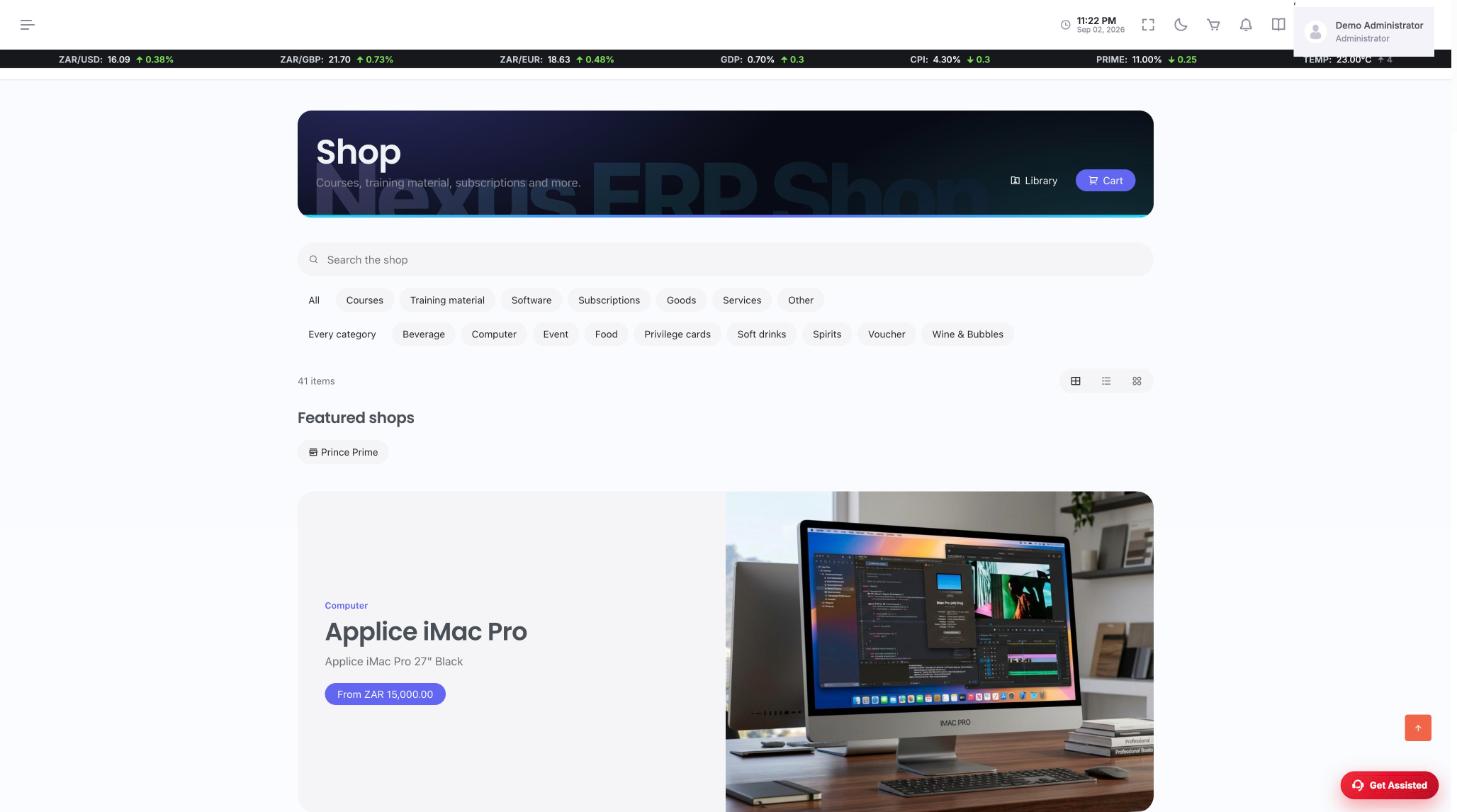
Browse the storefront. /Shop/Store/Index — courses, training material, goods and vouchers across featured shops.
↓
2
Cart and check out. Choose card or EFT: card continues to the secure gateway; EFT pops the banking details with a generated order reference to pay against.
↓
3
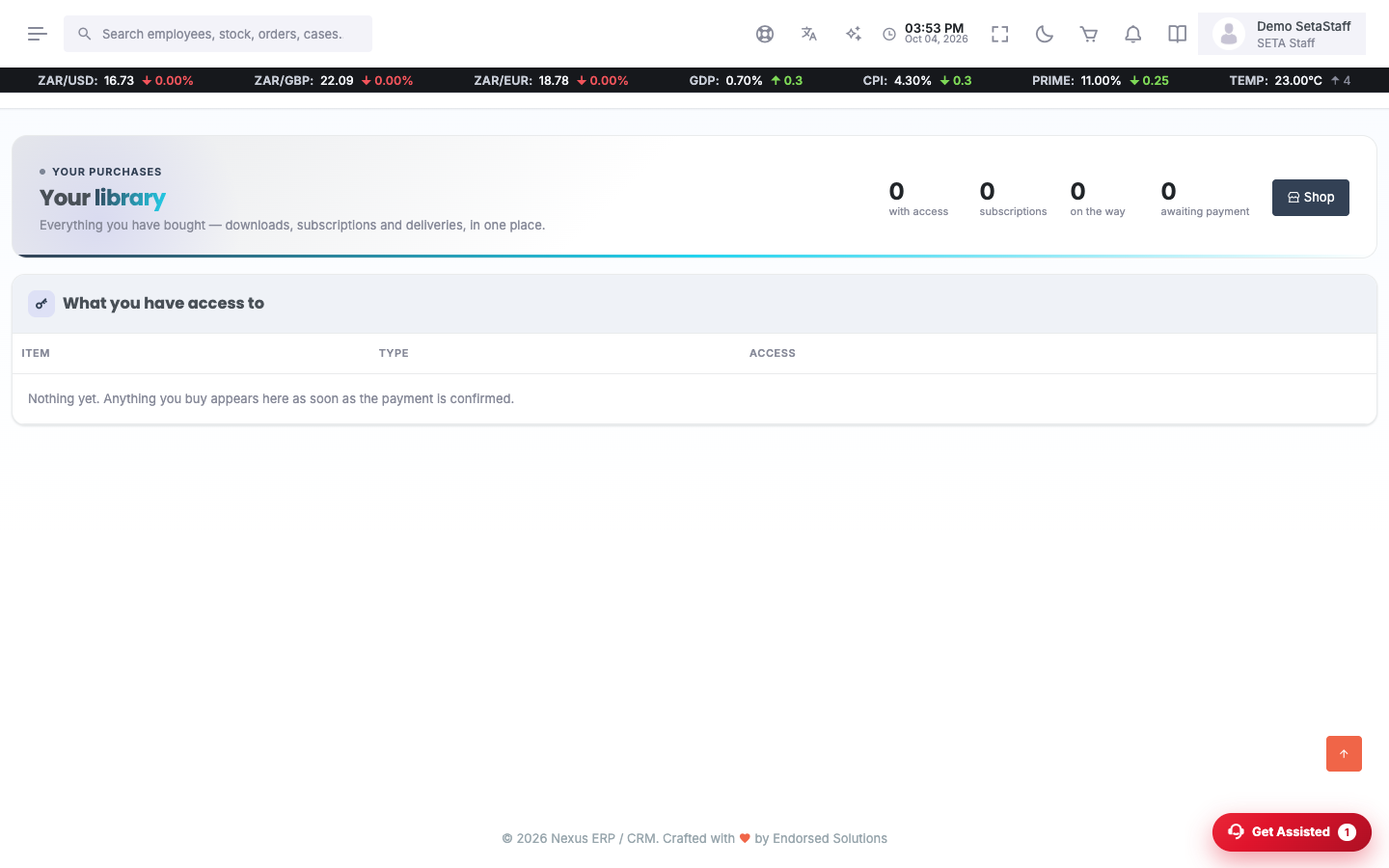
The order lands in your library. /Shop/Store/Library — paid orders deliver; a failed or unpaid order shows Pay Now, and an EFT order waits with its reference until the transfer clears.
2. Merchant Settlement Process
A merchant from application to money in the bank.
1
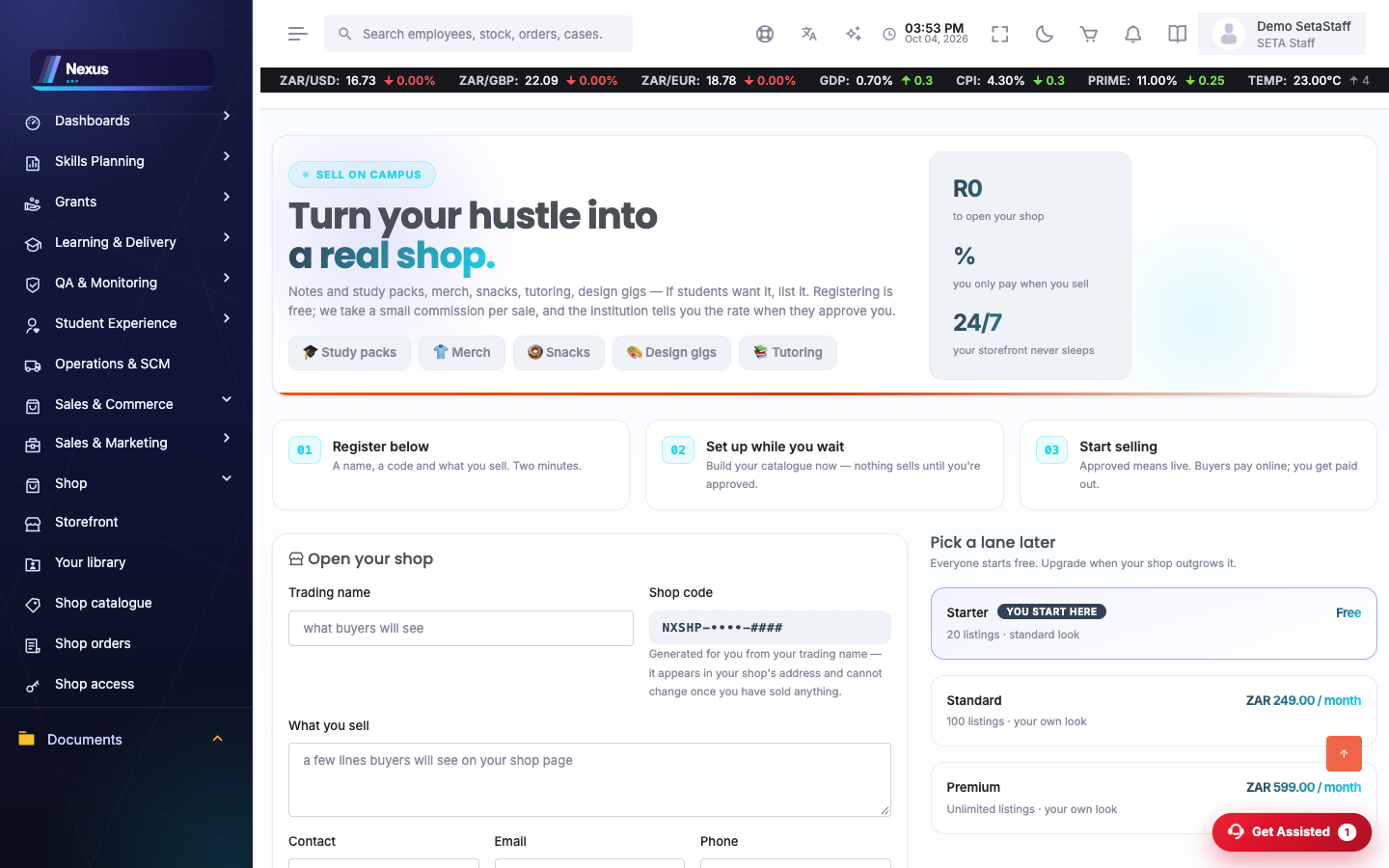
Apply to sell. /Shop/Merchants/Apply — the shop code is generated for you (NXSHP-…), unique by construction.
↓
2
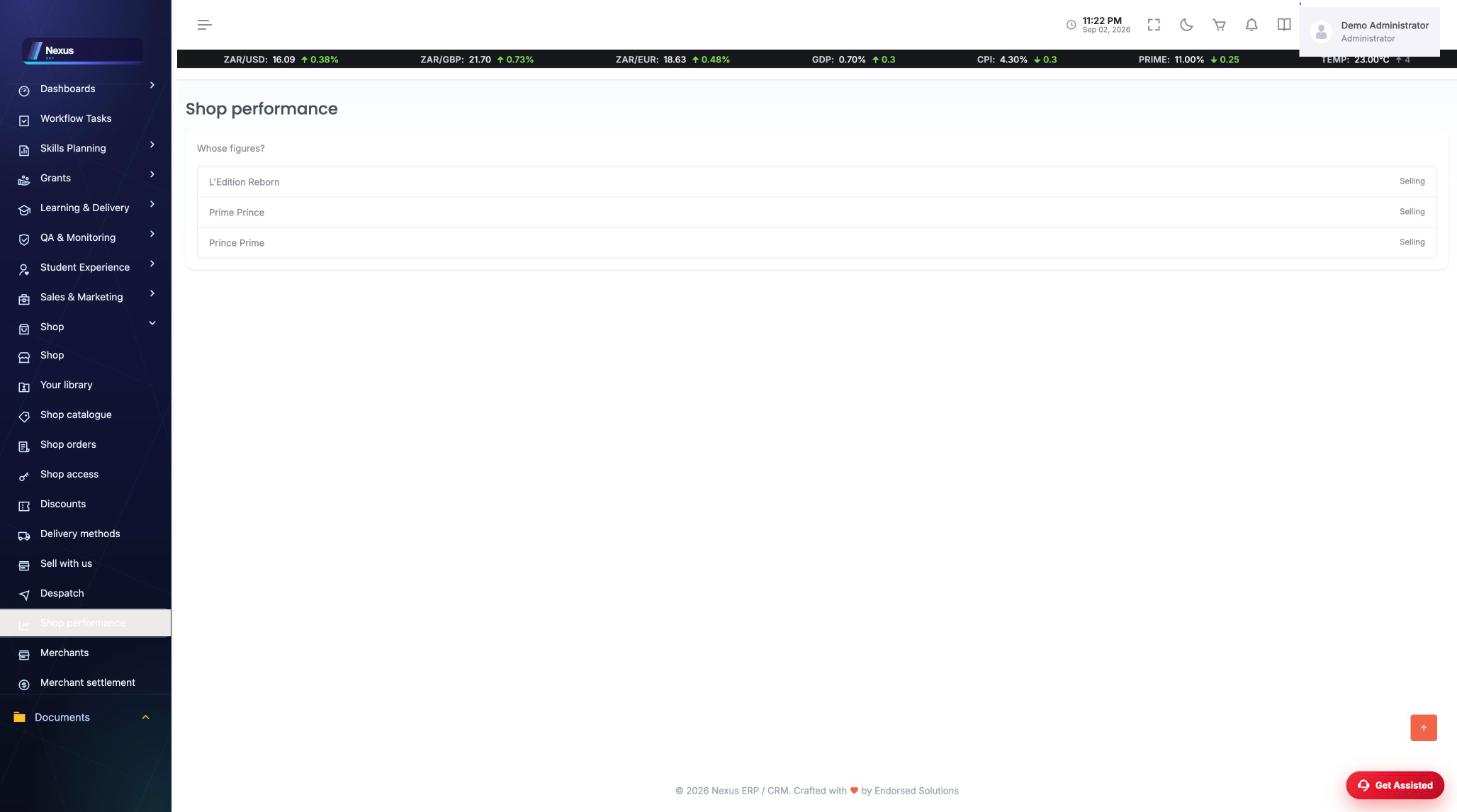
Sell, and watch performance. /Shop/Merchants/Dashboard — what sold, what sells, whose figures.
↓
3
Settle. The settlement screen shows what the platform owes the merchant and pays it out against the statement.
Screen-by-screen
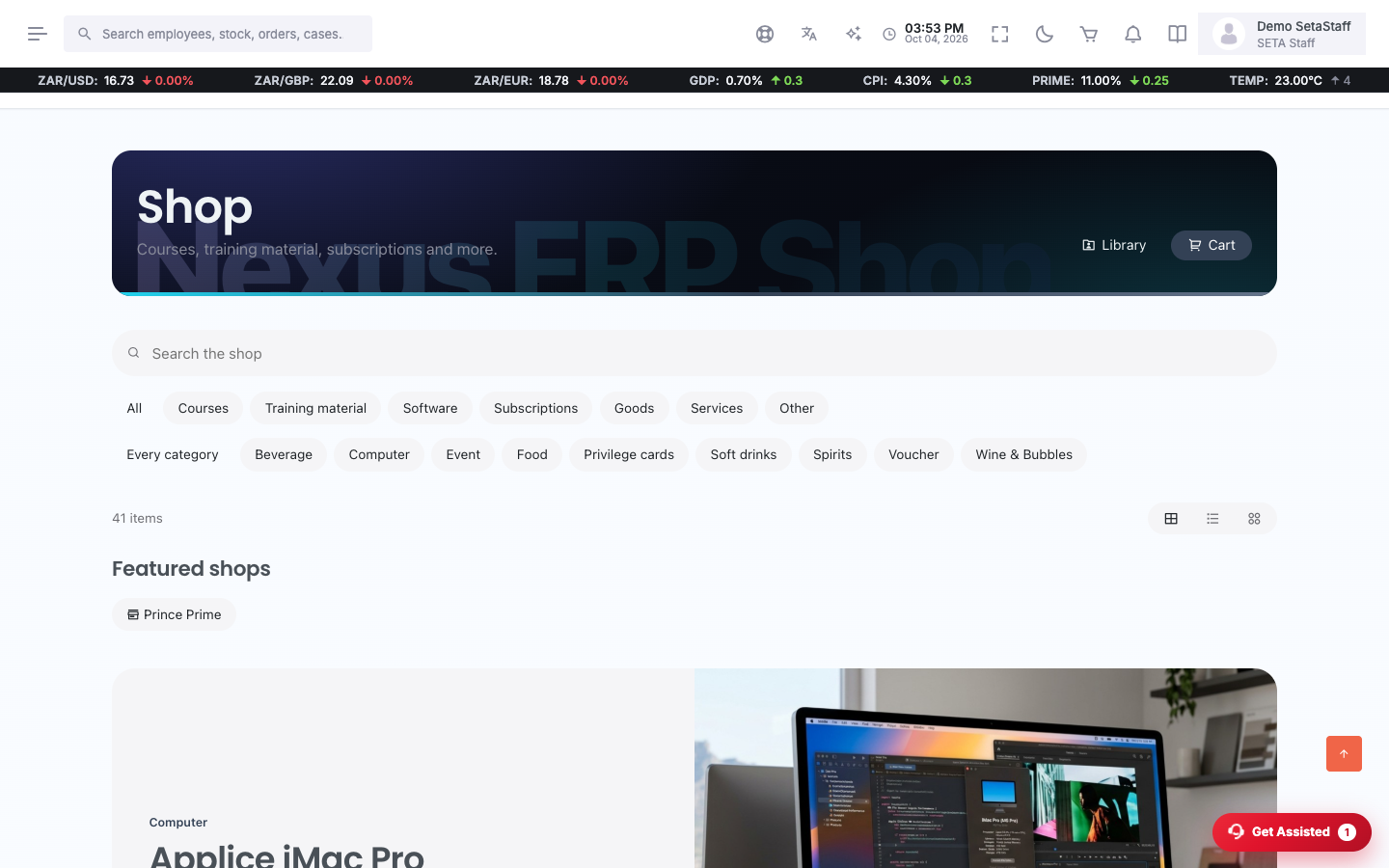
Storefront
/Shop/Store/Index- Browse products or a merchant's shop.
- Add to cart, choose delivery where applicable, check out.
My library
/Shop/Store/LibraryEverything bought: downloads, passes and order history.
- Open an item to use or download it.
- Failed or unpaid orders show a Pay Now button — choose Card or EFT.
- EFT shows the banking details and your order reference; the order waits for your transfer.
Tip. Card details are never entered in Nexus — the card option continues to the secure payment page.
Merchant application
/Shop/Merchants/Apply- Enter your trading name — the shop code previews as NXSHP-<name>-<number> and is generated for you.
- Pick a package and submit.
- An administrator approves and your shop goes live.
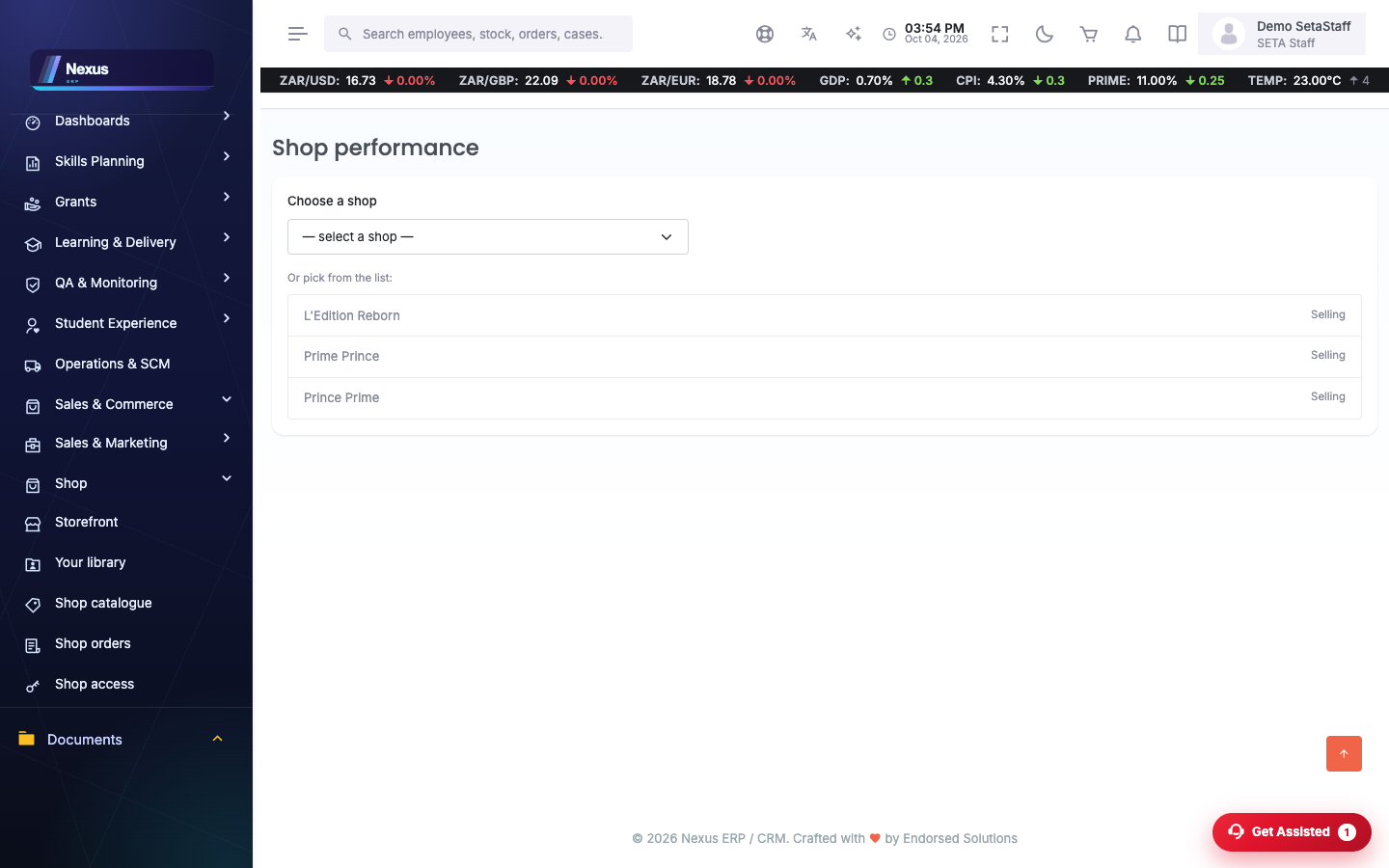
Merchant dashboard
/Shop/Merchants/Dashboard- Track what you sold and what sells.
- Manage your shop from the quick links.
- Settlements shows what is owed to you and payouts made.
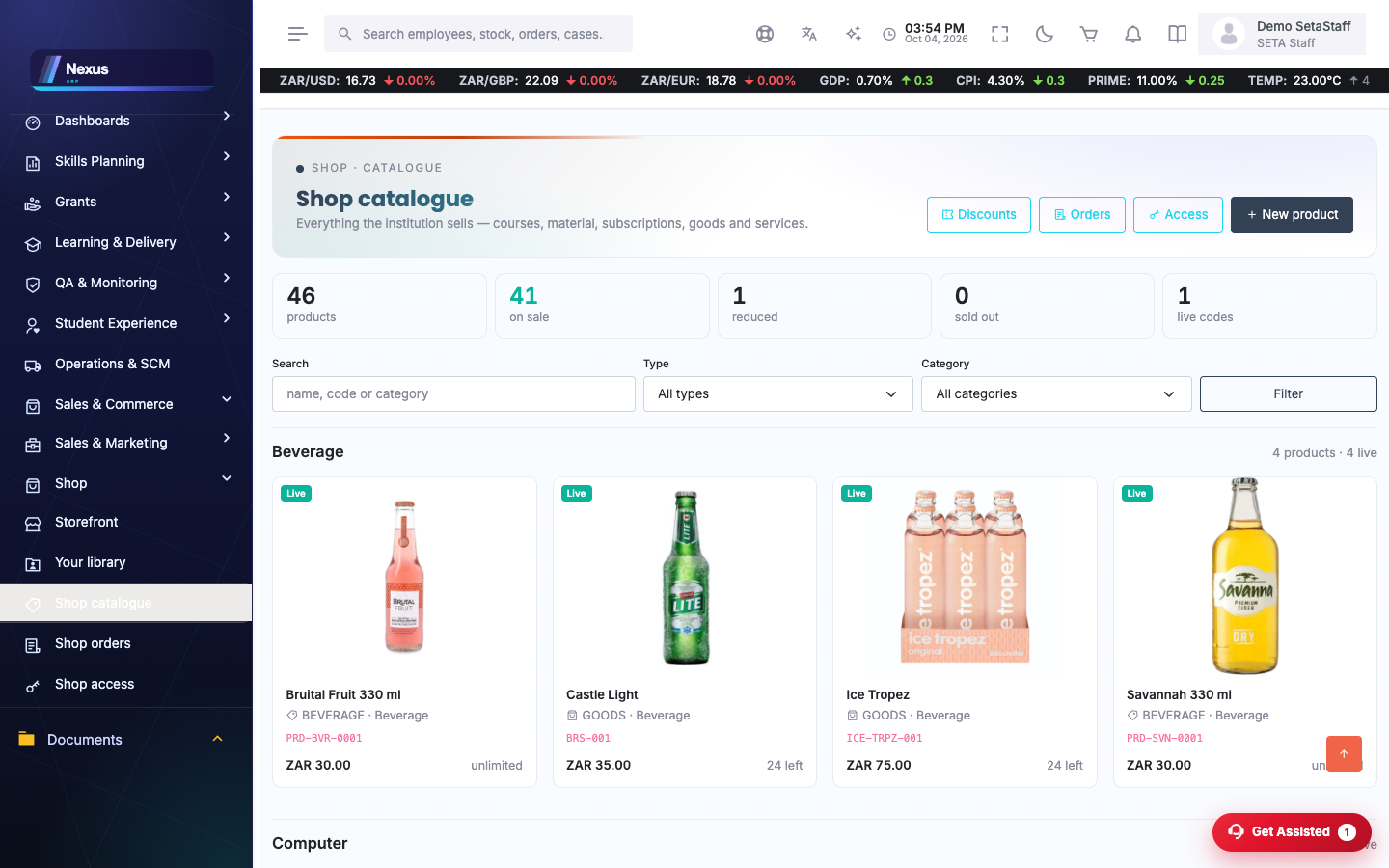
Shop administration
/Shop/ShopAdmin/Index- Maintain the catalogue: products, types, images (AI-generated or uploaded), pricing and delivery.
- Orders, shipments, discounts and access entitlements each have their own screen.
FAQ & troubleshooting
The EFT hasn't reflected — where is my order?
It stays 'awaiting your transfer' until the payment is matched to your reference. Reopen the banking details from the Library at any time.
Can I choose my own shop code?
No — codes are system-generated in the NXSHP format so every shop is uniquely and consistently identified.