Nexus ERP · User Guide
SSP — Skills Planning (WSP / ATR)
Workplace Skills Plans and Annual Training Reports: SDF registration and appointment, WSP/ATR capture or Excel import, provincial and training-committee detail, compliance checks and correspondence.
Skills Development FacilitatorsEmployersSETA staff
Demo sign-ins: demo.sdf, demo.employer, demo.staff — shared password Demo@2026
How it flows
The WSP/ATR cycle
EmployerAppoint an SDFSDF profile + appointment docs
→
EmployerOpen the WSP/ATR for the yearCapture or import from Excel
→
EmployerComplete profiles & committeesProvincial, secondary lists
→
Staff / SETACompliance reviewCorrespondence on queries
→
Staff / SETAAccept the submissionFeeds levies & grants
Staff / SETAEmployer
1. WSP/ATR Submission Process
The WSP year: an SDF, a plan, a submission, an approval — and the follow-up that keeps it honest.
1
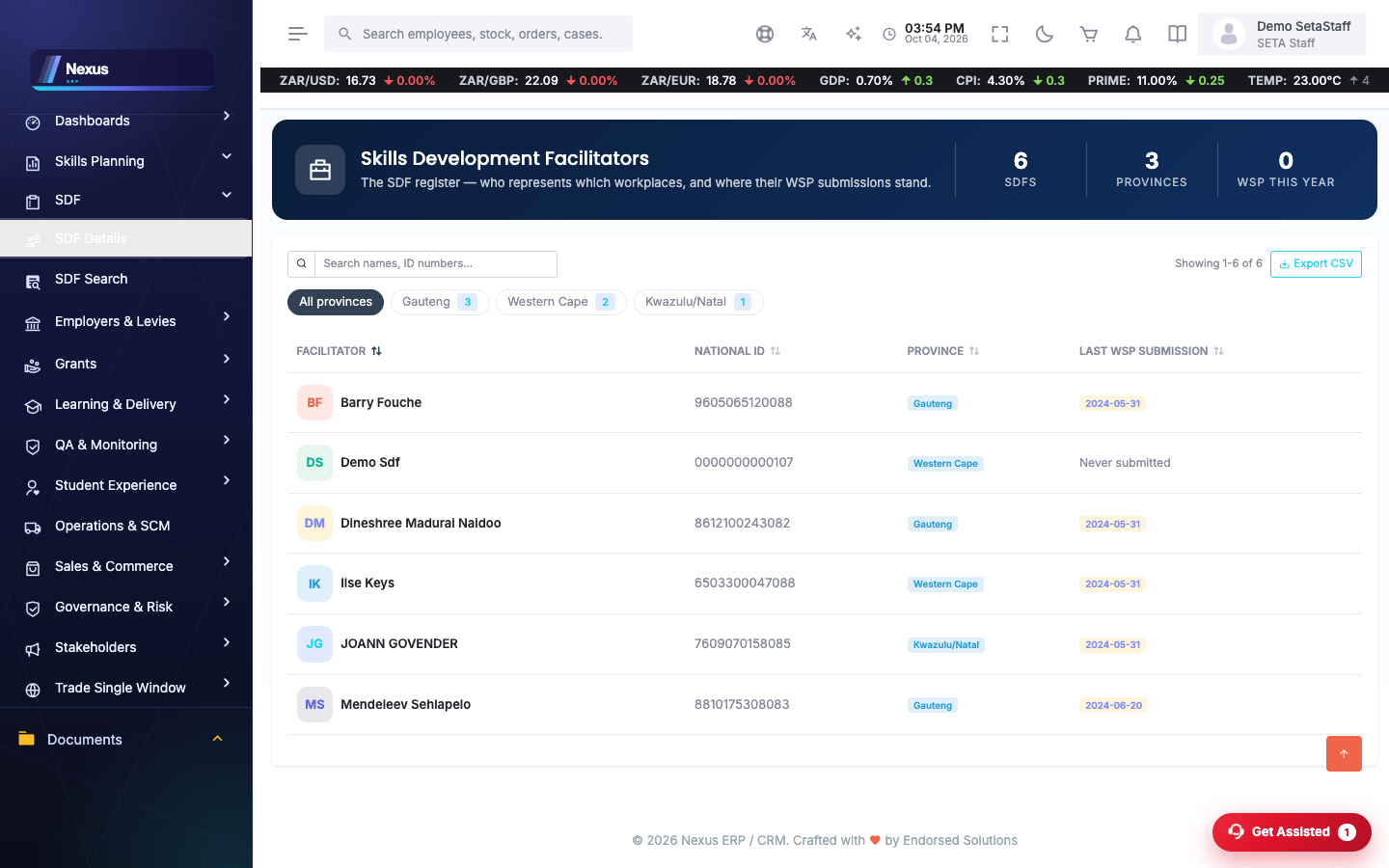
The SDF registers. /SSP/SDF/SkillsDevelopmentFacilitatorOverview — the facilitator who will submit for the employer.
↓
2
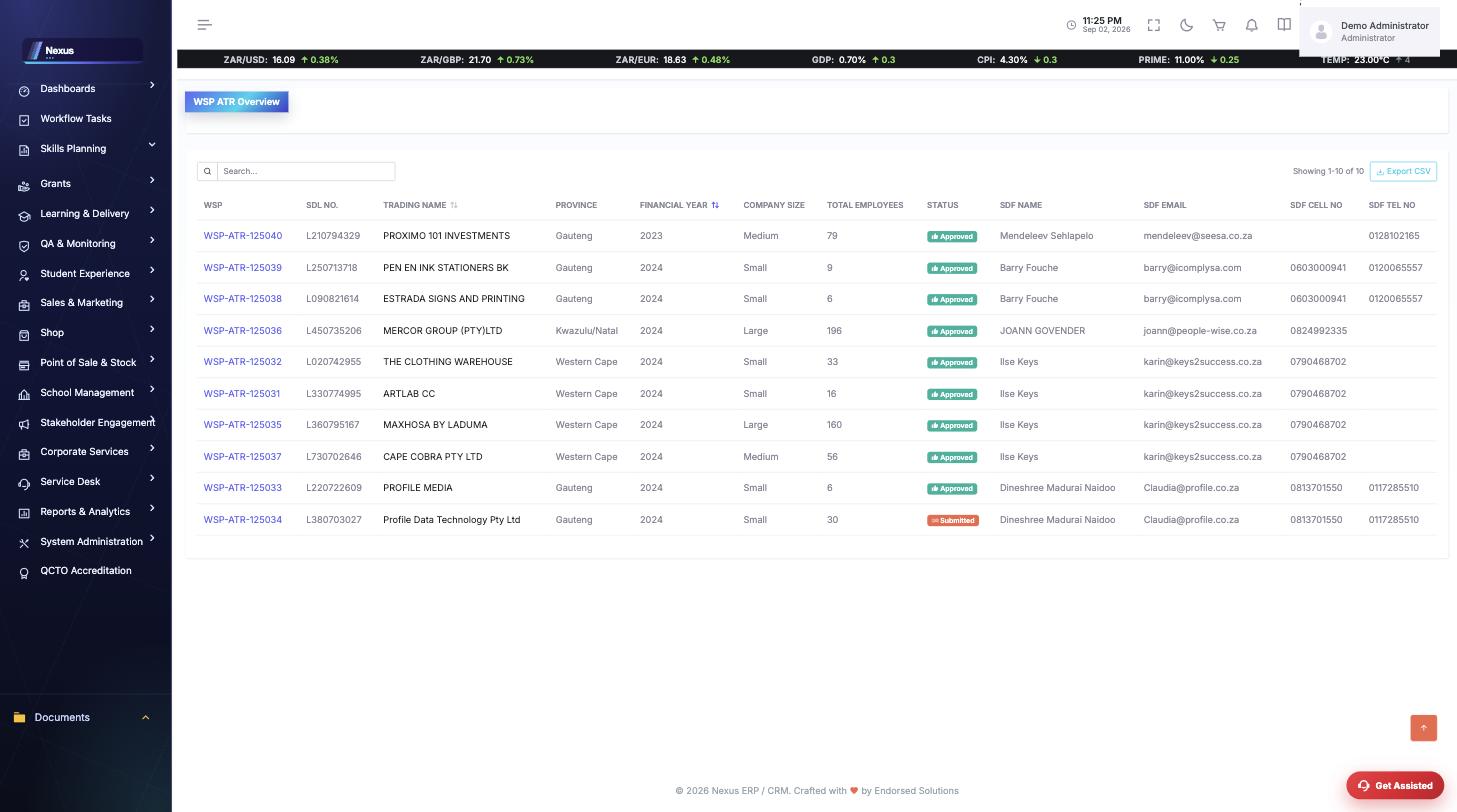
Capture or import the WSP/ATR. /SSP/WSPATR/WSPATROverview — captured on screen or imported from Excel with row-level validation, so one bad row does not sink the file.
↓
3
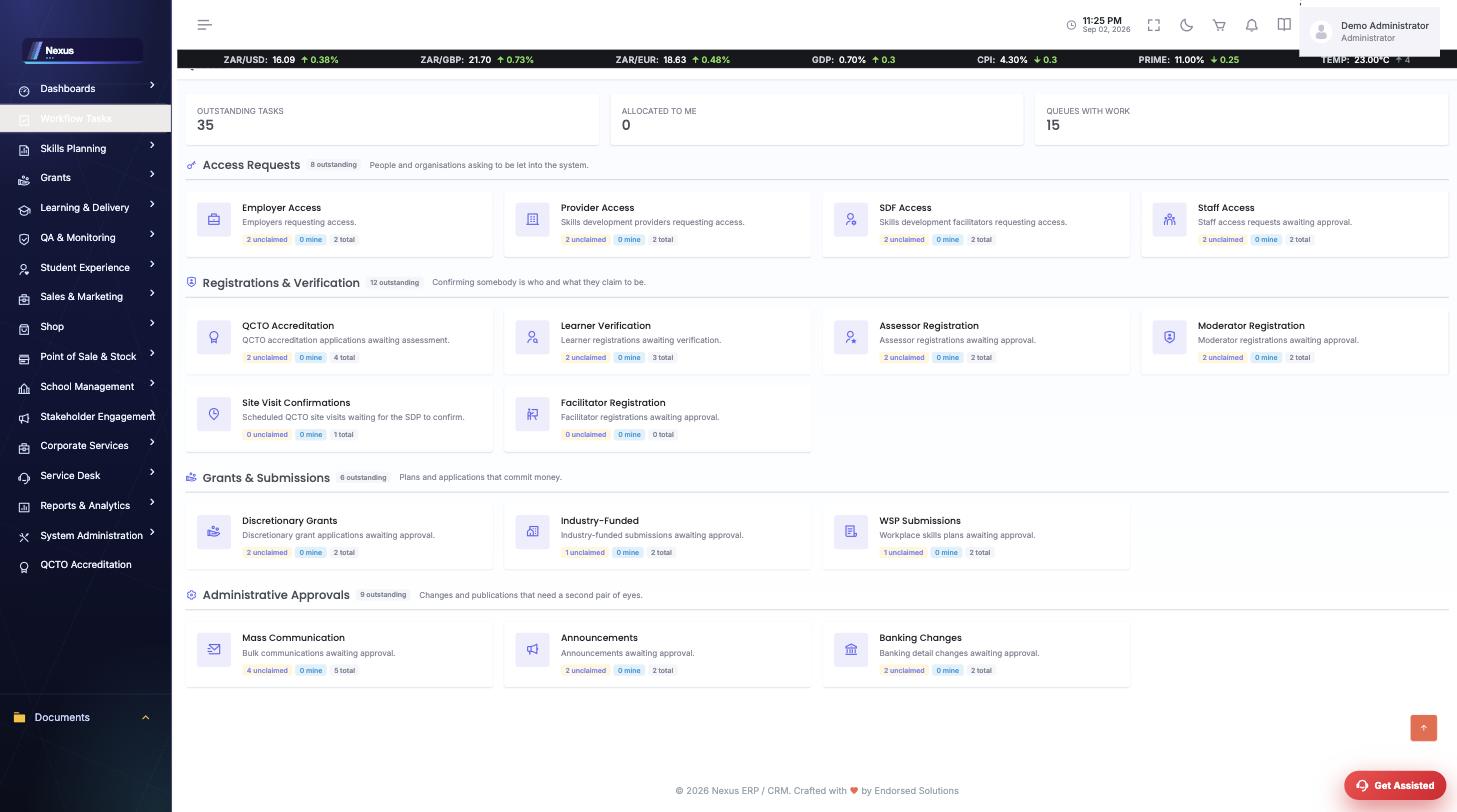
Submit. The submission locks the plan and sends it into the WSP Submissions workflow queue.
↓
4
Approved — then compliance follows up. /SSP/Compliance/Index — the correspondence cycle chases what the approval committed the employer to.
Screen-by-screen
SDF register
/SSP/SDF/SkillsDevelopmentFacilitatorOverview- Register a new SDF profile or open an existing one.
- Attach the appointment/application documents.
- Link the SDF to the employers they act for.
WSP / ATR
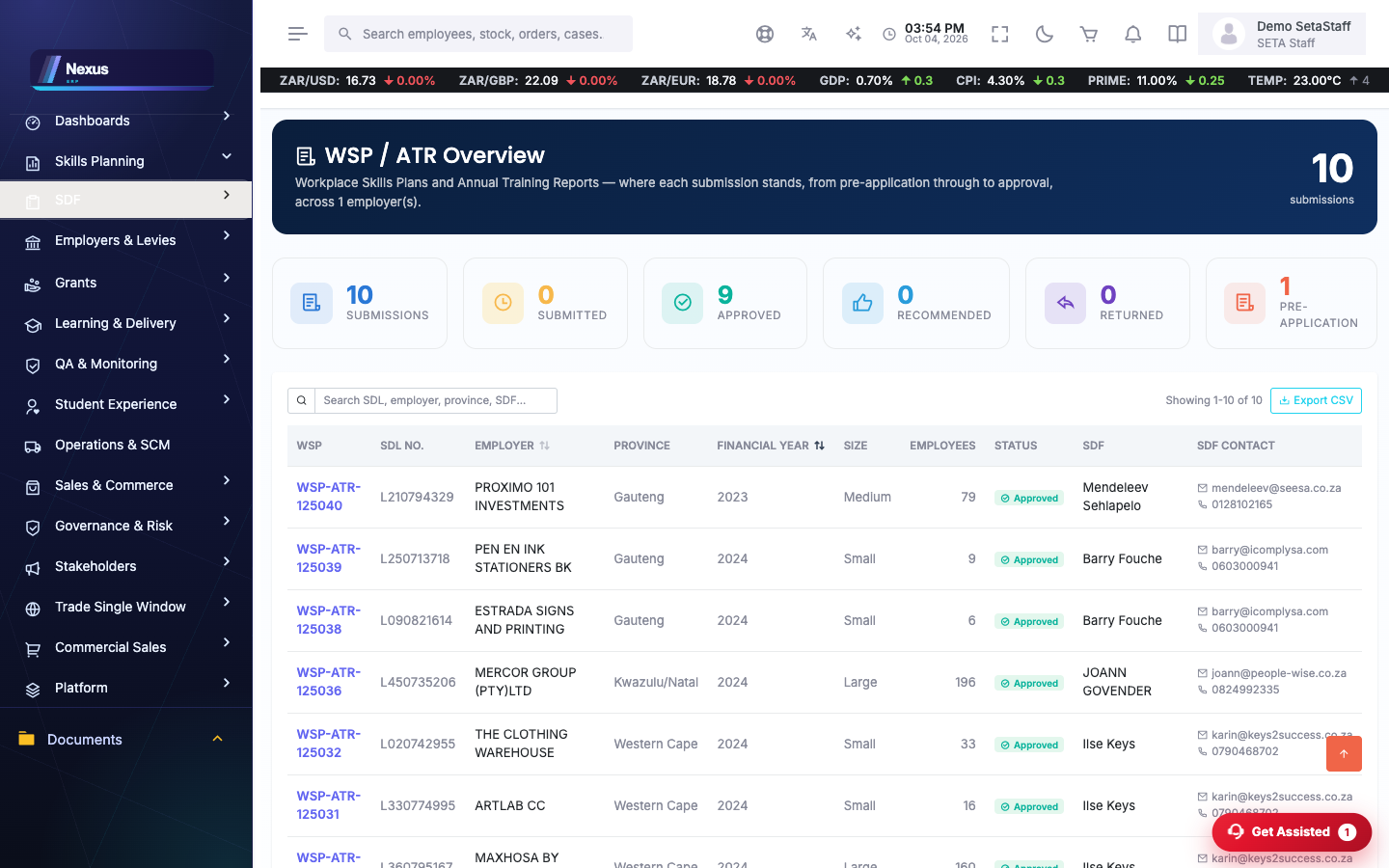
/SSP/WSPATR/WSPATROverview- Open the current year's submission or start a new one.
- Capture sections on-screen, or import the completed Excel template.
- Work through provincial profiles, secondary lists and the training committee.
- Submit for the SETA's compliance review.
Tip. The Excel import validates row by row and reports exactly which rows failed and why.
Compliance & correspondence
/SSP/Compliance/Index- Staff run the compliance checks on submissions.
- Queries go out and answers come back through WSP correspondence.

FAQ & troubleshooting
My import reported errors — is anything saved?
Failed rows are reported with their row numbers; fix the sheet and re-import. Valid data is not silently mixed with broken rows.