Commercial Sales
From a priced quote to money in the bank: quotes with configurable options (CPQ), sales orders, customer invoices, recurring billing, and the pricing catalogue behind it all.
🗺The quote-to-cash journey
One pipeline, four stages. Colours mark who acts: navy = your staff, orange = the system.
📝Quotes
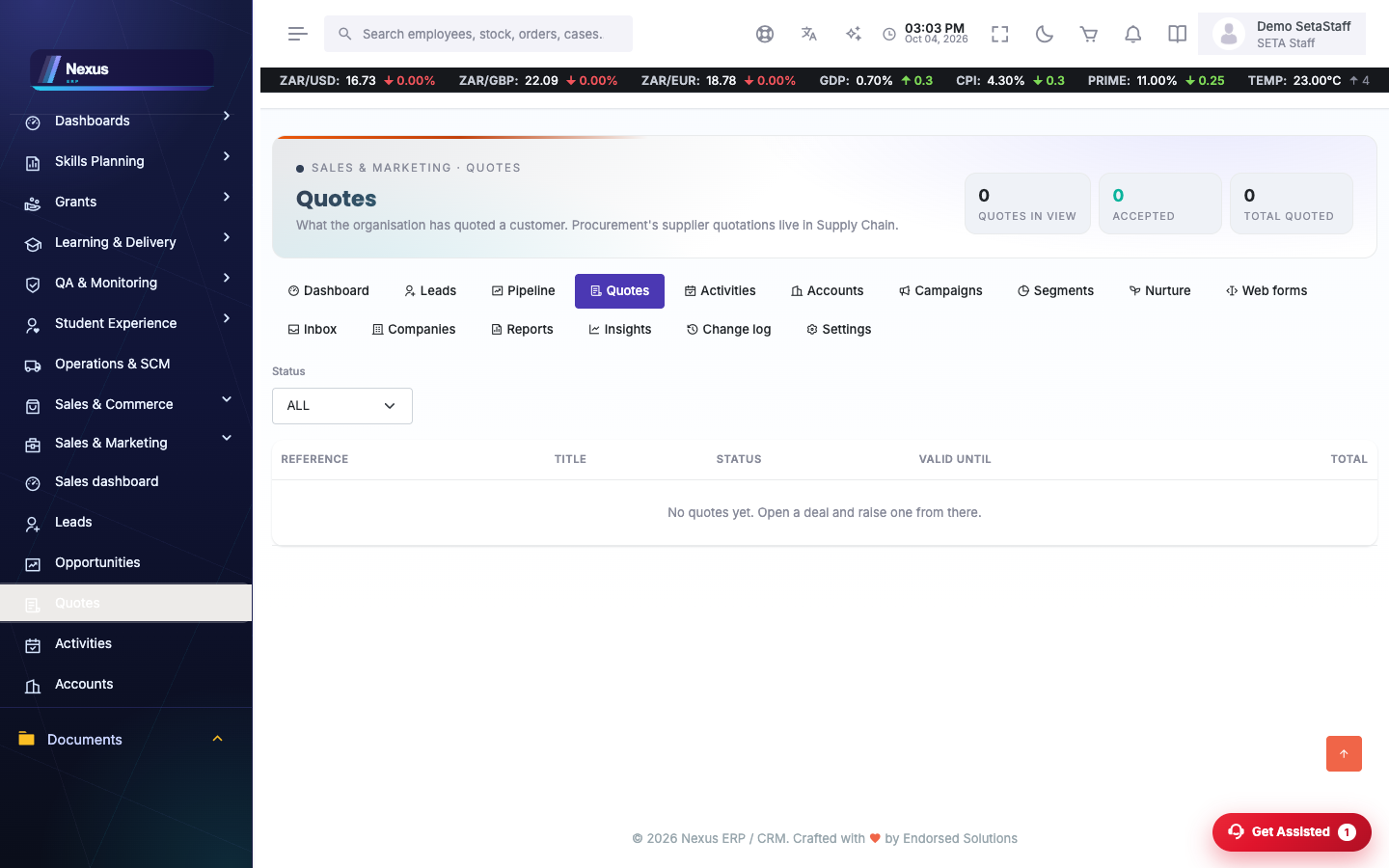
The quote register /SalesMarketing/Quotes/Index
Every quote with its status (draft, accepted, declined). Use the status filter at the top to see just one slice.
- Open Sales & Marketing → Quotes.
- Click a quote number to open its detail page.
Build the quote /SalesMarketing/Quotes/Detail
- On the quote detail, type a description, quantity and unit price, then add the line. A discount percentage is optional.
- To add a configurable product, pick an option group (set up under Pricing, below), tick the options the customer wants, set the quantity and add them. Each option lands as a priced line.
- Repeat until the quote totals look right — the page recalculates as you go.
Decide, revise, convert
- When the customer responds, record the decision: Accept or Decline (a decline asks for a short reason).
- Need to change a quote that has already gone out? Click Revise — the system copies it to a new revision and leaves the old one for the record.
- On an accepted quote, click Convert to order. A sales order is created from the quote lines and you are taken to it.
📦Sales orders
The order book /Finance/Sales/Orders
Orders created from quotes (or captured directly) wait here until they are confirmed, delivered and invoiced. Filter by status to see what still needs attention.
- Open Finance → Sales → Orders and click an order to open it.
- Check the lines and the customer, then click Confirm. A confirmed order is a commitment to deliver.
- If the deal falls through, click Cancel and give a short reason instead.
Record the delivery /Finance/Sales/Order
- When the goods or work have been delivered, open the order.
- Click Record delivery, pick the delivery date and add a note if useful (who signed, waybill number).
- The order moves to delivered and is ready to invoice.
Raise the invoice
- On the delivered order, click Raise invoice.
- The system copies the order lines onto a new draft customer invoice and opens it for you.
🧾Customer invoices
The invoice register /Finance/Sales/Invoices
All customer invoices — draft, issued, paid and voided — in one list with totals and due dates.
Create a standalone invoice
For a sale that never had a quote or order — a once-off service, a sundry charge.
- On the register, click Create invoice. Pick the customer company (or just type a customer name) and set the due date.
- On the draft invoice, add lines: description, quantity, unit price.
- Check the totals, then click Issue. The invoice gets its number and is now owed.
Get it paid — or void it /Finance/Sales/Invoice
- When the money arrives, open the invoice and click Mark paid, entering the date it was paid.
- Issued in error? Click Void and give a reason. The invoice stays on record but no longer counts as owed.
🔁Recurring invoices
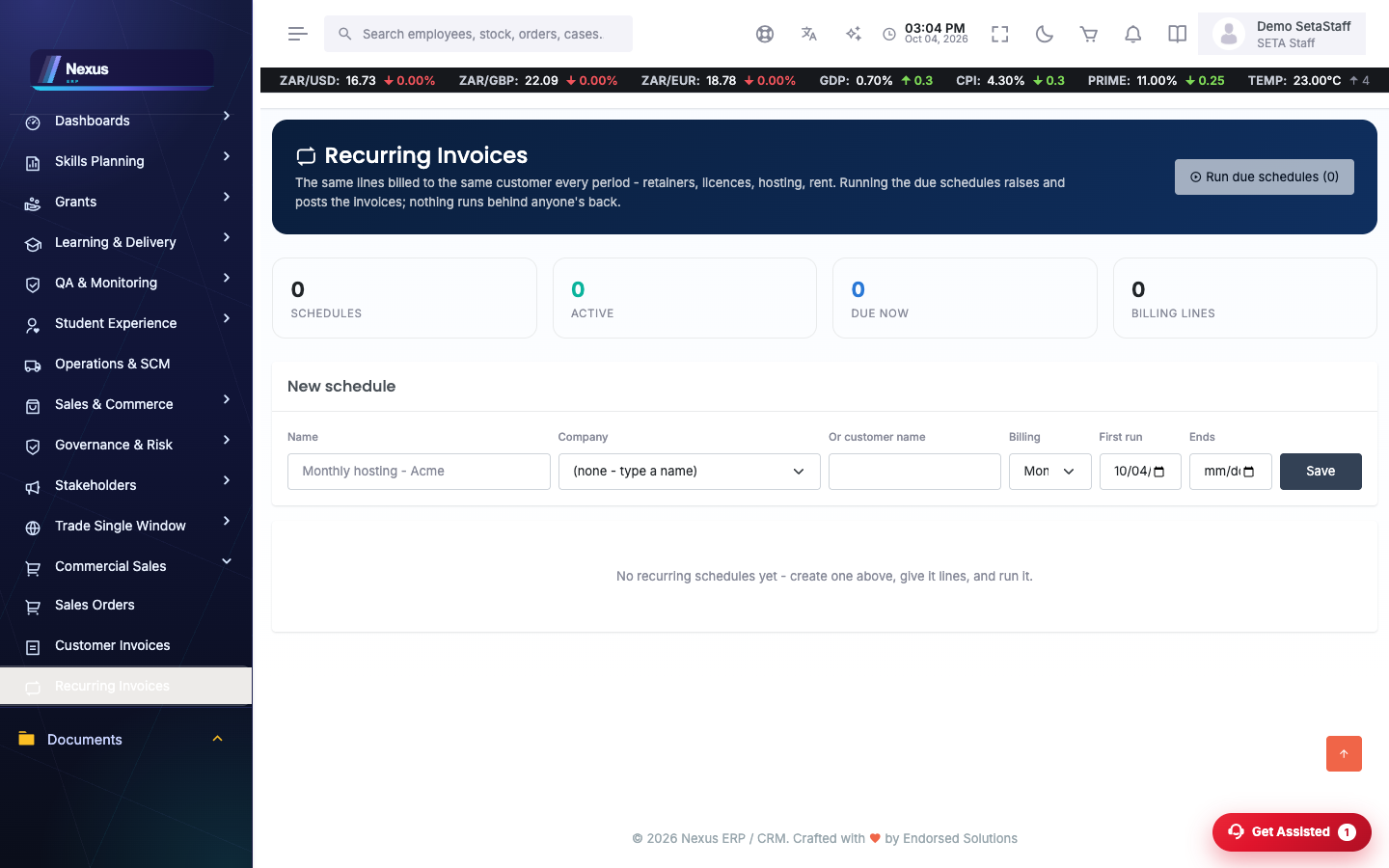
Schedules /Finance/Sales/Recurring
For anything billed on repeat — rent, retainers, subscriptions. You set the schedule once; the system generates the invoices.
- Open Finance → Sales → Recurring and click New schedule.
- Give it a customer, a frequency (for example monthly), a start date and a next-run date, then save.
- Add the lines the invoice should carry each time — description, quantity, unit price.
- Use the active toggle to pause a schedule (customer on hold) and later switch it back on.
Run what is due
- Click Run due at the top of the page.
- Every active schedule whose next-run date has arrived generates a draft invoice, and its next-run date rolls forward.
- Review the new drafts on the invoice register and issue them as usual.
💰CPQ pricing setup
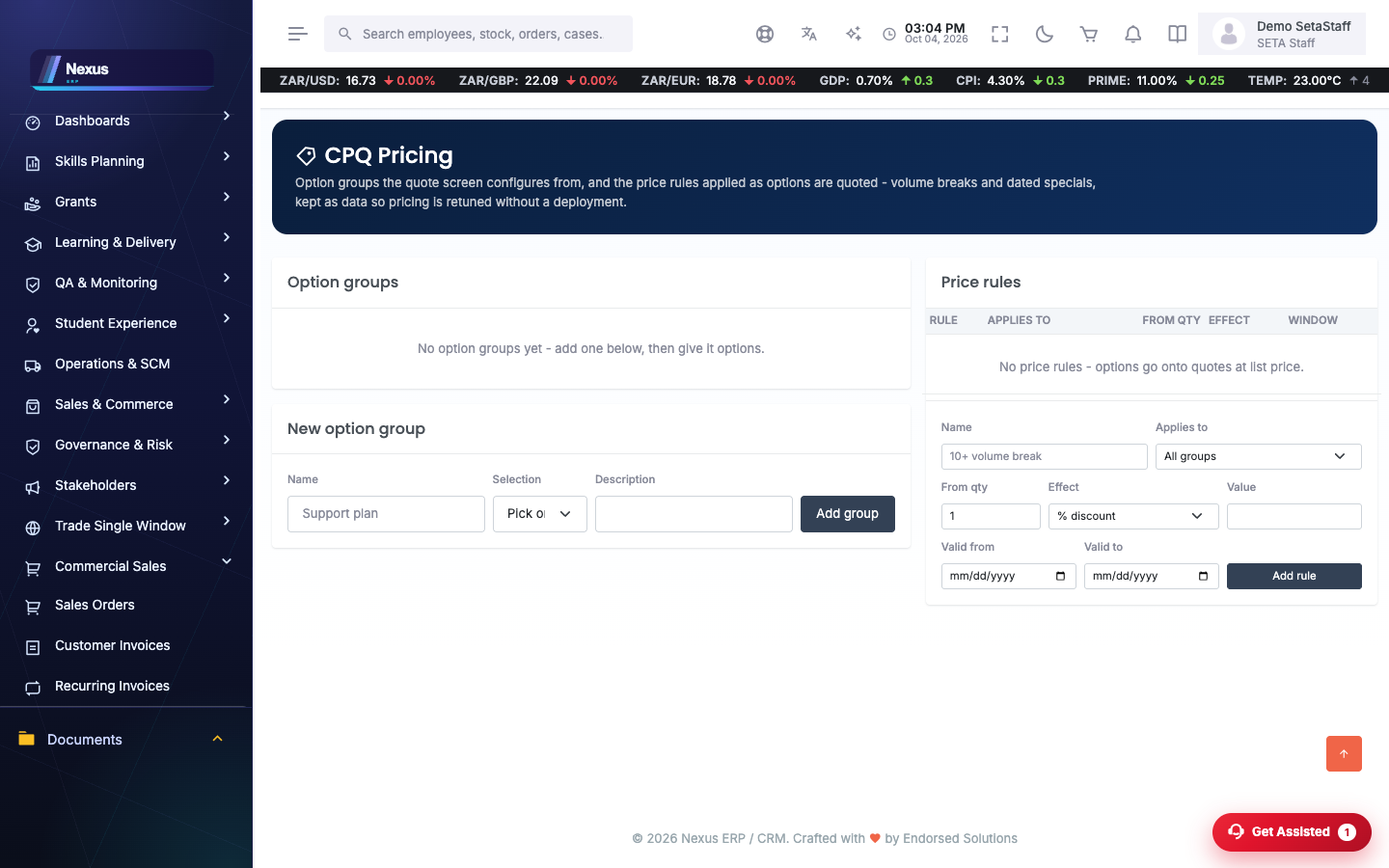
Option groups, options and price rules /Finance/Sales/Pricing
This is the catalogue the quote screen reads from. Set it up once; sales people then pick from it instead of typing prices by hand.
- Open Finance → Sales → Pricing.
- Create an option group — for example “Support plan” — and choose its selection mode (choose one, or choose many). Add a short description so sales staff know when to use it.
- Inside the group, add options: each has a name and a unit price (for example Bronze / Silver / Gold at their prices).
- Add price rules to give automatic discounts at volume: a rule names a minimum quantity and the discount that kicks in from there. Attach a rule to one group, or leave the group blank to apply it everywhere.
❓FAQ & troubleshooting
The Convert to order button is not doing anything.
The quote must be in accepted status first — record the customer's acceptance on the quote, then convert.
Can I invoice an order before it is delivered?
The normal flow is confirm → deliver → invoice. If you bill up front, create a standalone invoice from the invoice register instead.
I voided an invoice by mistake.
A void cannot be undone. Raise the invoice again (from the order, or standalone) — the voided one remains on record with your reason.
Run due created no invoices.
Check that the schedule is active and that its next-run date is today or earlier. A paused schedule never generates.