Discretionary Grants (DG)
The full grant cycle: an application window opens, organisations apply with evidence, staff verify and approve through workflow, and approved projects are funded, paid in tranches and monitored.
🗺From window to funded, monitored project
How the module fits together end to end. Colours mark who acts: navy = staff/admin, cyan = external user, green = organisation, orange = the system.
🧭1. Grant Application to Funded Project Process
A discretionary grant from the moment the window opens to a monitored, paying project.
📝Applications
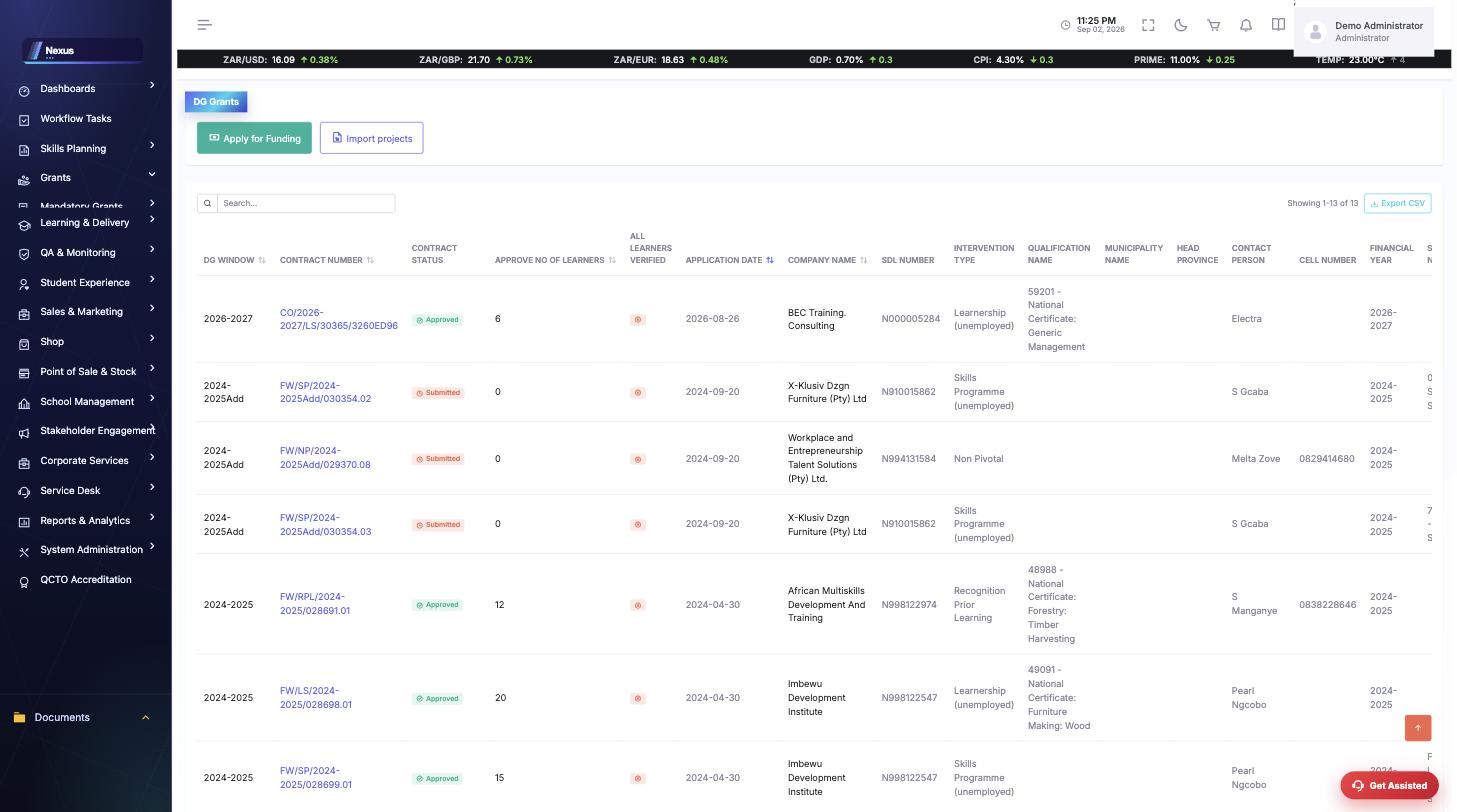
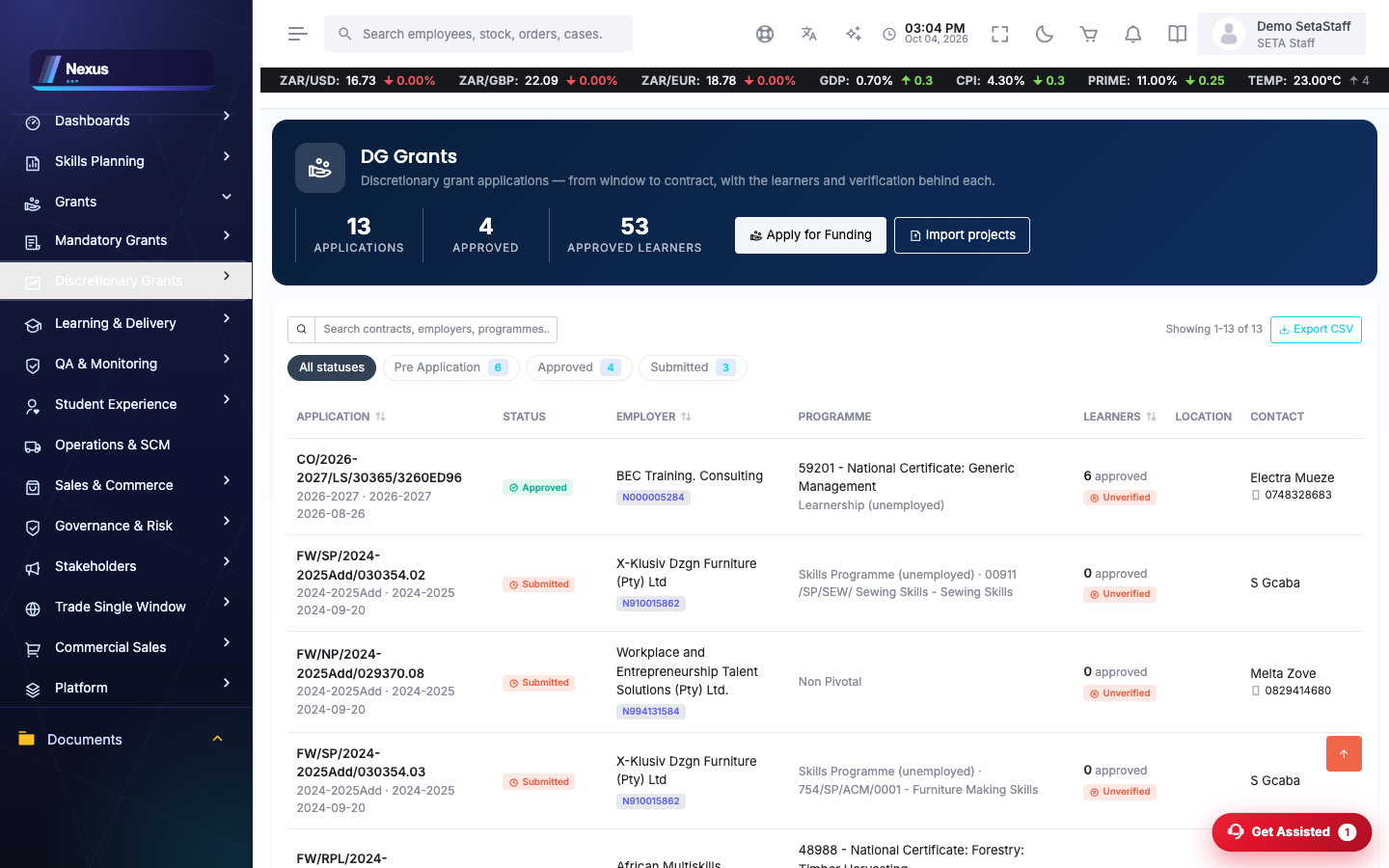
Funded Applications Overview /DG/FundedApplications/FundedApplicationsOverview
Every discretionary grant application and its status.
- Filter by window, status or organisation.
- Open an application to its profile.
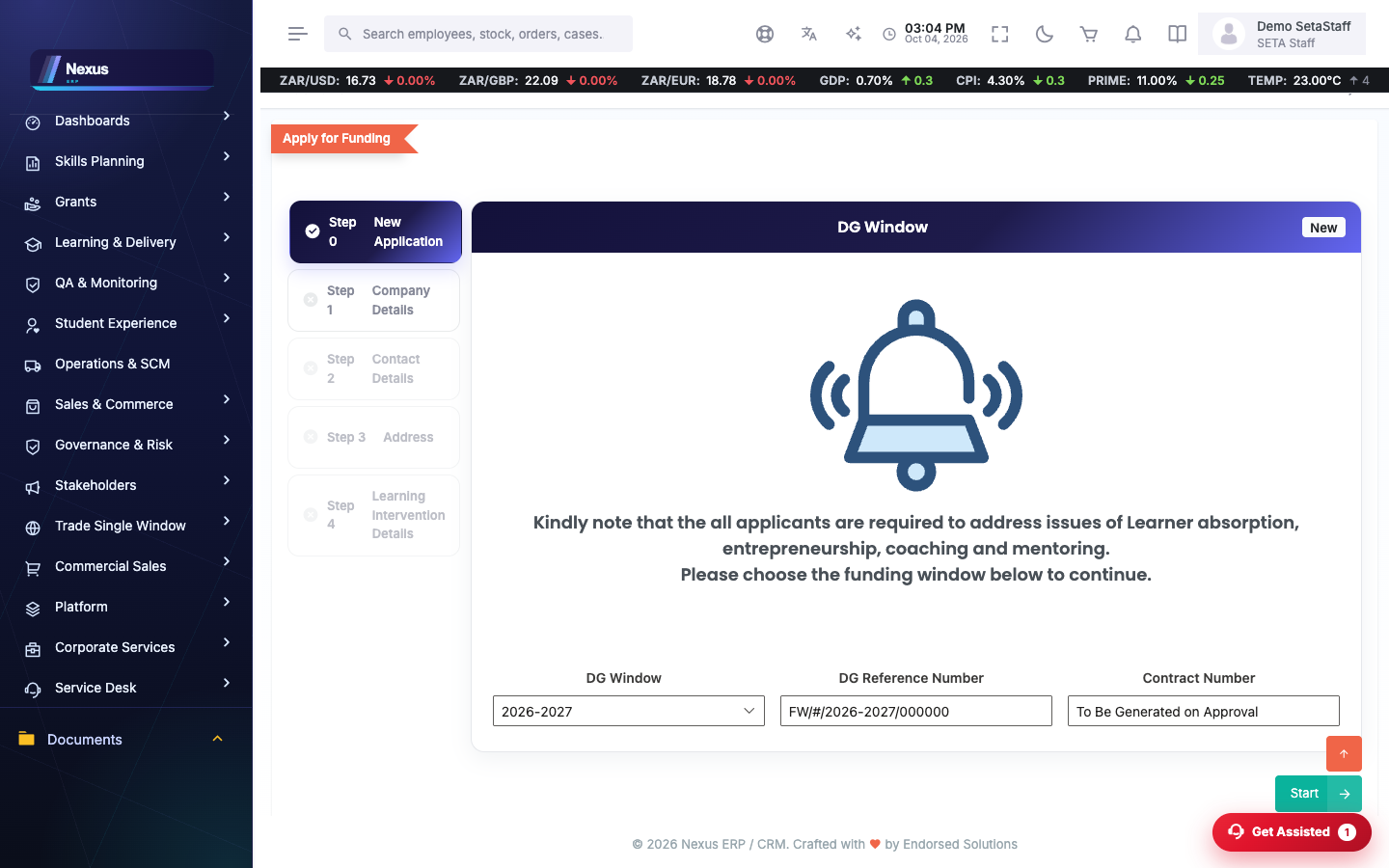
New Funded Application /DG/FundedApplications/NewFundedApplication
The application wizard: organisation, intervention, learner numbers, budget, supporting documents.
- Choose the intervention type and window.
- Capture employed/unemployed learner numbers and the budget.
- Upload the required supporting documents.
- Submit for verification.
Application Profile /DG/FundedApplications/FundedApplicationProfile
One application end to end: details, documents, evaluation trail, commitment schedule.
✅Approval and funding
Approval (Workflows) /Workflows/WorkflowQueues
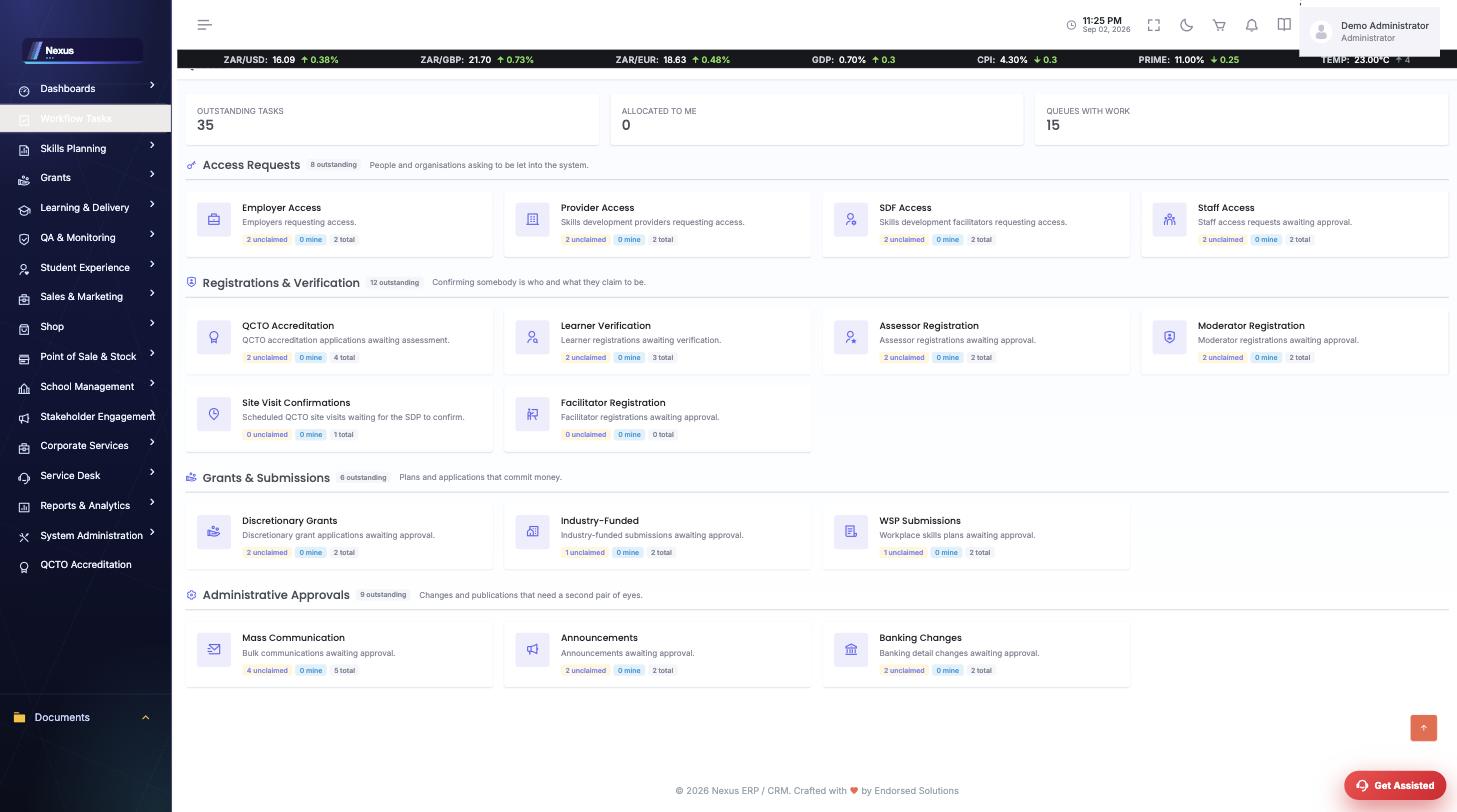
Submitted applications route through the workflow queues for verification and approval; the decision and reasons are recorded on the application.
Funded projects & payments /Finance/FundingMonitoring/Projects
Approved applications become funded projects: learners are attached, milestones tracked and tranche payments made (/Finance/FundingMonitoring/Payments).
❓FAQ & troubleshooting
The New Application button refuses me.
Either no DG window is open, or your account is not linked to an organisation that may apply.
Where do I see why an application was declined?
On the application profile — the evaluation trail records each decision and its reason.
Who monitors delivery?
The MnE module schedules site visits against funded projects and captures monitoring reports.