Finance Depth
The deeper finance toolkit: the cash-flow statement, ledger dimensions for cost-centre reporting, multi-currency with live rates and revaluation, a group consolidation workbook, take-on imports from Pastel / Sage / Xero, and three AI finance agents.
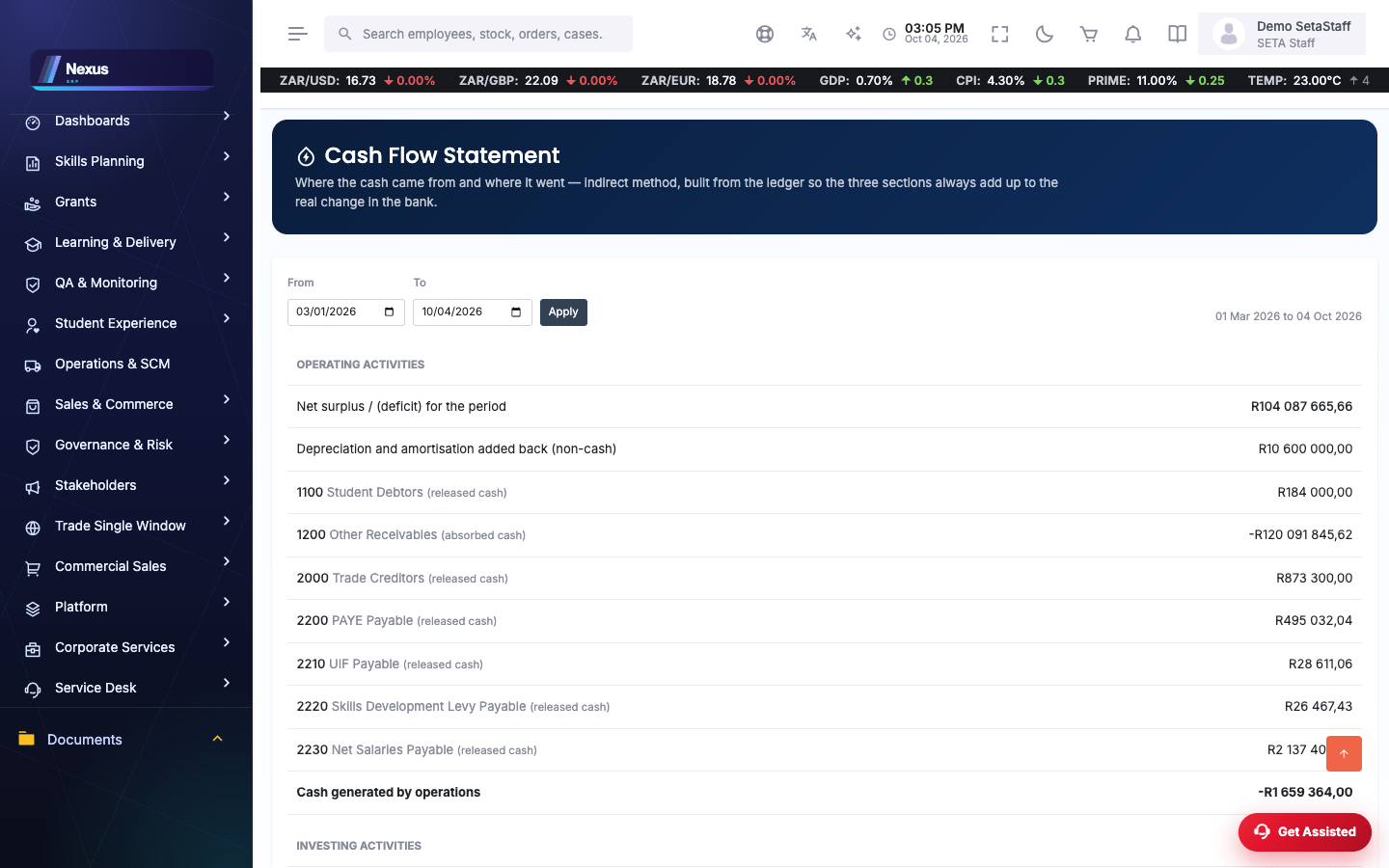
💹Cash-flow statement
Cash flow /Finance/Ledger/CashFlow
Where the money actually went: cash from operations, investing and financing for any period, built straight from the ledger.
- Open Finance → Ledger → Cash Flow.
- Pick the from and to dates and refresh. The statement rebuilds for that period.
- Read it alongside the Income Statement and Balance Sheet (on the same Ledger menu) — the three together tell the full story.
🏷️GL dimensions
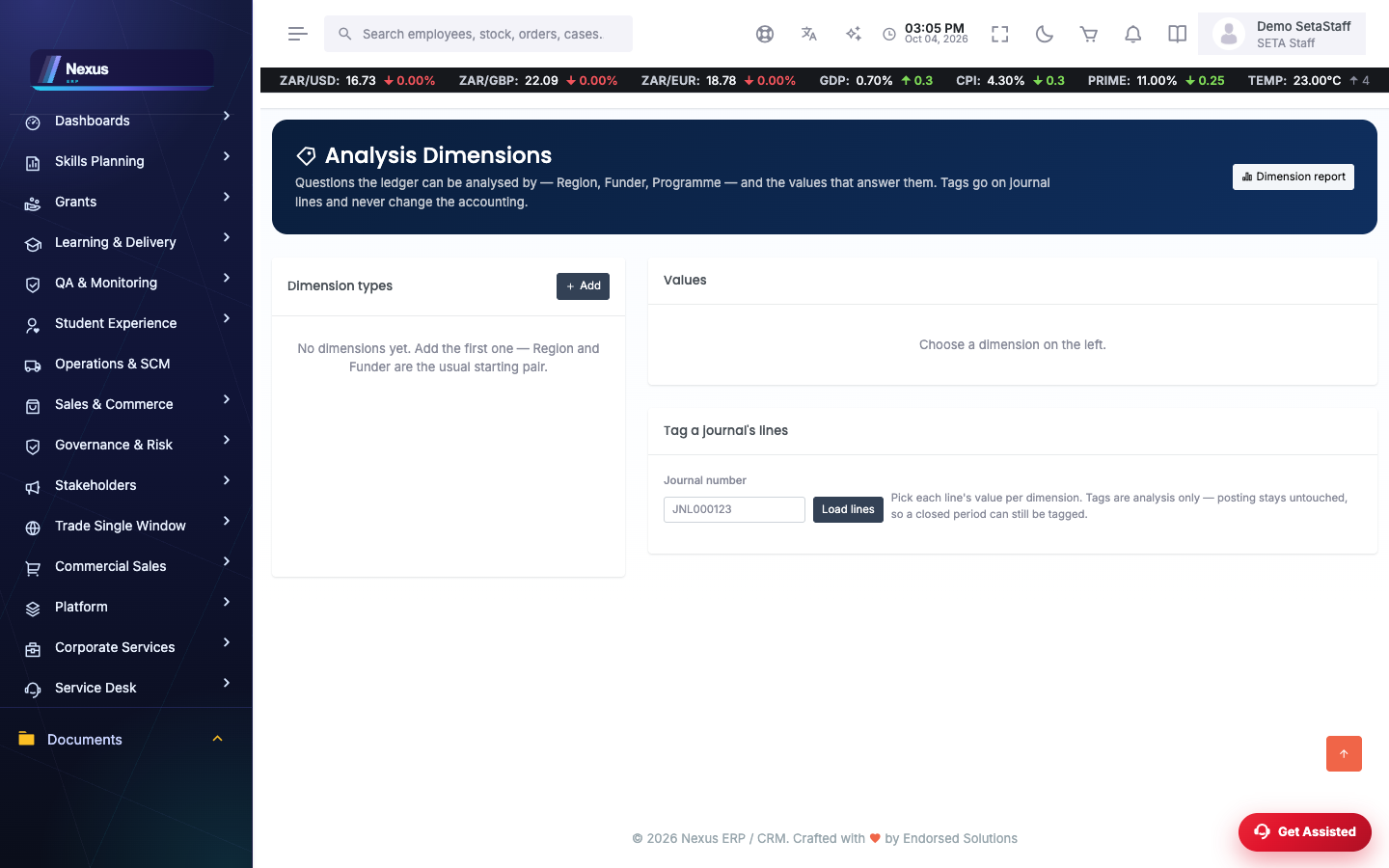
Dimensions tag journal lines with an extra label — a cost centre, a project, a branch — so you can report by that label without adding accounts to the chart.
Set up dimensions /Finance/Dimension/DimensionsOverview
- Open Finance → Dimensions.
- Add a dimension type — for example “Cost centre” or “Project”.
- Under the type, add its values — the actual cost centres or projects, each with a code and a name.
Tag journal lines
- Still on the overview, type a journal number in the tagging box to pull up its lines.
- On each line, pick the dimension value it belongs to and save the tag.
Report by dimension /Finance/Dimension/DimensionReport
- Open the report, choose a dimension type (and optionally one value) and a date range.
- The report totals every tagged journal line for that slice — your spend per cost centre or project.
💱Currencies & foreign exchange
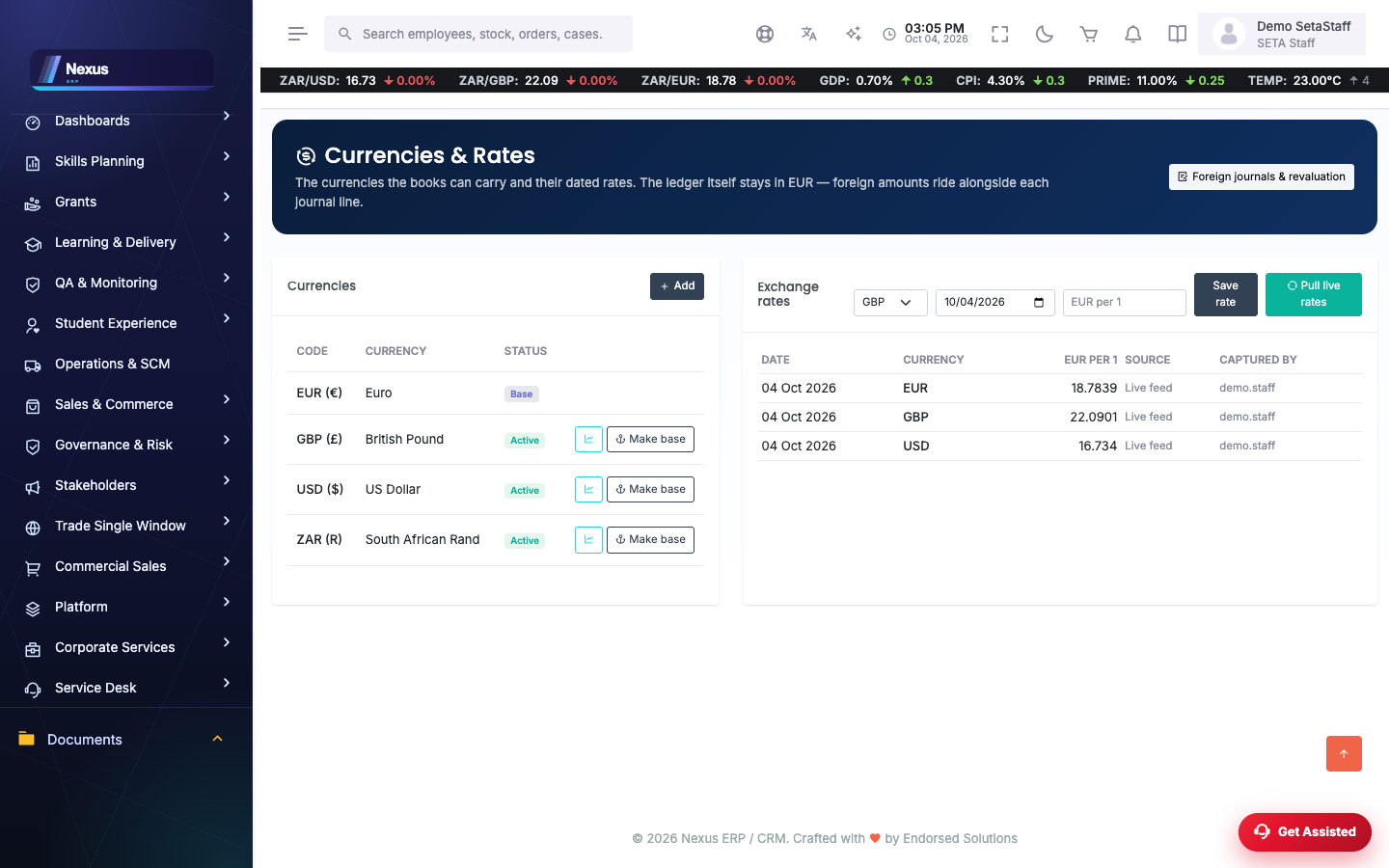
Currencies /Finance/Currency/CurrenciesOverview
- Open Finance → Currencies.
- Click Add currency and capture its code (USD, EUR …), name and symbol.
- Capture an exchange rate by hand: pick the currency, the date and the rate, and save. Rates build up a dated history.
- Or click Pull live rates — the system fetches today's rates for all your currencies in one go.
Change the base currency /Finance/Currency/CurrenciesOverview
- On the Currencies screen, find the currency you want the ledger kept in.
- Click Make base on its row and confirm. There is always exactly one base — the old one is demoted in the same save.
- Every money figure across the system switches to the new symbol on the next page draw — no restart needed.
Foreign-currency journals /Finance/Currency/ForeignJournals
- Open Foreign journals and start a new journal.
- Capture the amount in the foreign currency; the system looks up the rate for the journal date and books the local-currency value to the ledger.
- The register shows both amounts side by side, with the rate used.
Exposure & revaluation /Finance/Currency/Exposure
- Open Exposure and pick an “as at” date. The screen shows what your foreign balances are worth at today's rate versus the rate they were booked at.
- If the difference matters, click Post revaluation. The system posts the unrealised gain or loss to the ledger at that date.
🏢Consolidation workbook
Workbook /Finance/Consolidation/Workbook
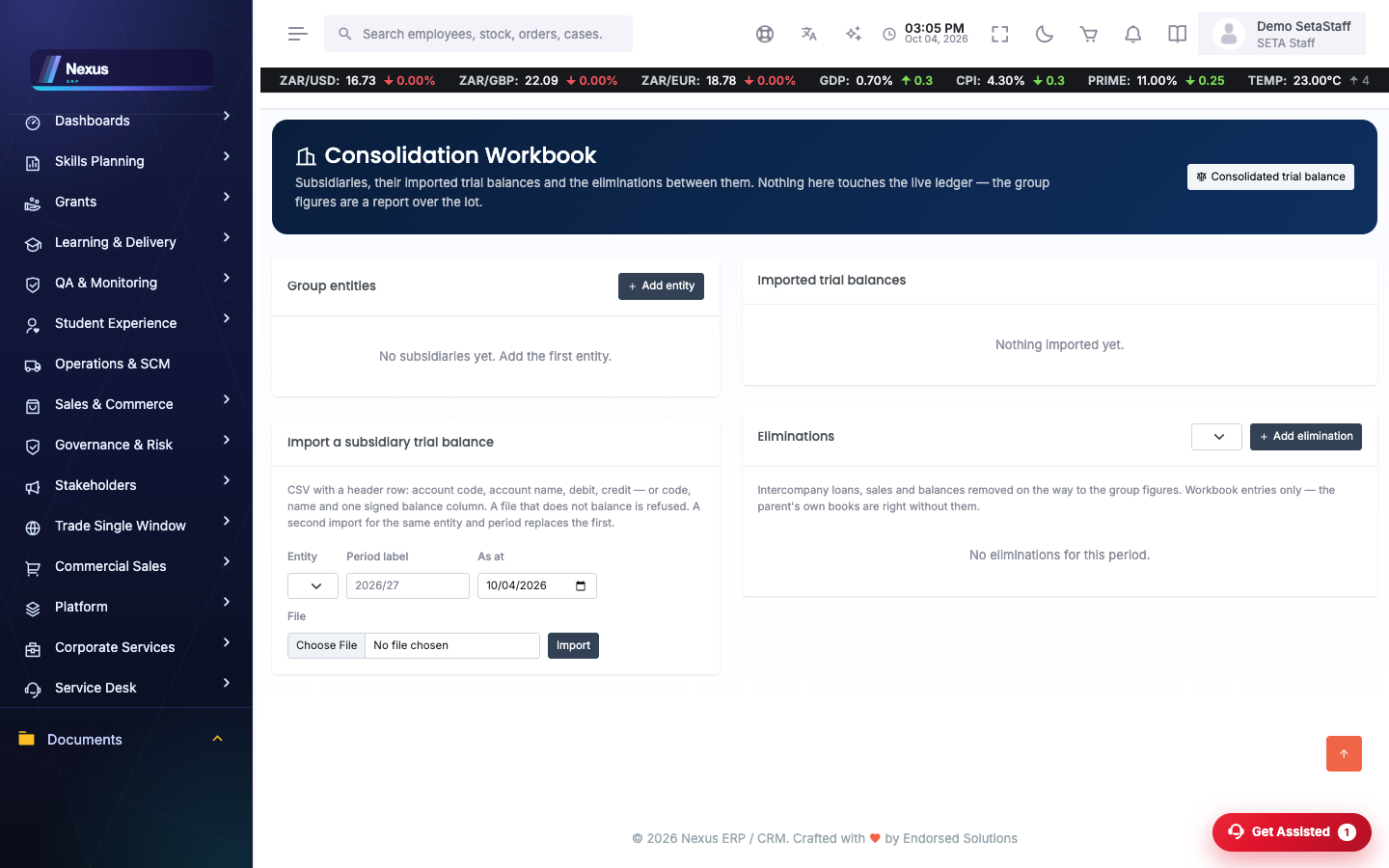
For a group of companies: bring each subsidiary's trial balance in, knock out the inter-company amounts, and read one consolidated trial balance.
- Open Finance → Consolidation and add each group entity (the parent and every subsidiary) once.
- Pick the period label you are consolidating (for example “2026-09”).
- For each subsidiary, choose its CSV trial balance file, pick the entity and click Import. The file needs account code, account name, debit and credit columns. A bad import can simply be deleted and re-imported.
- Add eliminations for inter-company balances — each elimination is a small journal (for example, eliminate the inter-company loan on both sides).
- Open the Consolidated trial balance for the period: every entity's figures plus the eliminations, added up into one group TB.
📥Take-on imports (Pastel / Sage / Xero)
Import Centre /Finance/Migration/ImportCentre
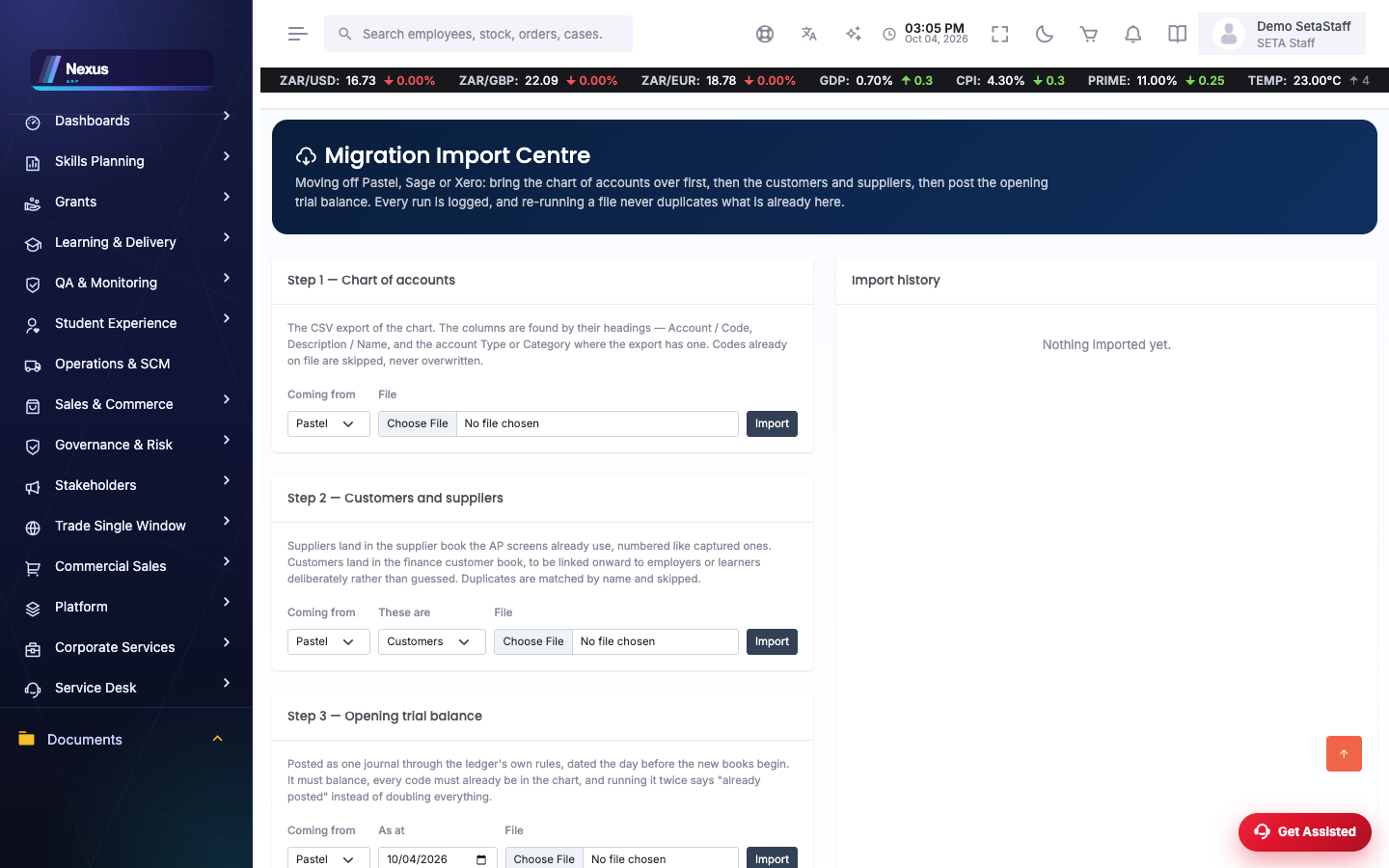
Moving onto Nexus from another accounting system? Export three CSVs from the old system and bring them in here, in this order.
- Open Finance → Migration → Import Centre and choose your source system (Pastel, Sage or Xero) — this tells the importer which column layout to expect.
- Import the chart of accounts CSV first. Accounts that already exist are matched, new ones are created.
- Import your customers and then your suppliers (the same screen, choosing the kind for each file).
- Finally import the opening trial balance CSV, setting the “as at” date to your take-on date. The balances post as the opening journal.
🤖AI finance agents
Agents overview /Finance/FinanceAgents/AgentsOverview
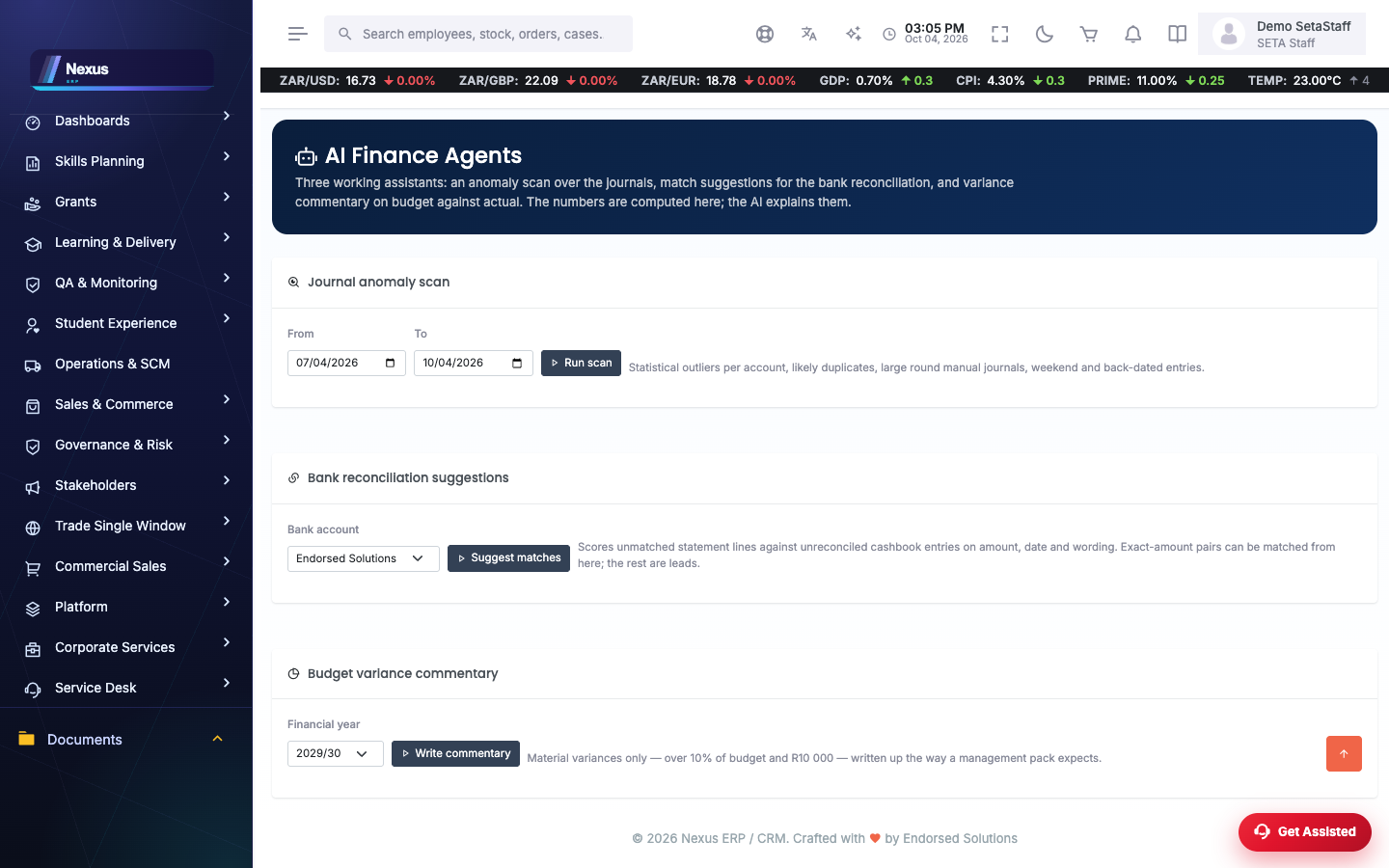
Three assistants that read your own figures and hand back findings in plain language. They never post anything themselves — you stay in charge.
- Open Finance → Finance Agents.
- Journal scan: pick a period and run it. The agent reads the period's journals and flags the unusual ones — odd amounts, weekend postings, round numbers — for you to review.
- Bank rec suggestions: pick a bank account and run it. The agent studies the unmatched statement lines and suggests which ledger entries they probably belong to. Accept or ignore each suggestion on the bank rec screen.
- Variance commentary: pick a financial year and run it. The agent drafts a plain-English commentary on budget-versus-actual variances — a starting point for your management pack, not a finished one.
❓FAQ & troubleshooting
My dimension report shows less than the ledger does.
The report only counts tagged lines. Pull the journal up on the Dimensions overview and tag the missing lines.
Pull live rates returned an error.
The rate provider could not be reached from the server. Capture the rate manually for now — manual and pulled rates live in the same history.
My consolidated TB does not balance.
Check each subsidiary import (a file that was cut off can import one-sided) and that every elimination balances. Delete and re-import the suspect file.
Which CSV columns does the Import Centre want?
Use the old system's standard export for the chosen source system — the screen notes the expected columns next to each import.