Finance
Money end to end: the organisation account with suppliers and documents, procurement with PPR-scored quotations and approvals, the general ledger through to AFS and statutory returns, student finance with bursaries and credit control, and asset lifecycle.
🗺Requisition to remittance; fees to statements
How the module fits together end to end. Colours mark who acts: navy = staff/admin, cyan = external user, green = organisation, orange = the system.
🧭1. Supplier Registration & Payment Process
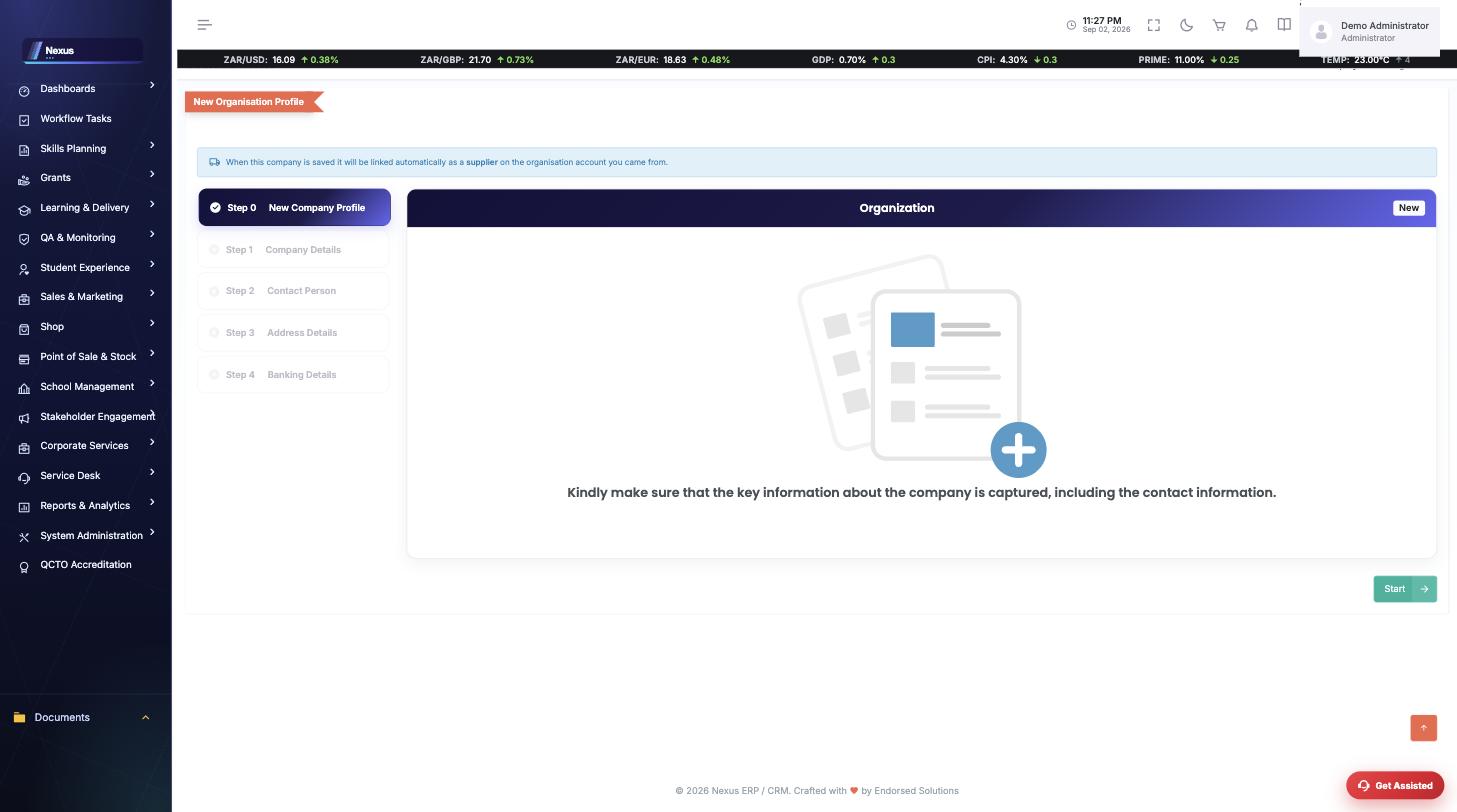
The register, the wizard, quotes, invoices and payments are one story. Follow it in order — every screen below hands its data to the next one.
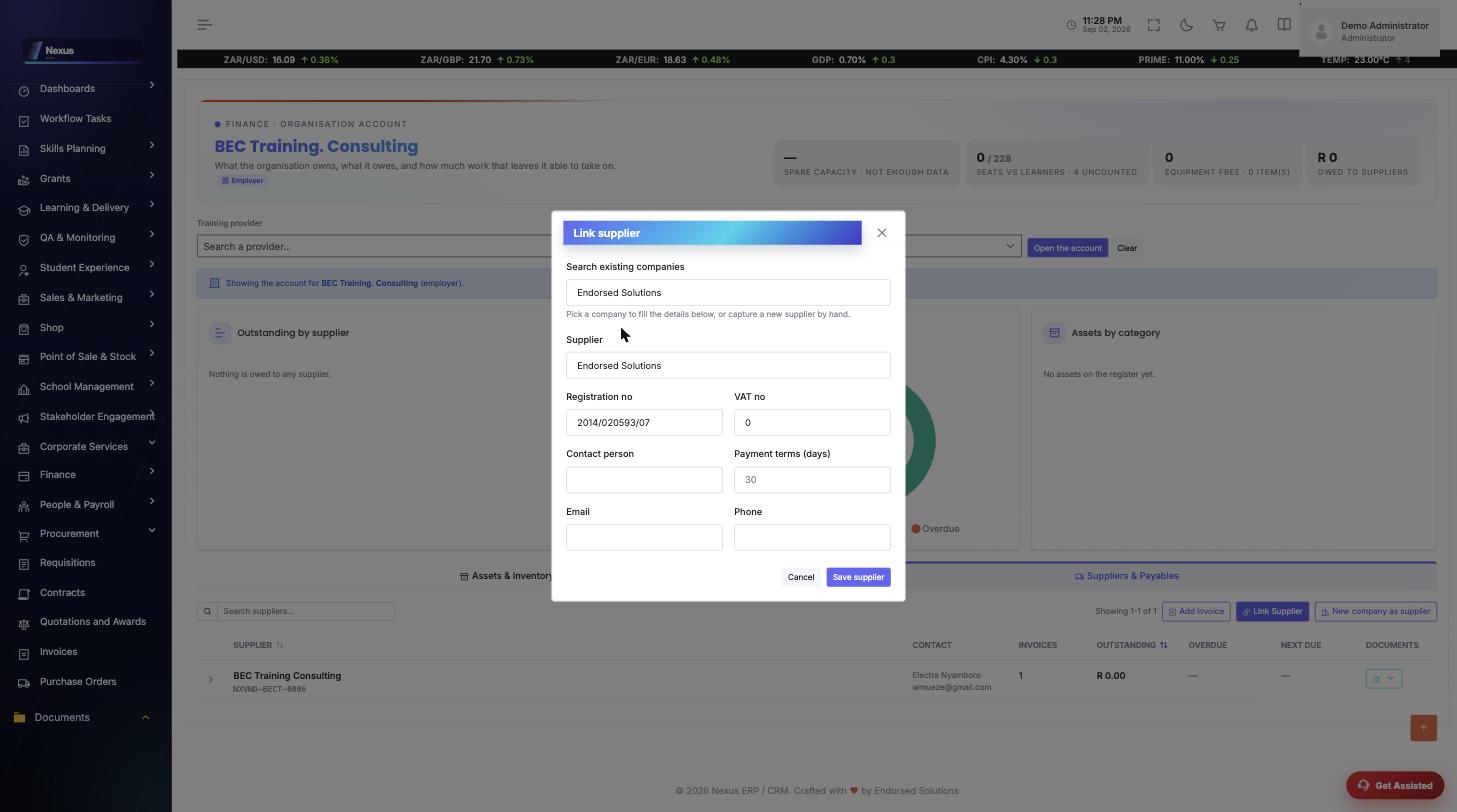
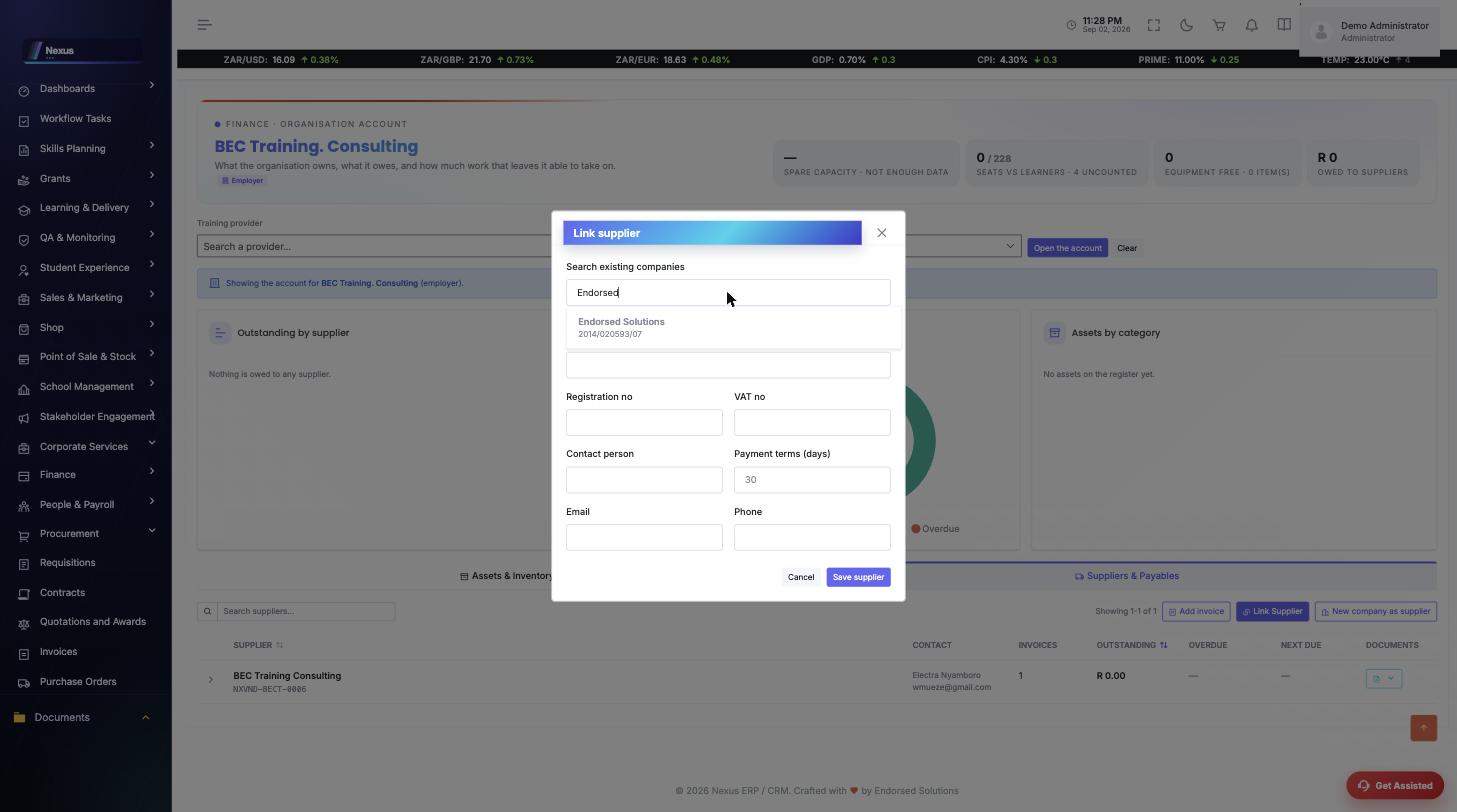 …and picking a match fills the whole form from what the system already knows — name, registration number, VAT, contacts. Nothing is retyped, so no second version of the company is ever born.
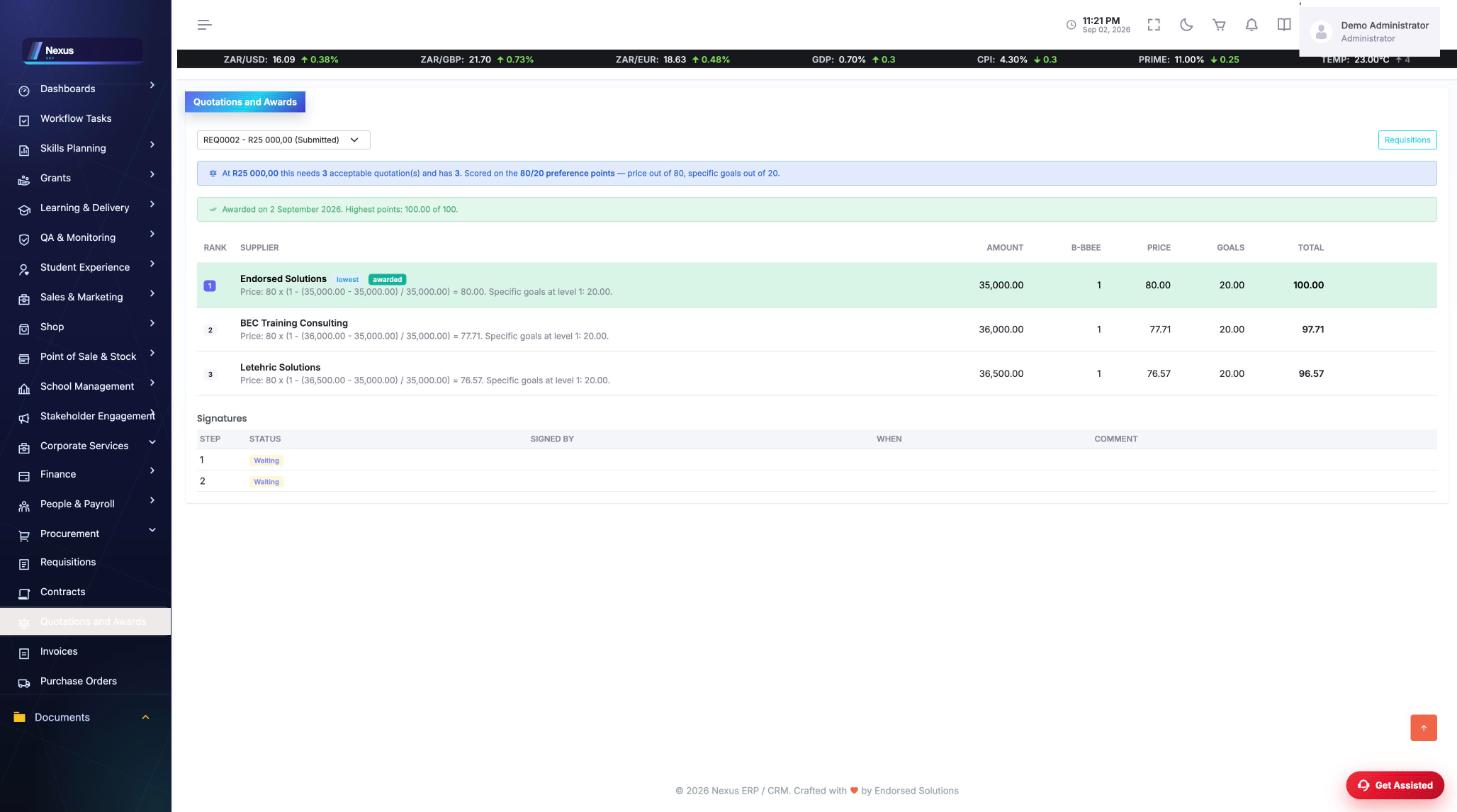
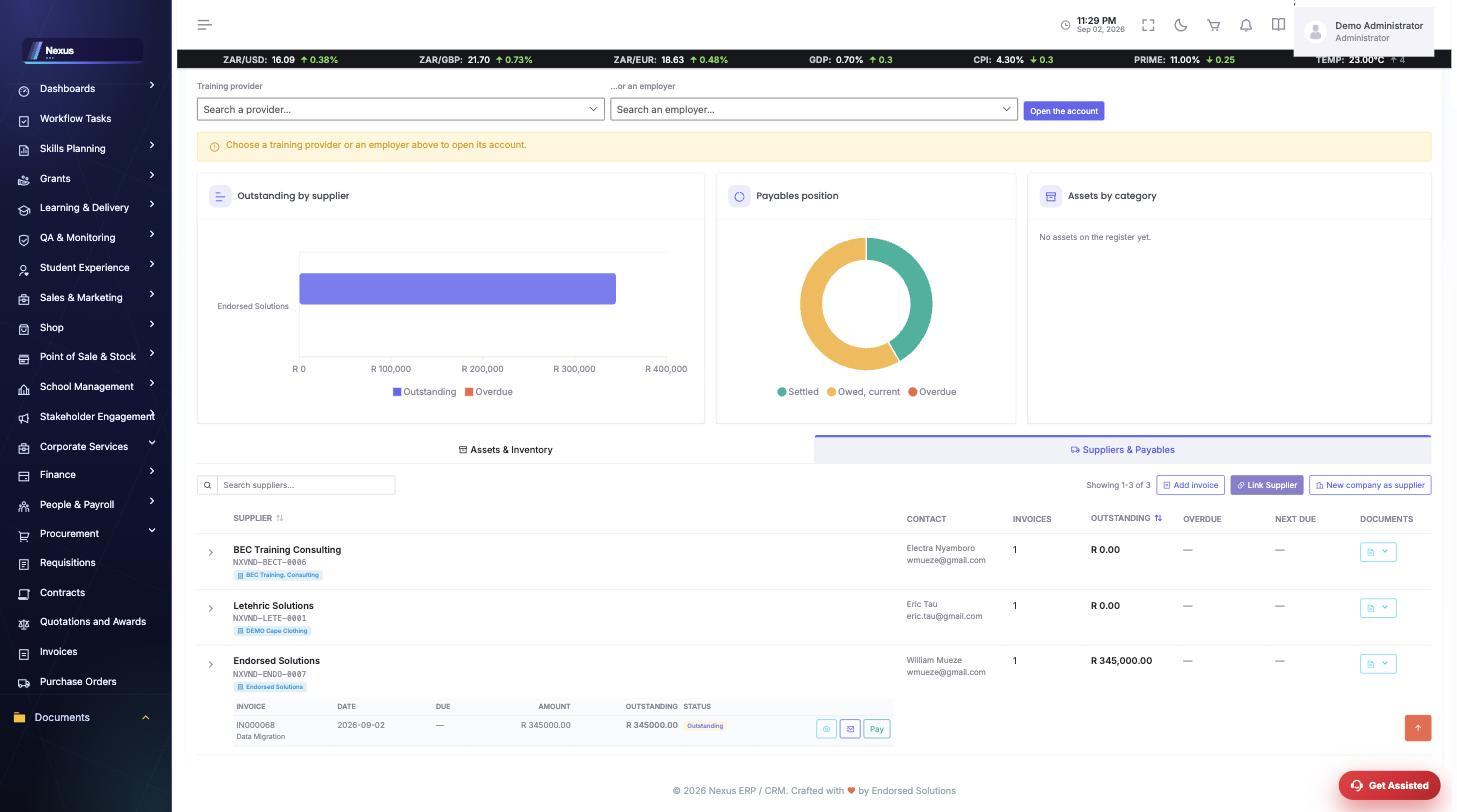
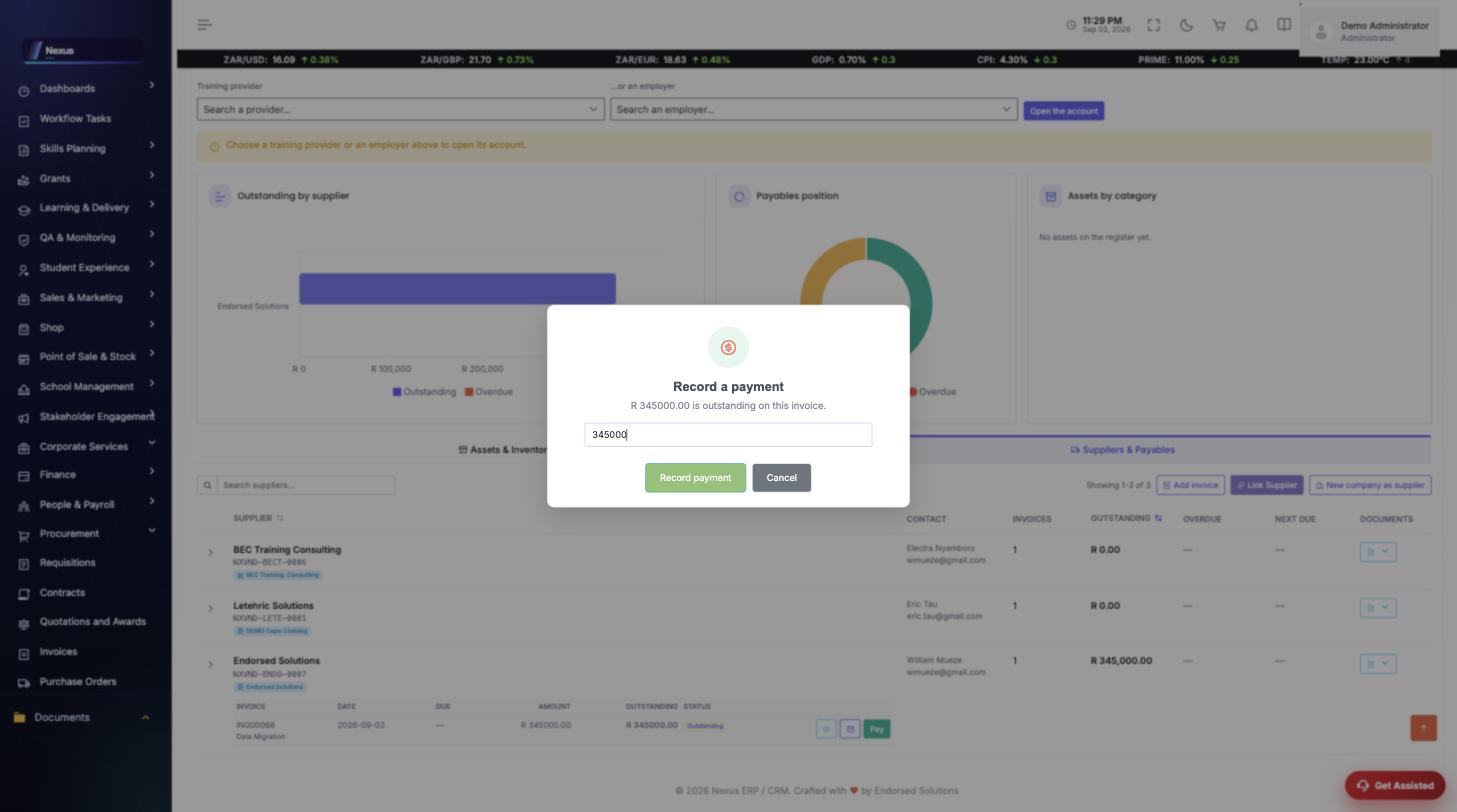
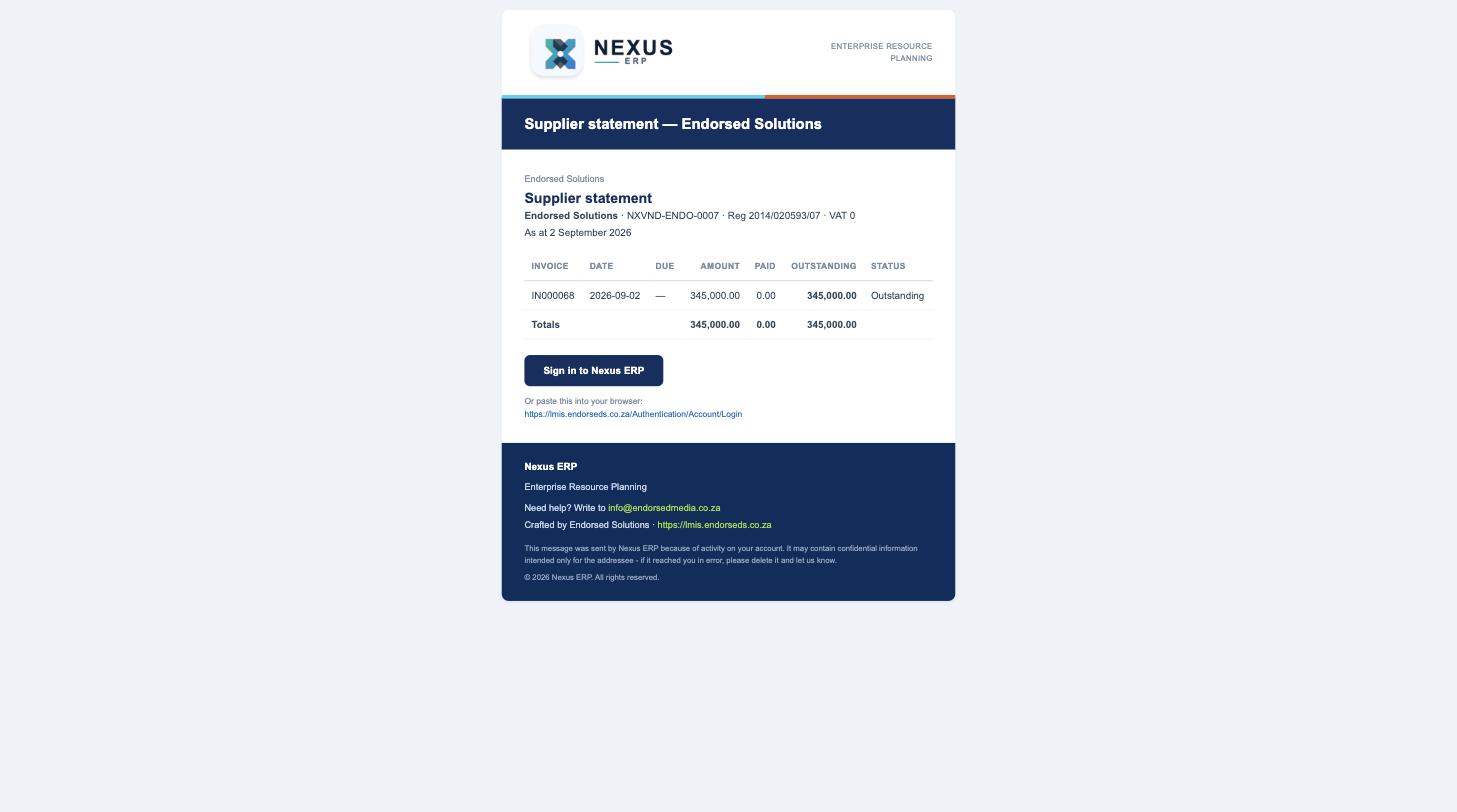
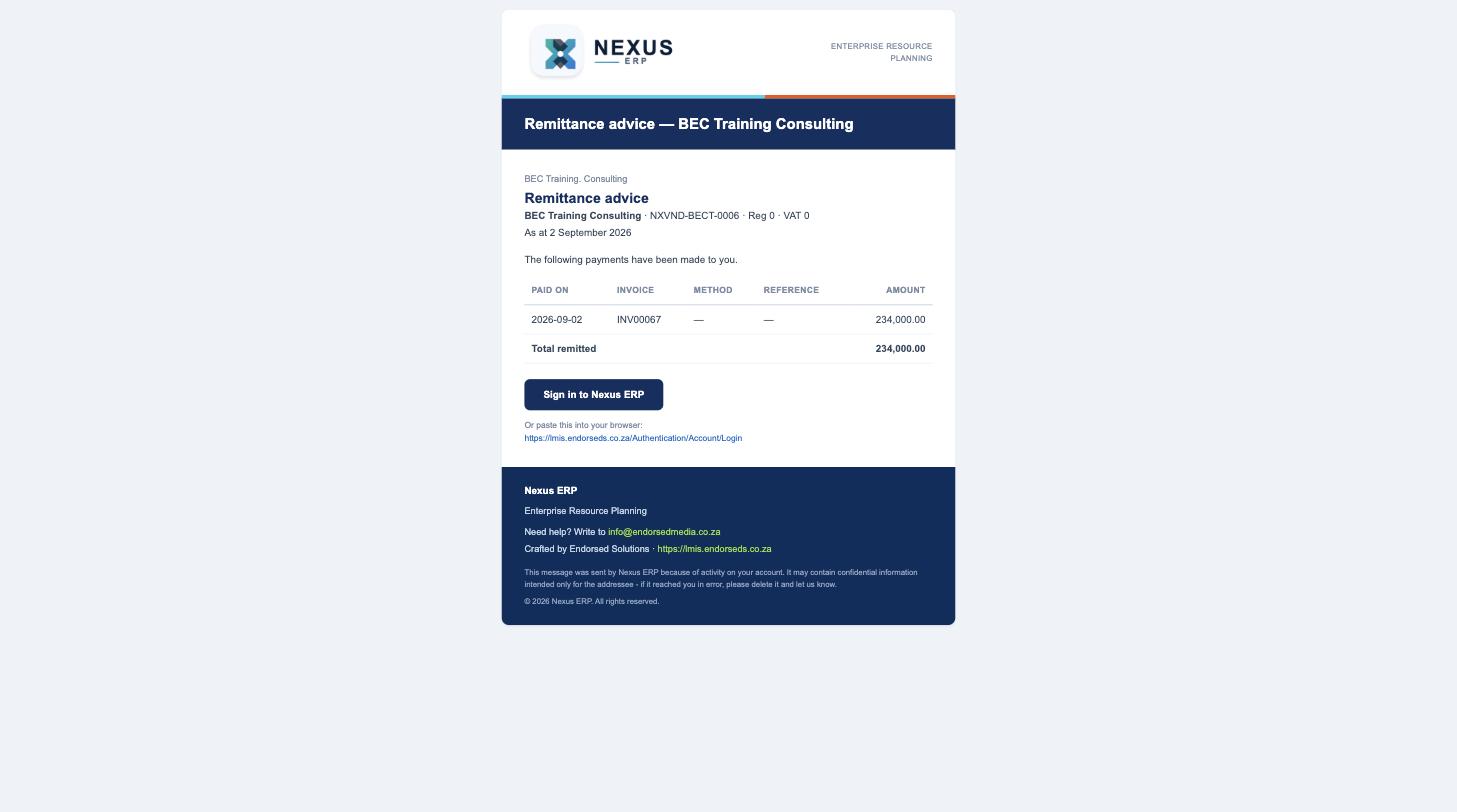
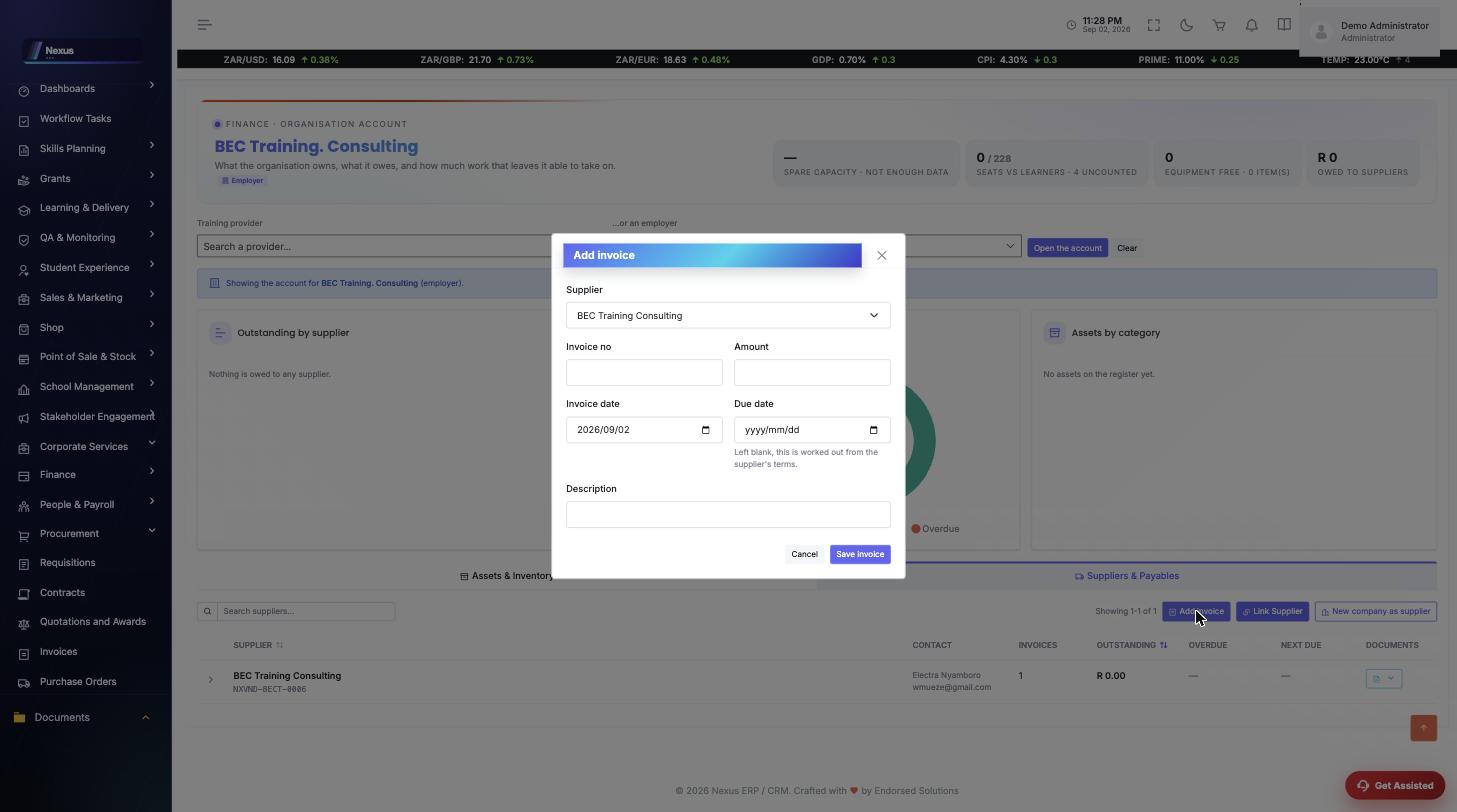 The invoice now sits on the supplier’s row with its outstanding balance, preview and email buttons, and Pay:
🧭2. Requisition to Purchase Order Process
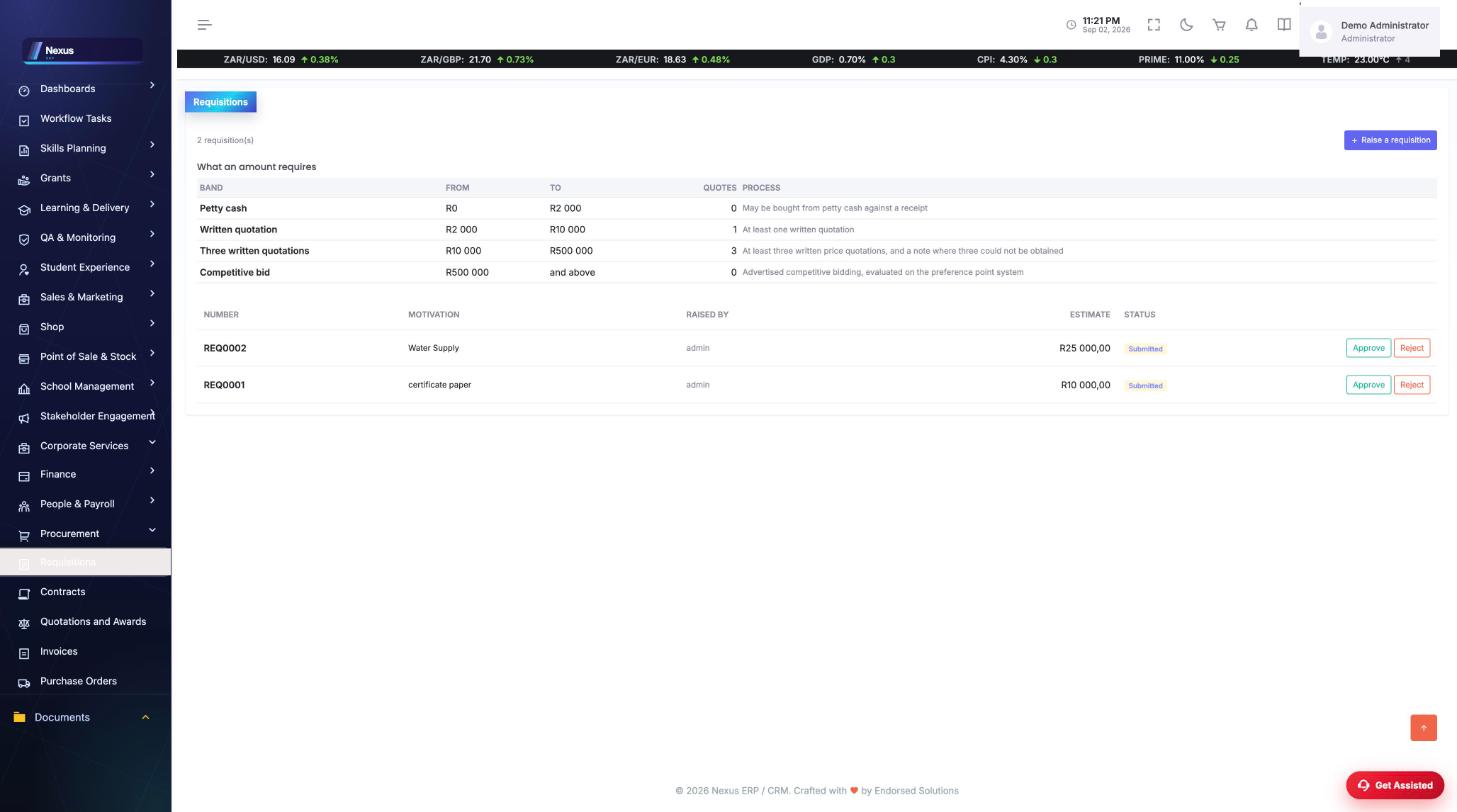
Public-procurement discipline, end to end: the amount decides the process, the scores decide the recommendation, the signatures make it an order.
🧭3. Student Billing & Receipt Process
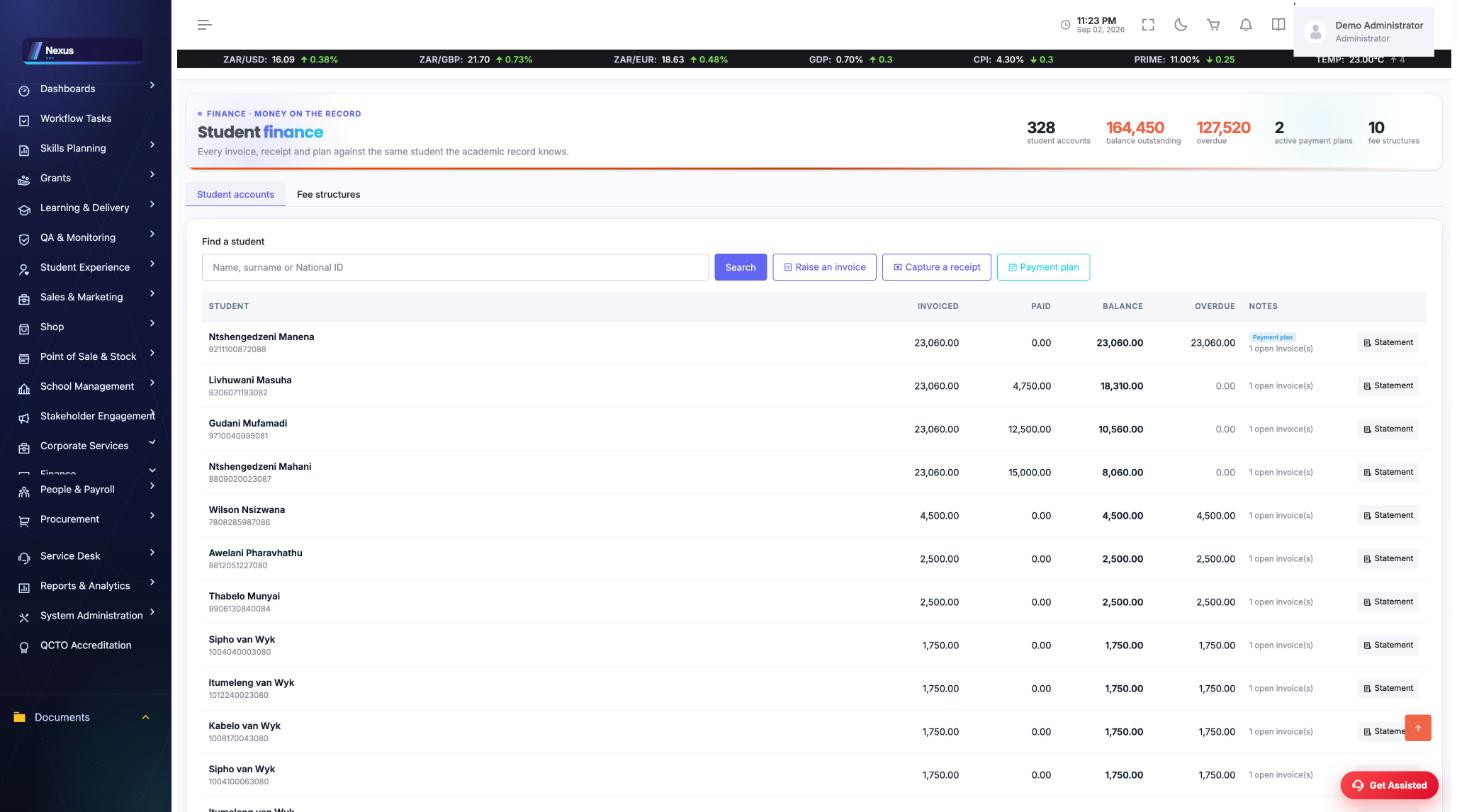
Every invoice, receipt and plan against the same student the academic record knows — one answer to what is owed.
🧭4. Bursary Award & Disbursement Process
Funds in, awards out, receipts against the student’s own fees — a bursary pays fees by producing a receipt, never by discounting them.
🏦Organisation Account
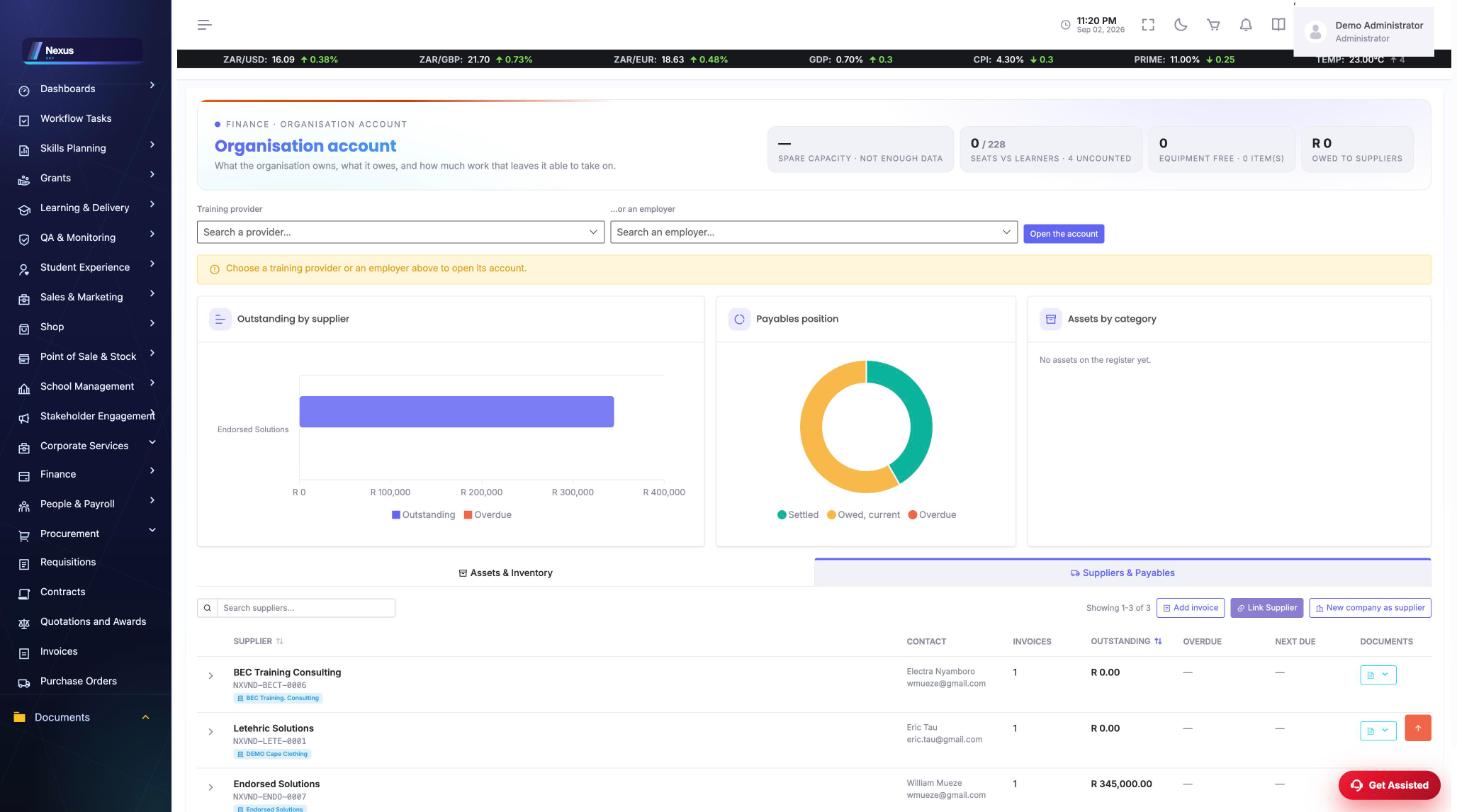
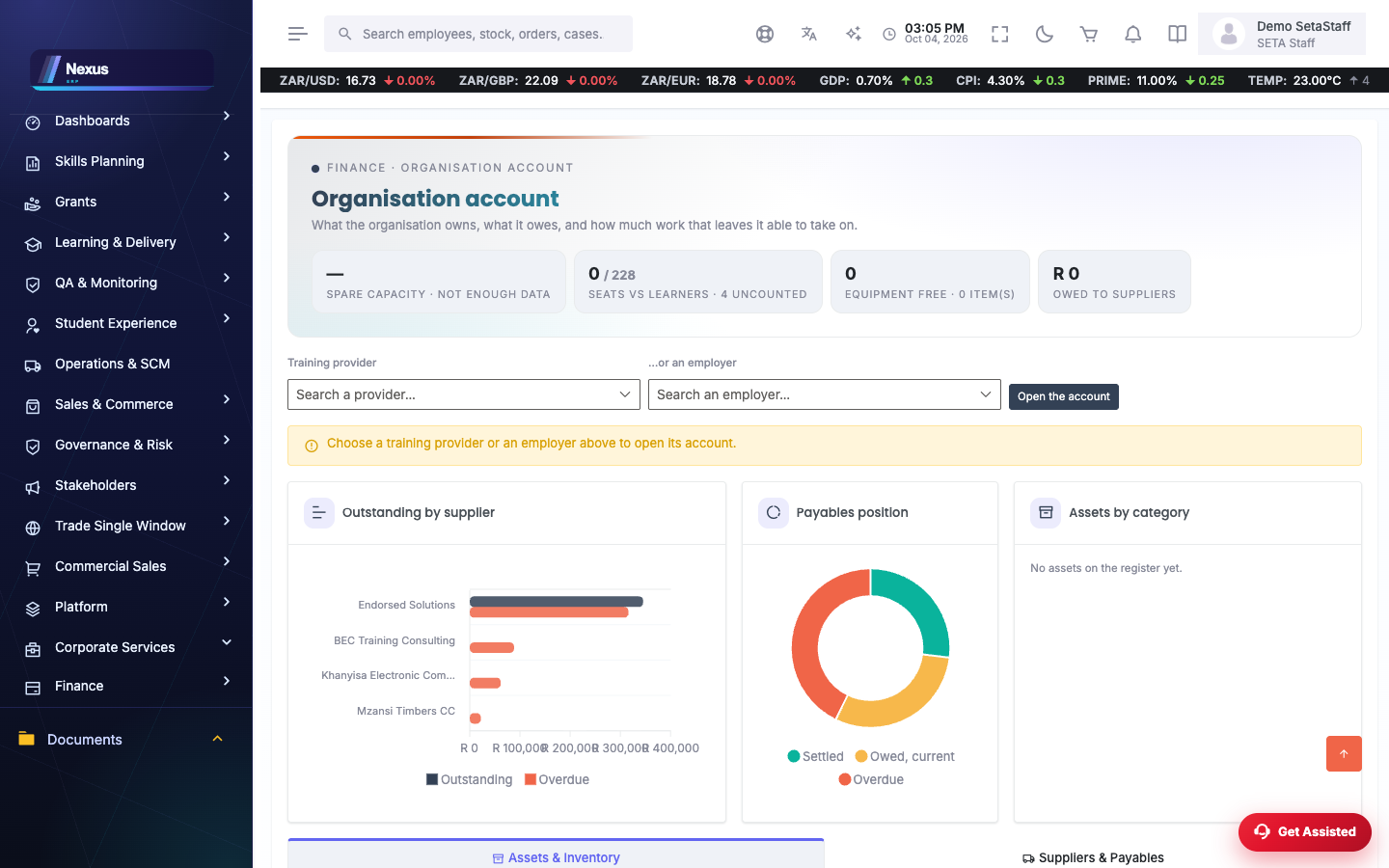
Organisation Account Overview /Finance/OrganisationAccount/OrganisationAccountOverview
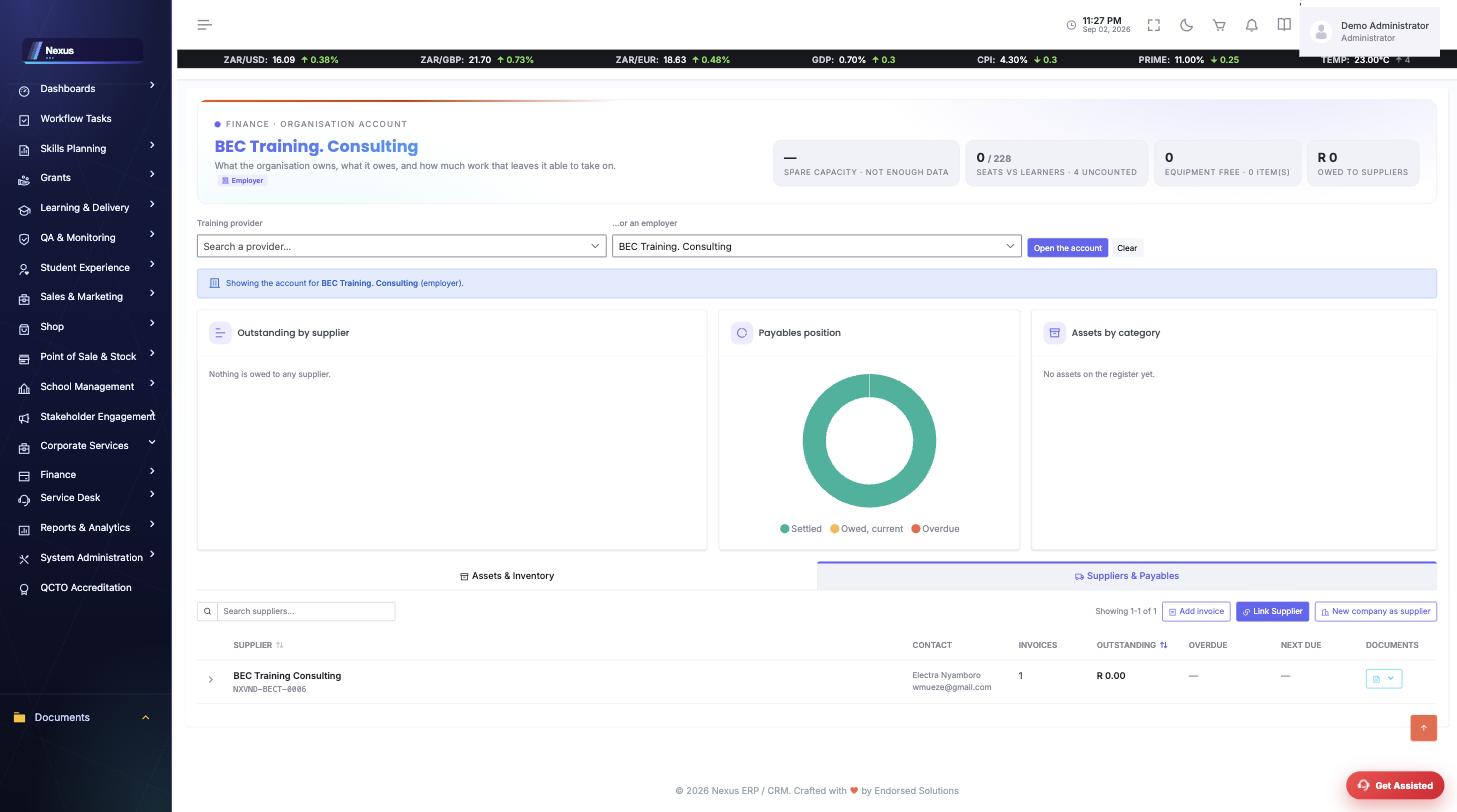
One organisation's own books: assets & inventory, suppliers & payables, capacity. Graphs show outstanding by supplier, the payables position and assets by category. Staff with no organisation selected browse the whole supplier register with owner badges.
- Search the Training Provider or Employer pickers to open an account.
- On Suppliers & Payables: Link Supplier captures or links a supplier (search existing companies to auto-fill), or use New company as supplier to run the company wizard and link it back automatically.
- Expand a supplier row for its invoices; record payments; preview or email its statement, remittance advice or an invoice from the Documents menu.
📦Procurement & SCM
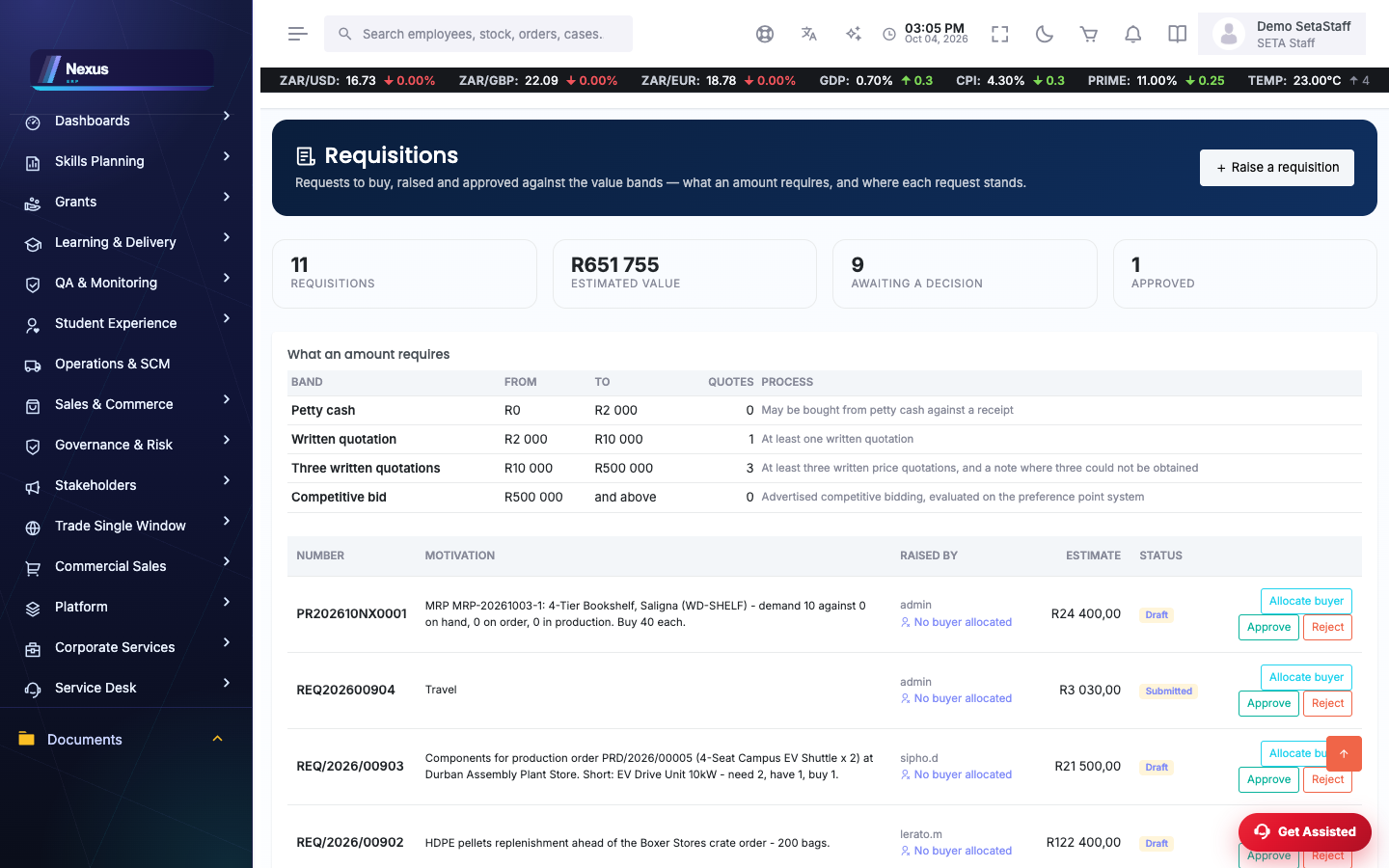
Requisitions /Finance/Procurement/RequisitionOverview
Needs raised for purchase, with suggested suppliers ranked per commodity.
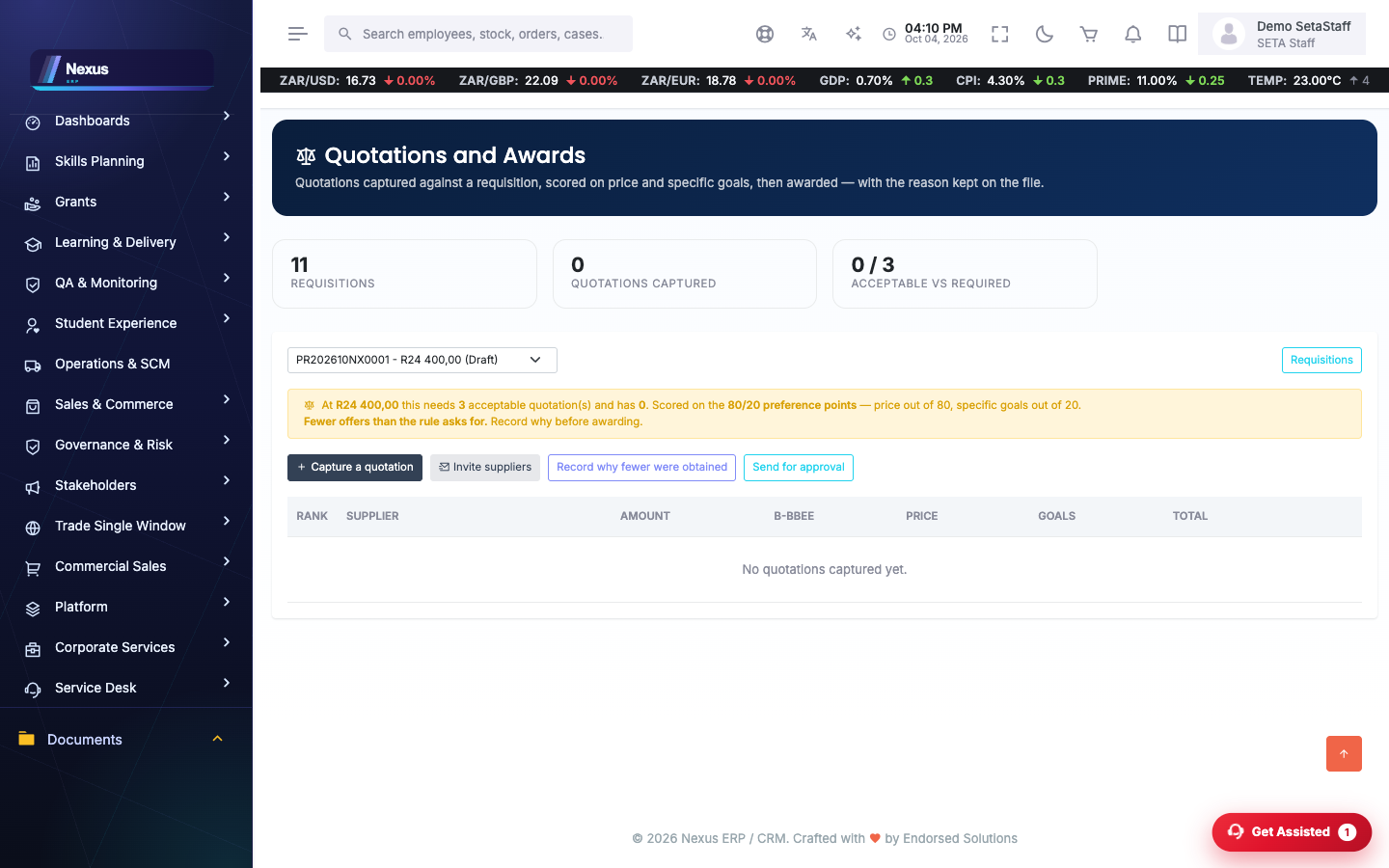
Quotations /Finance/Scm/QuotationOverview
Quotes per requisition, scored on the Preferential Procurement formula (price + specific goals); award the recommended or record a deviation with reasons.
- Capture each supplier's quote (leave the reference blank for a system NXQTE number).
- Compare scores; award, or record a deviation with its reason.
- Route for approval.
Purchase Orders /Finance/Procurement/OrderOverview
Approved awards become orders to the supplier.
Approvals & Delegations /Finance/Scm/ApprovalOverview
The approval queue and the delegation levels (/Finance/Scm/DelegationOverview) that decide who signs at which amount.
Supplier Compliance /Finance/SupplierCompliance/SupplierCompliance
CSD numbers, verification dates, performance (/SupplierPerformance) and deviations (/Deviations).
📑Ledger & statutory
General Ledger /Finance/Ledger/AccountsOverview
Accounts, journals (/JournalsOverview), cashbook (/CashbookOverview), bank reconciliation (/BankRecOverview), budgets and periods.
Statements & returns /Finance/Ledger/TrialBalance
Trial balance, income statement, balance sheet, VAT return (/VatReturn), SARS returns (/SarsReturns), levy allocation, and the AFS editor (/Finance/Afs/AfsOverview).
🎒Students & funding
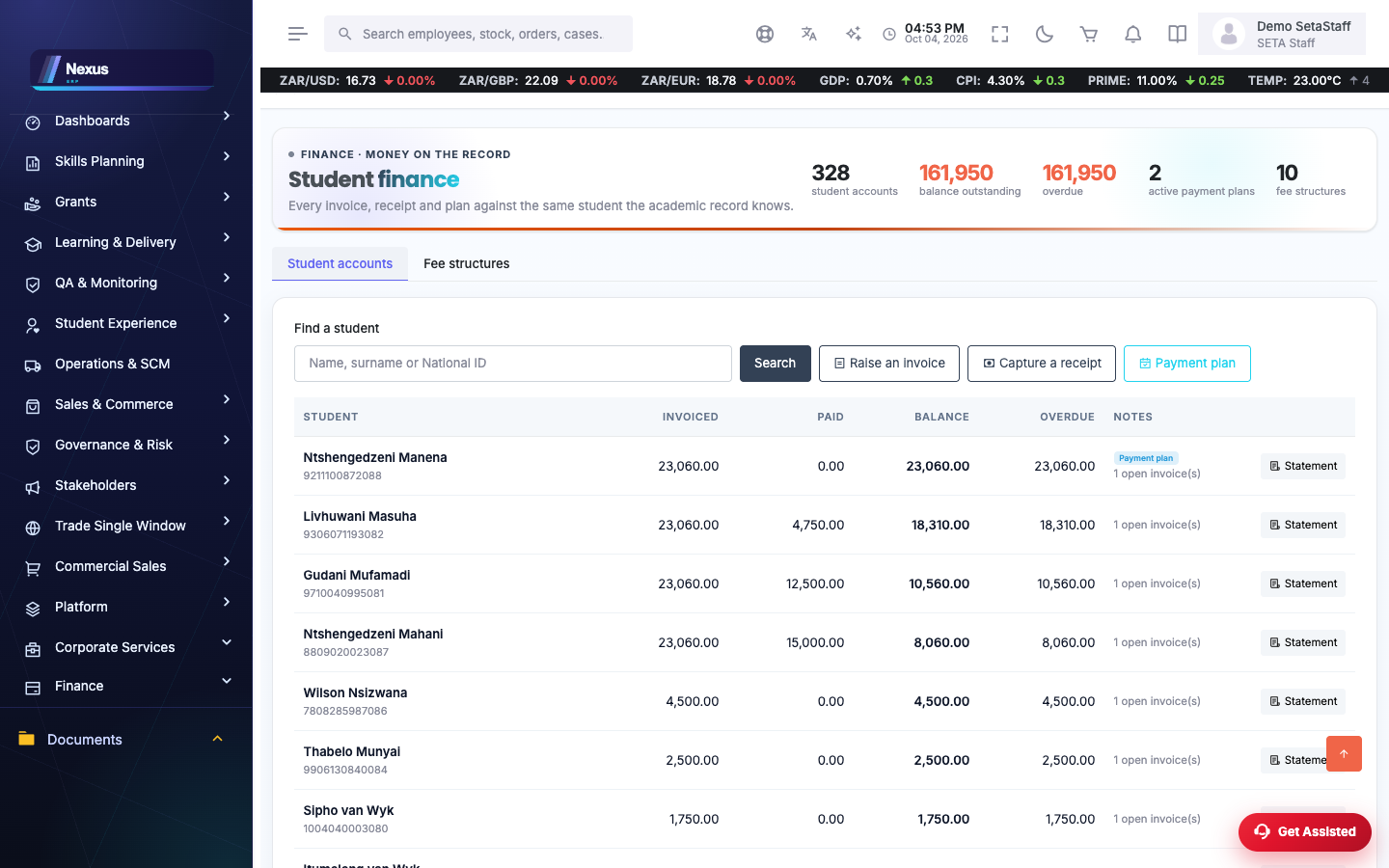
Student Finance /Finance/StudentFinance/StudentFinanceOverview
Student accounts: fees raised, receipts, balances.
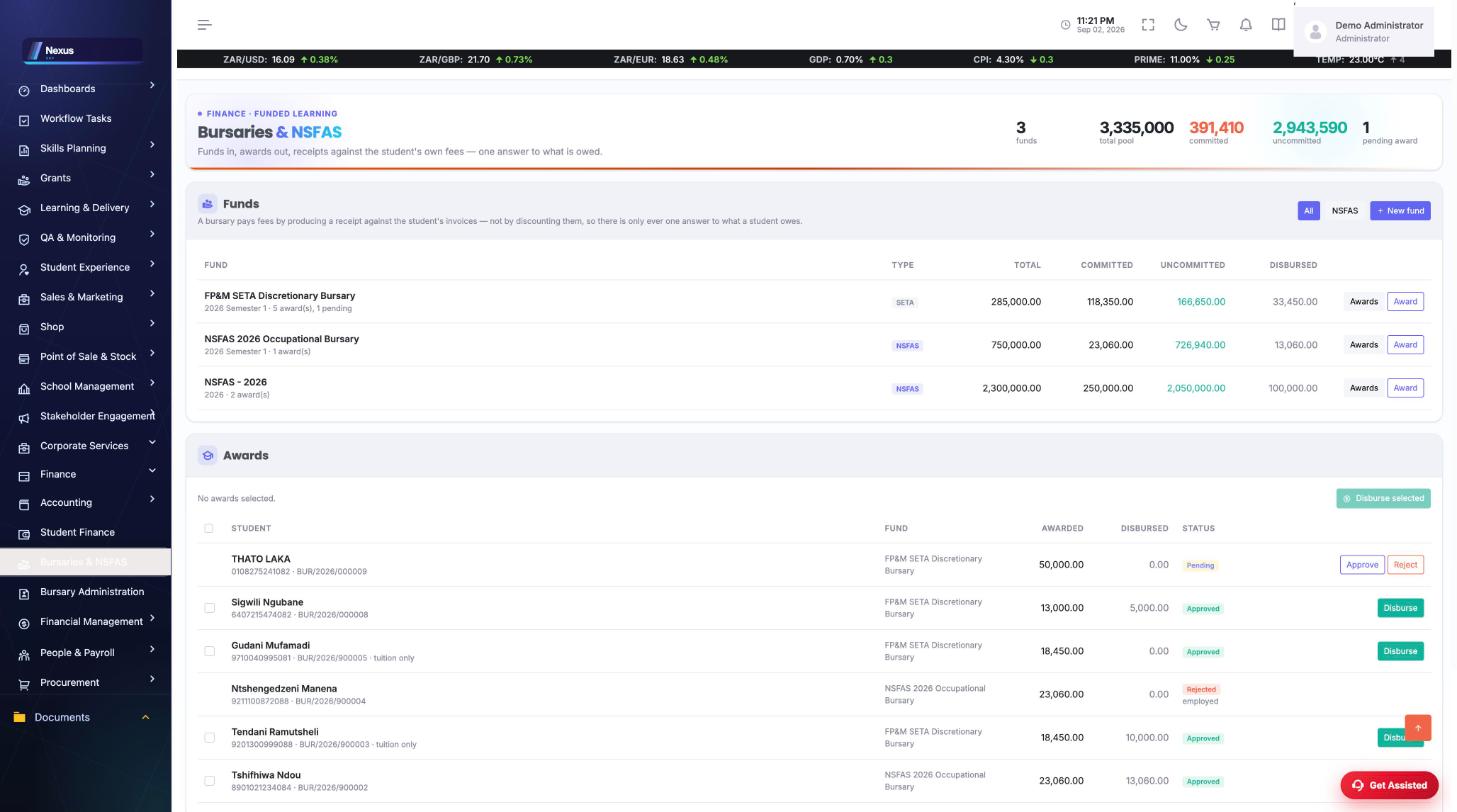
Bursaries /Finance/Bursary/BursaryOverview
Bursary funds, awards and disbursements. Staff-only; SDPs see only what they are funded for. NSFAS returns at /Finance/NsfasReturns/NsfasReturnsOverview.
Credit Control /Finance/CreditControl/Worklist
Debtor ageing (/DebtorAgeing), dunning runs (/Dunning) and the collector's worklist.
Funding Monitoring /Finance/FundingMonitoring/Index
Funded projects (/Projects), their learners (/Learner) and tranche payments (/Payments) — the money side of Discretionary Grants.
💼Assets
Asset Lifecycle /Finance/AssetLifecycle/LifeCycle
From custody (/Custody) through maintenance (/Maintenance) and verification (/Verification) to disposal (/Disposals). The register itself lives on the Organisation Account.
❓FAQ & troubleshooting
The supplier grid is empty.
With no organisation selected, staff see the whole register; an organisation account shows only its own suppliers. If a specific account looks empty, its suppliers belong to a different owner.
Can I email a supplier their statement?
Yes — the Documents menu on each supplier row previews and emails the statement, remittance advice, and individual invoices, branded like every system email.
Who may see Bursaries?
Staff. SDP users see only the funds and learners they are funded for; the endpoints enforce this server-side.