Service Desk: Problems, Changes & Catalog
Beyond day-to-day cases: problem records that chase root causes, change requests with CAB approval and a calendar, a service catalog people order from, live support through LetsTalk, an AI copilot on every case, and impact maps in the CMDB.
🗺How the pieces relate
Incidents are symptoms; problems are causes; changes are cures. Navy = desk staff, orange = the system.
🔍Problems
Problem register /ServiceDesk/Problems/Index
When the same incident keeps coming back, stop treating the symptom — open a problem and hunt the cause.
- Open Service Desk → Problems. Filter by status or search the titles.
- Click Create — or, better, create it from a case: the case comes along as the first linked incident.
- Give the problem a clear title, a description of the pattern, and a priority.
- Link every related incident to the problem as more arrive — the problem page collects them.
Root cause & known errors
- On the problem's detail page, record the root cause once found, and the workaround agents should use in the meantime.
- Mark the problem a known error when the cause is confirmed but the fix is still pending — agents see the workaround instead of re-investigating.
- Set the status to resolved/closed once a change has removed the cause.
🔄Changes
Change register /ServiceDesk/Changes/Index
- Open Service Desk → Changes and click Create (or create one straight from a problem — the link is kept).
- Fill in the title and description, pick the change type (standard, normal, emergency) and the risk rating, and set the planned start and end.
- On the change's detail, write the implementation plan and the rollback plan — what you will do, and how you get back if it goes wrong.
- Link the configuration items the change touches (see the CMDB section) so the blast radius is on record.
- Click Submit to send it for approval.
CAB approvals
- Add each approver (the change advisory board members) to the change.
- Each approver records a decision — approve or reject — with a comment.
- Once approved, update the status as the work happens: scheduled → in progress → completed (or rolled back, with notes).
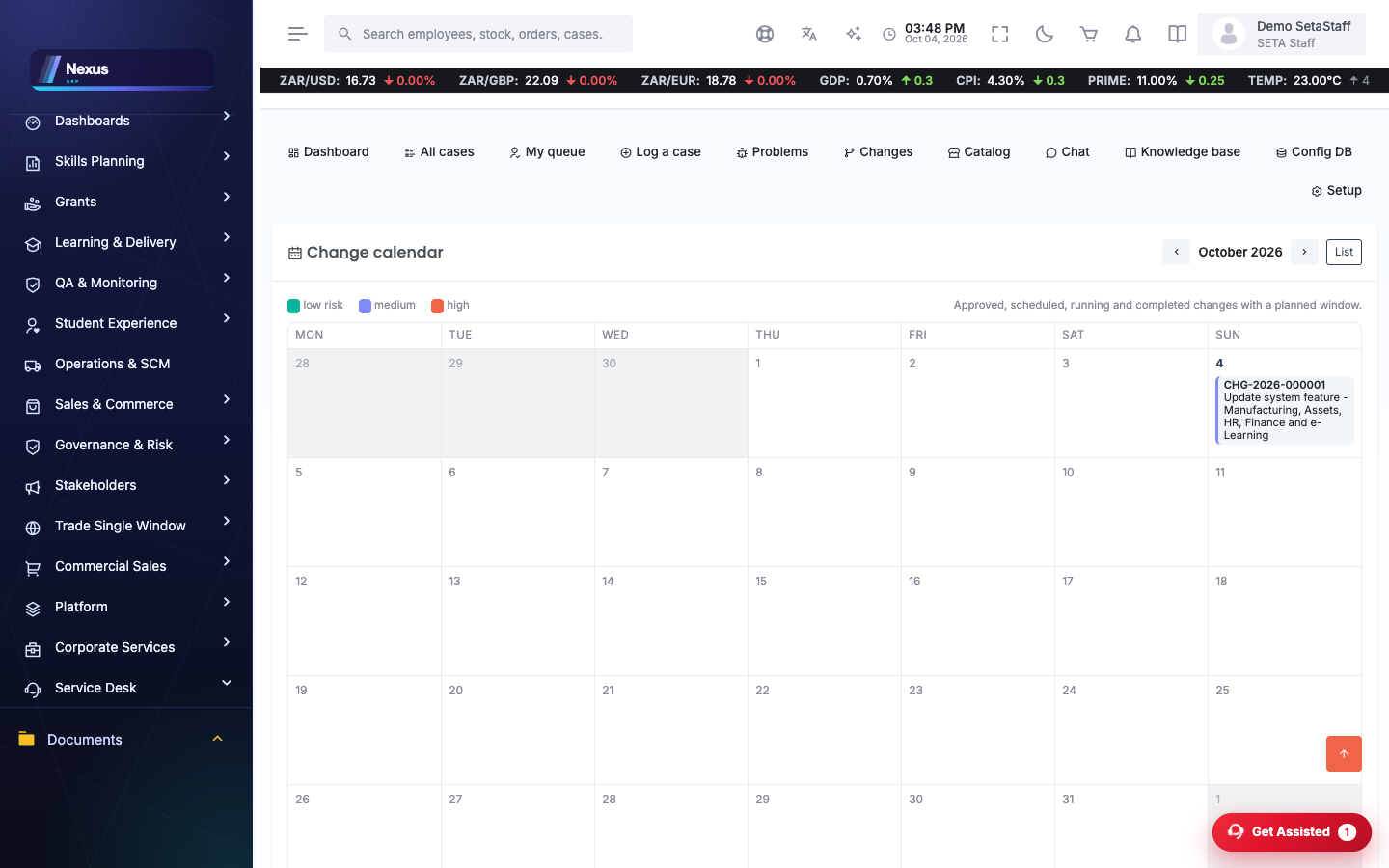
Change calendar /ServiceDesk/Changes/Calendar
- Open the calendar to see the month's planned changes at a glance — use it to spot two risky changes landing on the same night.
🛒Service catalog
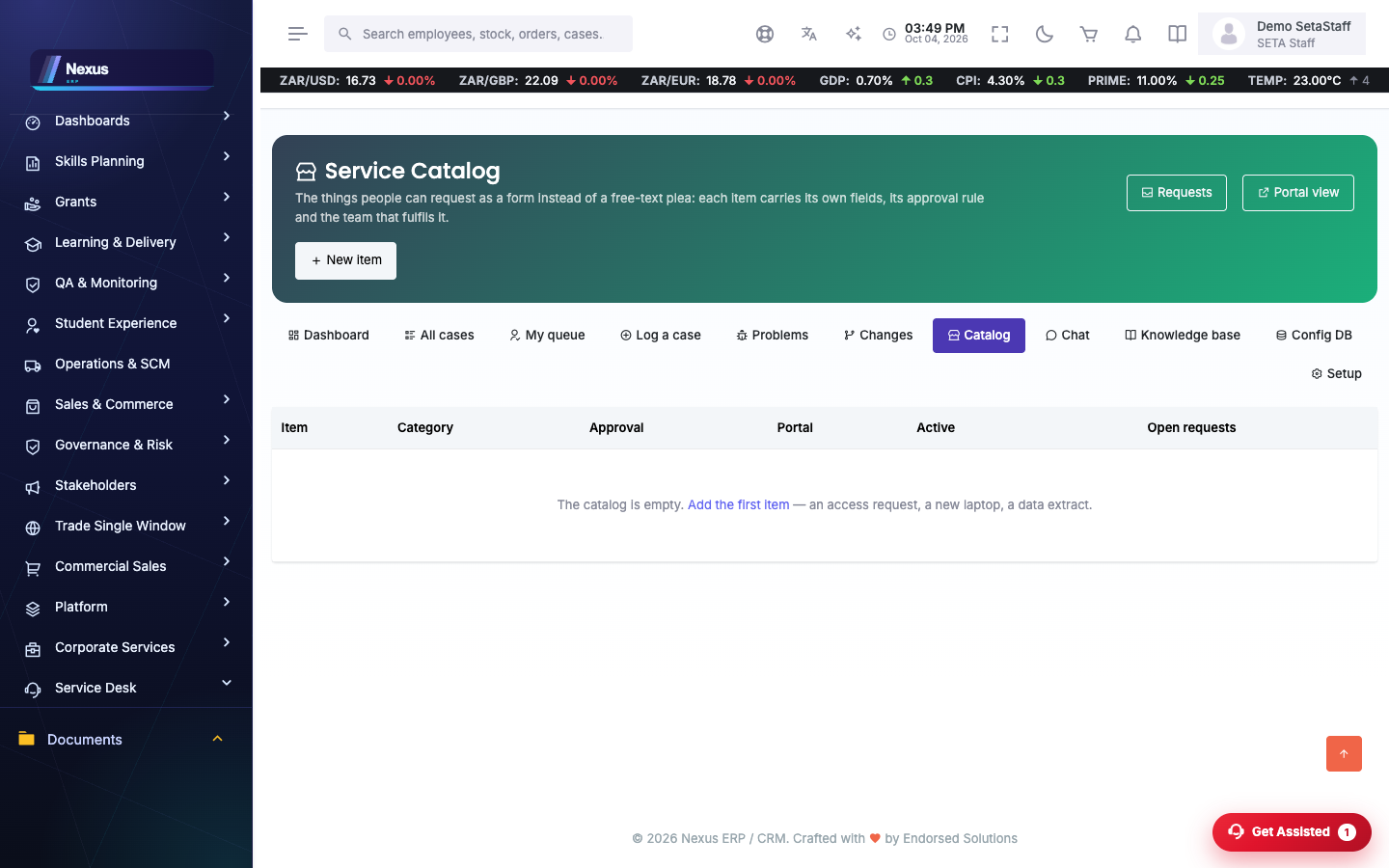
Define the items /ServiceDesk/Catalog/Items
The catalog is the menu of things people can order — a new laptop, an account, access to a system — each with its own little request form.
- Open Service Desk → Catalog and add an item: name, description, category.
- Define the item's form fields — the questions the requester must answer (model, cost centre, who approves).
- Save. The item now appears in the portal's catalog.
Requesting from the portal /ServiceDesk/Catalog/Browse
- A requester opens Browse, picks the item, fills in the form with their name and email, and submits.
- The request lands on the Requests queue for the desk.
Approve and fulfil /ServiceDesk/Catalog/Requests
- Open the request, read the answers, and record the decision — approve or decline, with a comment.
- When the thing has actually been delivered, click Fulfil. The requester's answer trail stays on the request.
⭐CSAT — satisfaction scores
When a case is resolved, the requester can rate it (1–5) on the portal, with an optional comment — the portal's track page offers the rating once the case is resolved.
- Ratings attach to the case itself — open the case to see what the requester said.
- The desk Dashboard /ServiceDesk/Cases/Dashboard shows the average Satisfaction score and how many ratings it rests on (when CSAT is enabled in Setup).
💬Live chat: console & intents
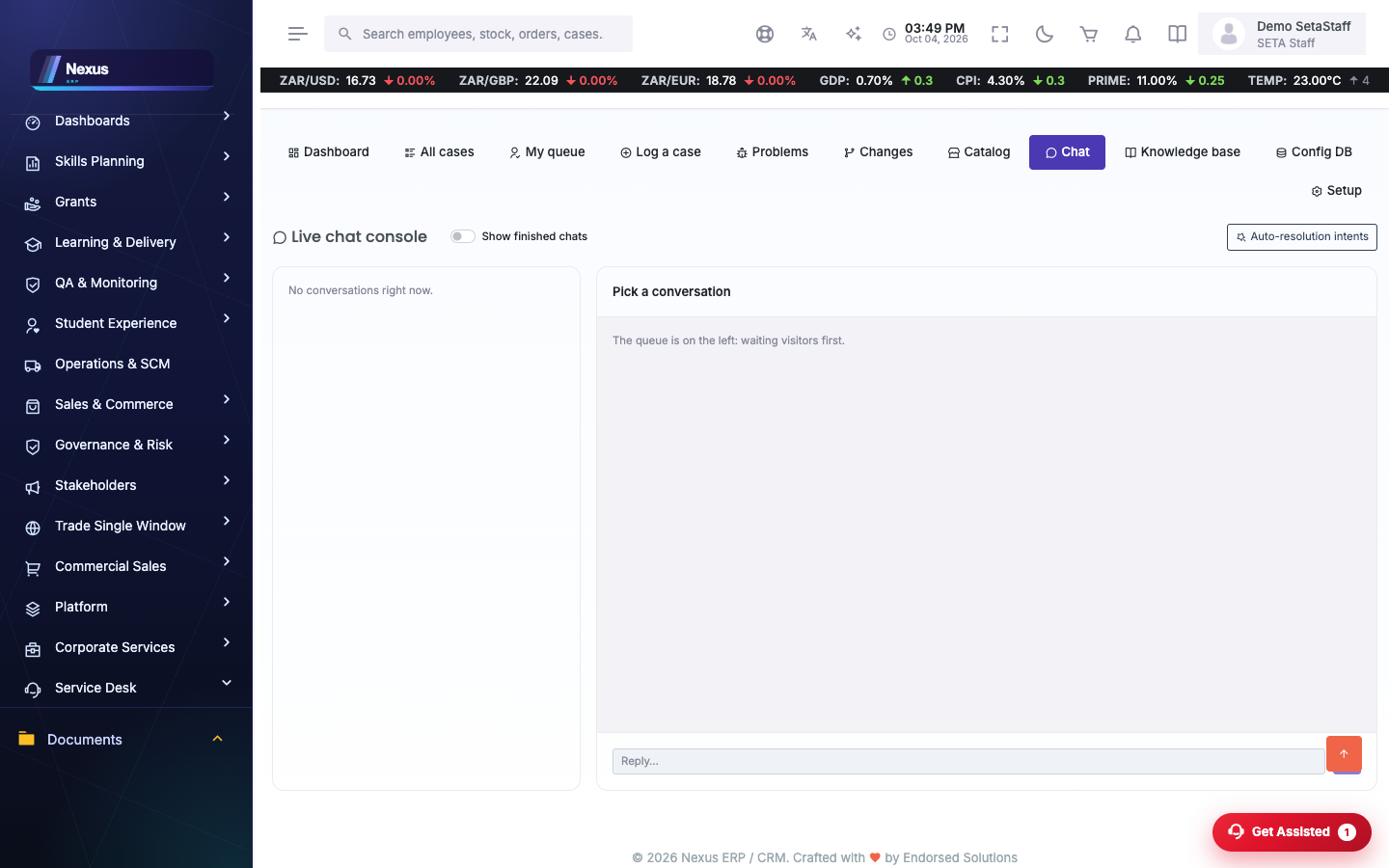
Agent console /ServiceDesk/Chat/Console
Visitors on the portal and public pages click Live support, which drops them into the staffed LetsTalk support room (daily 08:00–20:00). The bot console below applies where the embedded web-chat widget is used instead.
- Open the Console to see live sessions — waiting ones are flagged.
- Accept a session to take it over from the bot, then type replies in the thread.
- If the chat needs follow-up work, click Create case — the transcript goes into a new case.
- Close the session when done; the visitor can also end it and say whether they were helped.
Teach the bot /ServiceDesk/Chat/Intents
- Open Intents. Each intent is: a name, the keywords that trigger it, and the answer the bot gives.
- Add intents for your top repeated questions (password reset, opening hours, how to track a case).
- Review transcripts now and then and turn unanswered questions into new intents.
🤖AI copilot on a case
The Copilot panel /ServiceDesk/Cases/Details
Every case detail page carries a small Copilot panel with three buttons.
- Summarise thread — condenses a long case history into a few lines, handy when you inherit a case.
- Draft a reply — writes a suggested reply from the thread (you can add a hint about the angle to take). Click use the draft to drop it into the reply box, then edit before sending.
- Suggest triage — proposes a category and priority; apply the suggestion with one click if you agree.
🖥️CMDB impact maps
Impact /ServiceDesk/Cmdb/Impact
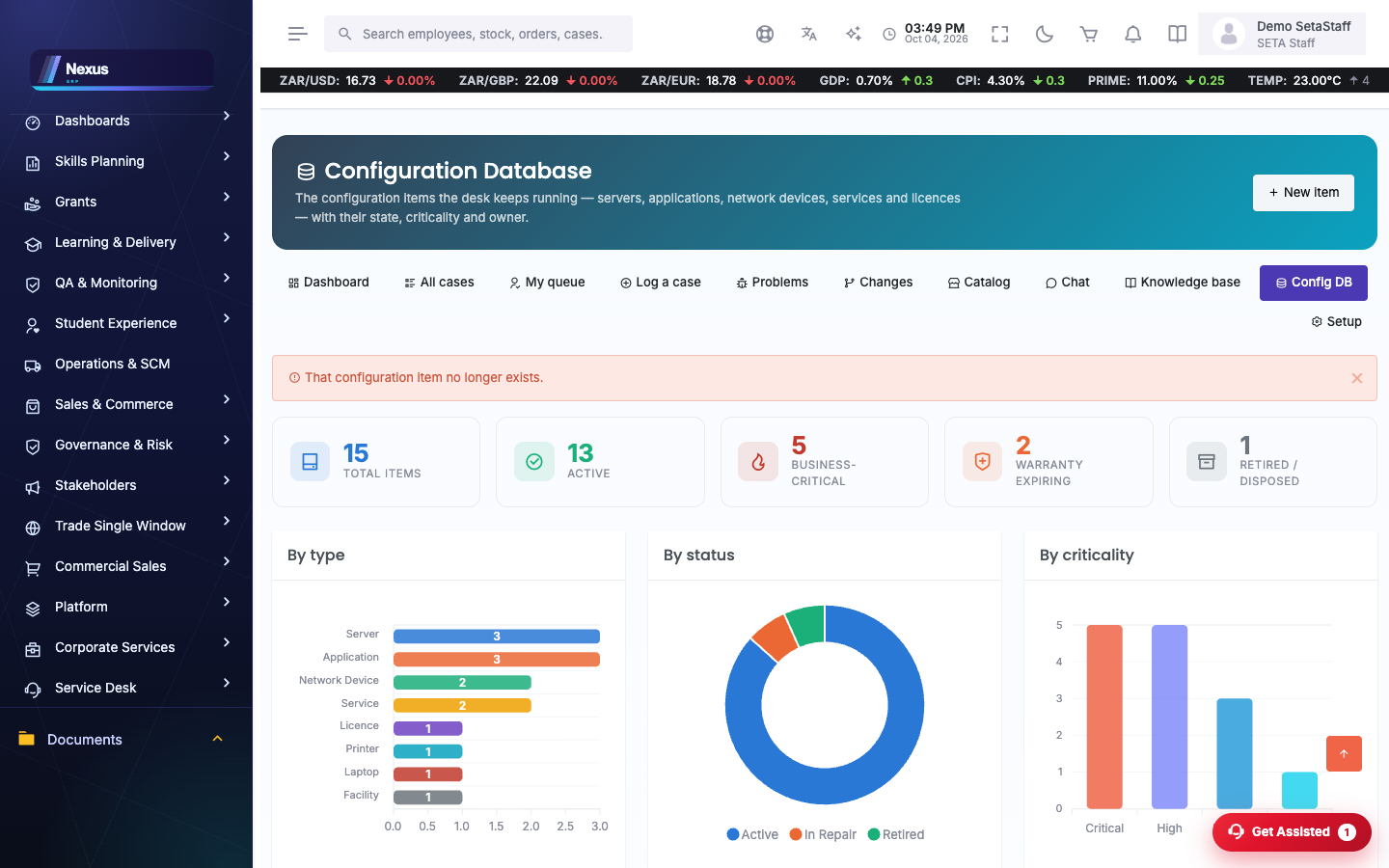
Configuration items can be related to each other (“runs on”, “depends on”). The impact map draws those relations so you can answer: if this goes down, what else breaks?
- Open a configuration item in the CMDB and add its relations — the other item, the relation type, and the direction.
- Open Impact on the item to see the map: what it depends on, and what depends on it.
- Check the map before approving a change on the item — the dependents are your blast radius.
❓FAQ & troubleshooting
Problem or change — which do I open?
A problem investigates a cause; a change alters something. Usually a problem comes first and spawns the change that fixes it.
My change is stuck in submitted.
It is waiting on an approver. Open the change — the approval list shows who has not decided yet.
The chat bot gives a wrong answer.
Edit the intent whose keywords are catching the question — tighten the keywords or fix the answer under Chat → Intents.
No satisfaction number on the dashboard.
Either CSAT is switched off in Setup, or no resolved case has been rated yet — it reads “Not rated yet” until the first rating lands.