E-Learning Depth
The full LMS toolkit beyond SCORM basics: a question bank with AI generation, essay marking with rubrics, H5P and video lessons, forums, Open Badges, xAPI, LTI tools, gradebook categories, recertification, at-risk alerts — and joining a live virtual class.
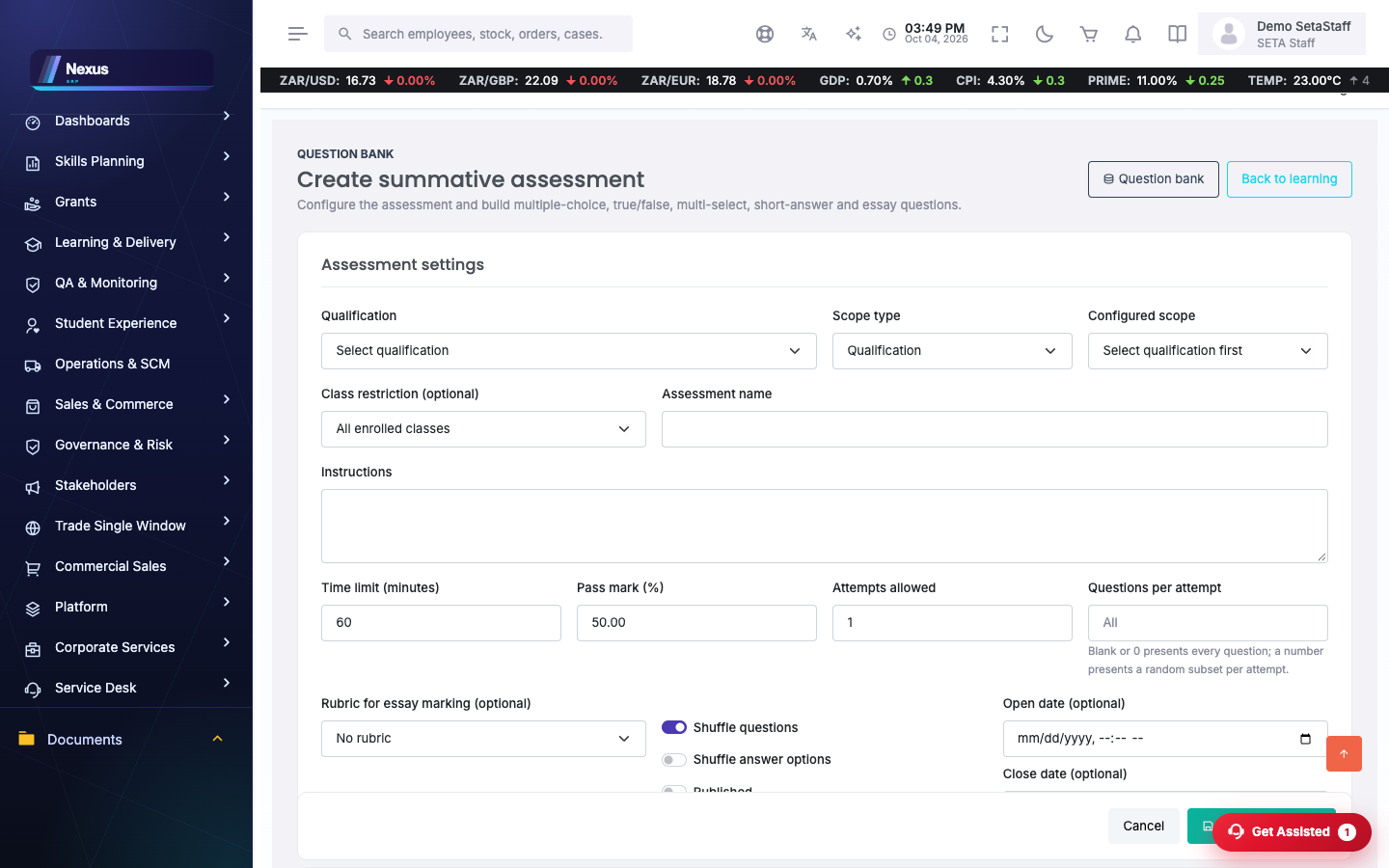
📚Question bank & AI question generation
Question bank /ELearning/Learning/QuestionBank
One shared pool of questions that any assessment can draw from, instead of retyping questions per test.
- Open E-Learning → Question Bank to browse, search and edit the pool.
- Add questions by hand, or let the AI help (next section). Each question carries its type, options and correct answer.
Generate with AI /ELearning/Learning/AssessmentEditor
- Open an assessment in the Assessment Editor.
- Click Generate with AI. Tell it the topic and how many questions you want.
- The draft questions appear for review — edit the wording, fix any wrong answer, delete the weak ones.
- Keep what survives review; those questions join the assessment (and the bank) like any other.
✍️Marking queue & rubrics
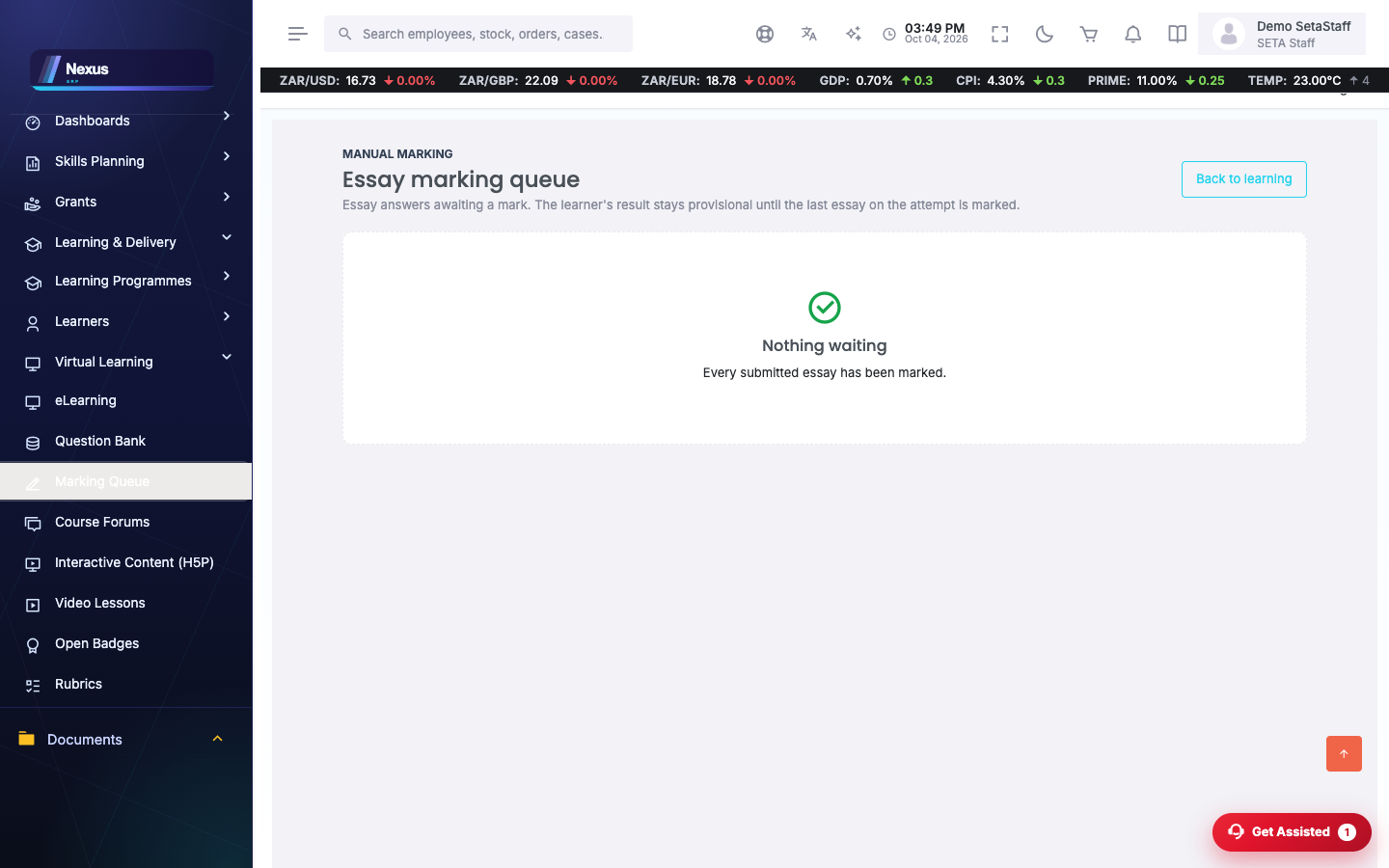
Marking queue /ELearning/Learning/MarkingQueue
Essay and long-answer questions cannot be auto-marked — they wait here for a human.
- Open Marking Queue. Each row is one unmarked answer.
- Open an answer, read it, award the mark and add feedback.
- Once every manual answer on an attempt is marked, the attempt's final score completes automatically.
Rubrics /ELearning/Rubric/Index
A rubric is a marking grid — criteria down the side, levels across the top — so two markers score the same work the same way.
- Open Rubrics and create one: name it, then add criteria and the levels (with points) for each.
- When marking, score against the rubric — pick a level per criterion and the total works itself out.
🧩H5P & video lessons
H5P interactive content /ELearning/H5p/Index
- Open H5P and click Upload, choosing a .h5p file (made in any H5P authoring tool).
- Click Play to try it exactly as a learner will.
- Learner completions and scores are recorded when the activity finishes.
Video lessons /ELearning/Video/Index
- Open Video and upload a lesson video with its title and description.
- Learners press Watch; the player streams the video and remembers how far each learner got, so they resume where they stopped.
💬Forums
Course forums /ELearning/Forum/Index
- Open Forum and pick the course (package) — each has its own board.
- Start a thread with a clear title; others reply underneath.
- Facilitators can pin an important thread to the top, lock a finished one, and remove a post that breaks the rules.
🏅Open Badges
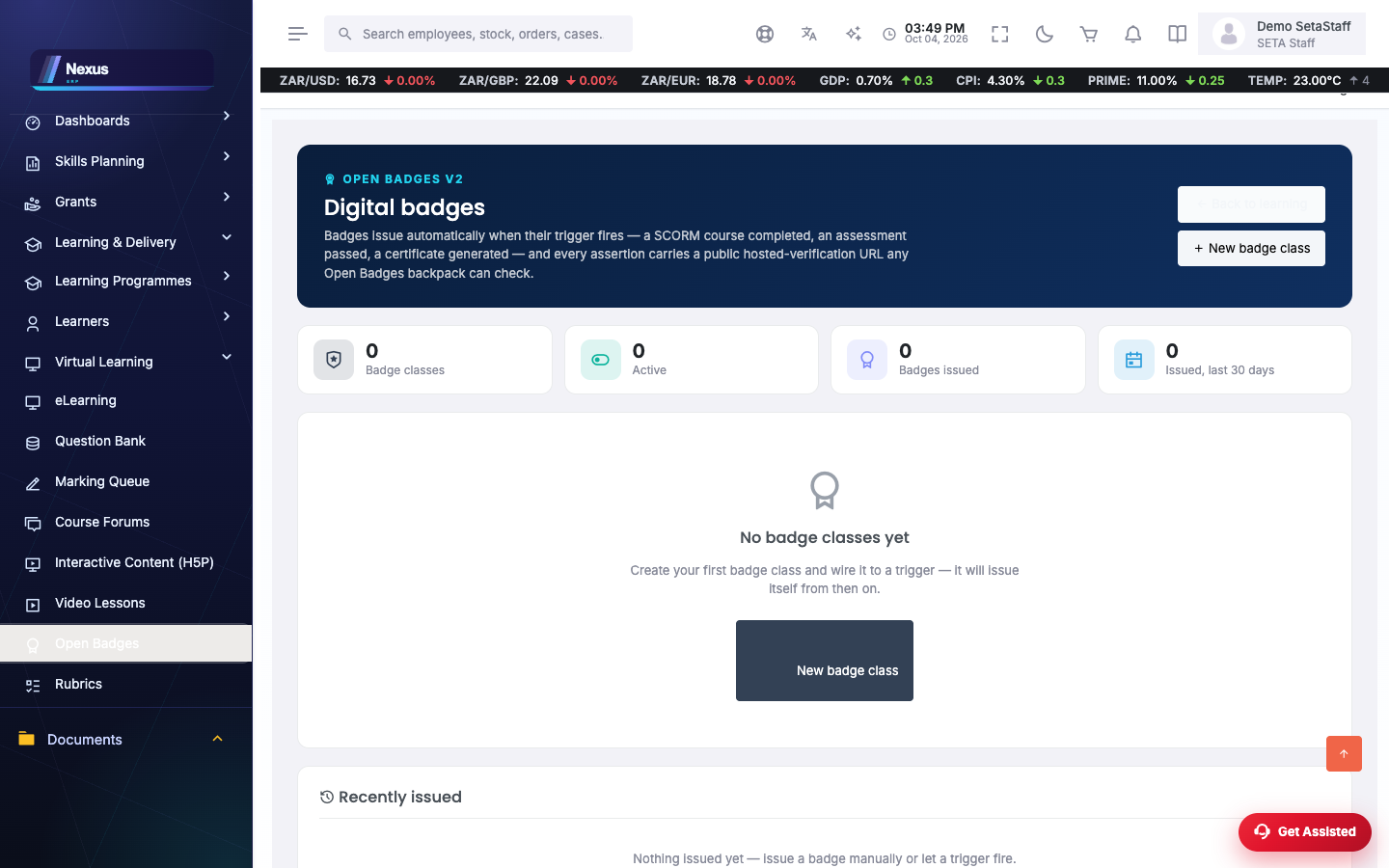
Badge classes /ELearning/Badge/Index
Badges are portable proof of an achievement, issued to the Open Badges standard.
- Open Badges and create a badge class: name, description, the criteria text (what it is awarded for), an image, and the issuer name.
- Choose the trigger: manual, or automatic on completing a SCORM course, an assessment, an H5P activity, or certification. An automatic trigger names the specific course or assessment.
- Issue manually from the badge class when needed — pick the person and click Issue; triggered badges issue themselves.
- Learners see their own badges under My badges, and each badge has a public assertion link a learner can share.
📡xAPI & LTI
xAPI statement viewer /ELearning/Xapi/Statements
Every learning event (“completed”, “passed”, “watched”) is recorded as an xAPI statement — this screen is the audit trail.
- Open xAPI and filter by verb, object type or actor to find the events you are after.
- Open a statement to see its full detail — handy when a learner disputes a completion.
LTI tools /ELearning/Lti/Tools
LTI connects outside learning tools so learners launch them from here with a single sign-on.
- Open LTI Tools and add the tool with the connection details its vendor gives you.
- Click Launch to test the connection yourself before learners use it.
📊Gradebook categories
Weighted categories /QA/Gradebook/Categories
Categories let the term mark weight different kinds of work — say tests 40%, assignments 40%, participation 20%.
- Open QA → Gradebook → Categories for the class and term.
- Add each category with its weight; keep the weights summing to 100.
- Assign each assessment to a category — the weighted term mark then computes itself.
📅Recertification queue
Expiring certificates /QA/Certification/RecertificationQueue
Some qualifications expire (first aid, licences). Policies say how long a certificate is valid; the queue shows who is due.
- Open QA → Certification → Recertification Queue.
- Set a policy per qualification: how many months it stays valid and how many days before expiry to start reminding.
- Work the queue: each row is a learner whose certificate is expiring — book them for recertification before the date.
🚨At-risk learners
At risk /QA/LearnerRisk/AtRisk
- Open QA → At-Risk Learners. The screen ranks learners the data says are struggling — stalled progress, failed attempts, absence.
- Use it in the weekly check-in: contact the top of the list first, before they drop out rather than after.
🎥Joining a live virtual class
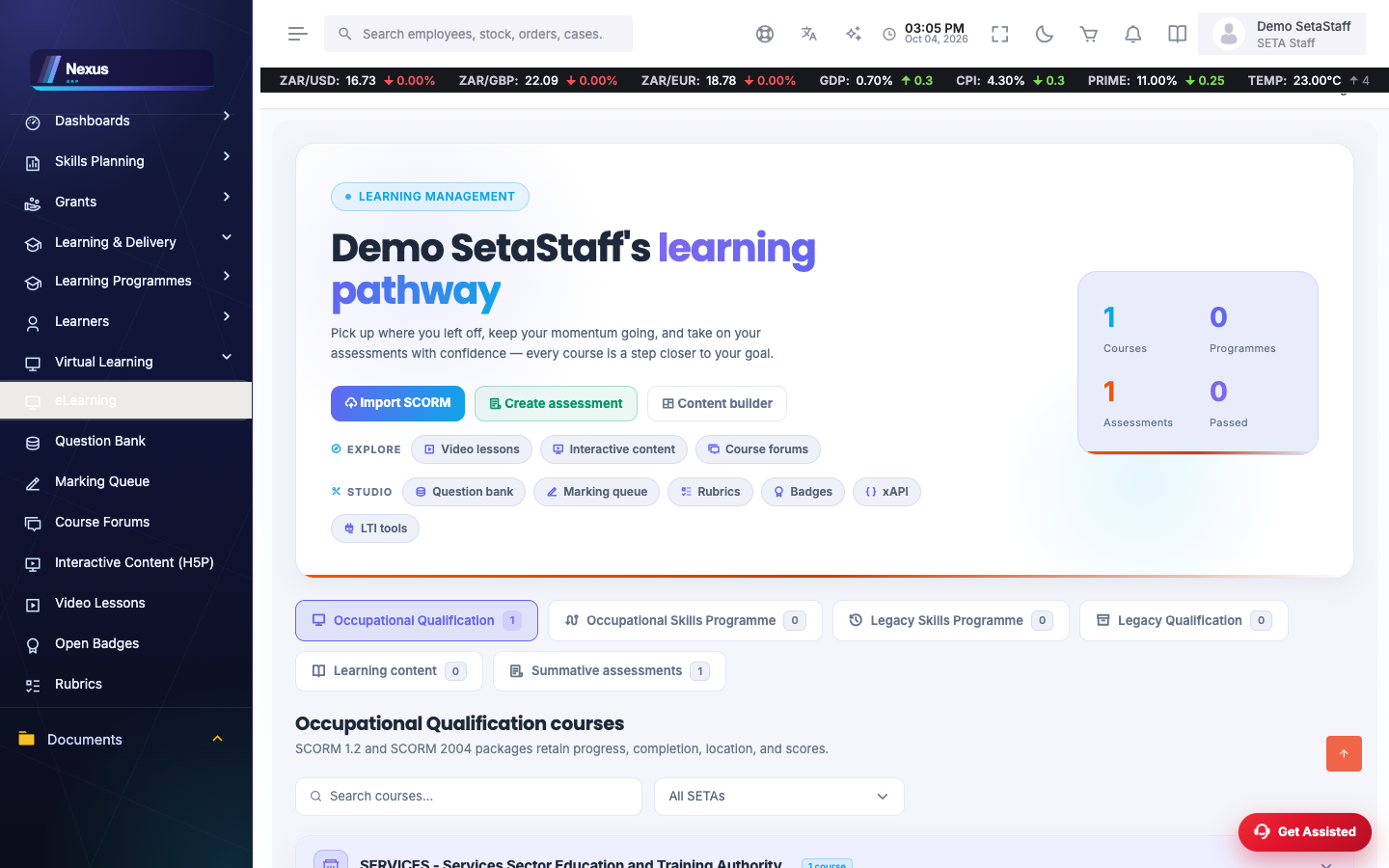
From the Learning dashboard /ELearning/Learning/Index
- Learners open their Learning dashboard. On a day their class has a live virtual session, a strip shows today's sessions.
- Click Join when the session is on. The LetsTalk virtual classroom opens — and joining marks your remote attendance automatically.
- Facilitators do not join from here — they start their sessions from the RAM Facilitator screen.
❓FAQ & troubleshooting
A learner's test shows no final mark.
It probably has an essay answer waiting in the Marking Queue — the score completes when the manual marking is done.
The AI generated questions on the wrong topic.
Be specific in the prompt (unit, level, number of questions) and regenerate — and remember nothing is kept until you review and accept it.
A badge did not issue automatically.
Check the badge class is active and its trigger points at the right course or assessment — then check the learner actually completed that exact one.
Weighted term marks look wrong.
Check the category weights sum to 100 and that every assessment is assigned to a category — unassigned assessments fall outside the weighting.