Payroll Statutory & HR Extras
The South African statutory files the payroll must produce — ETI, UIF, COIDA and e@syFile — plus employee benefits on the payslip and shift rosters for teams that work in patterns.
🧮ETI — Employment Tax Incentive
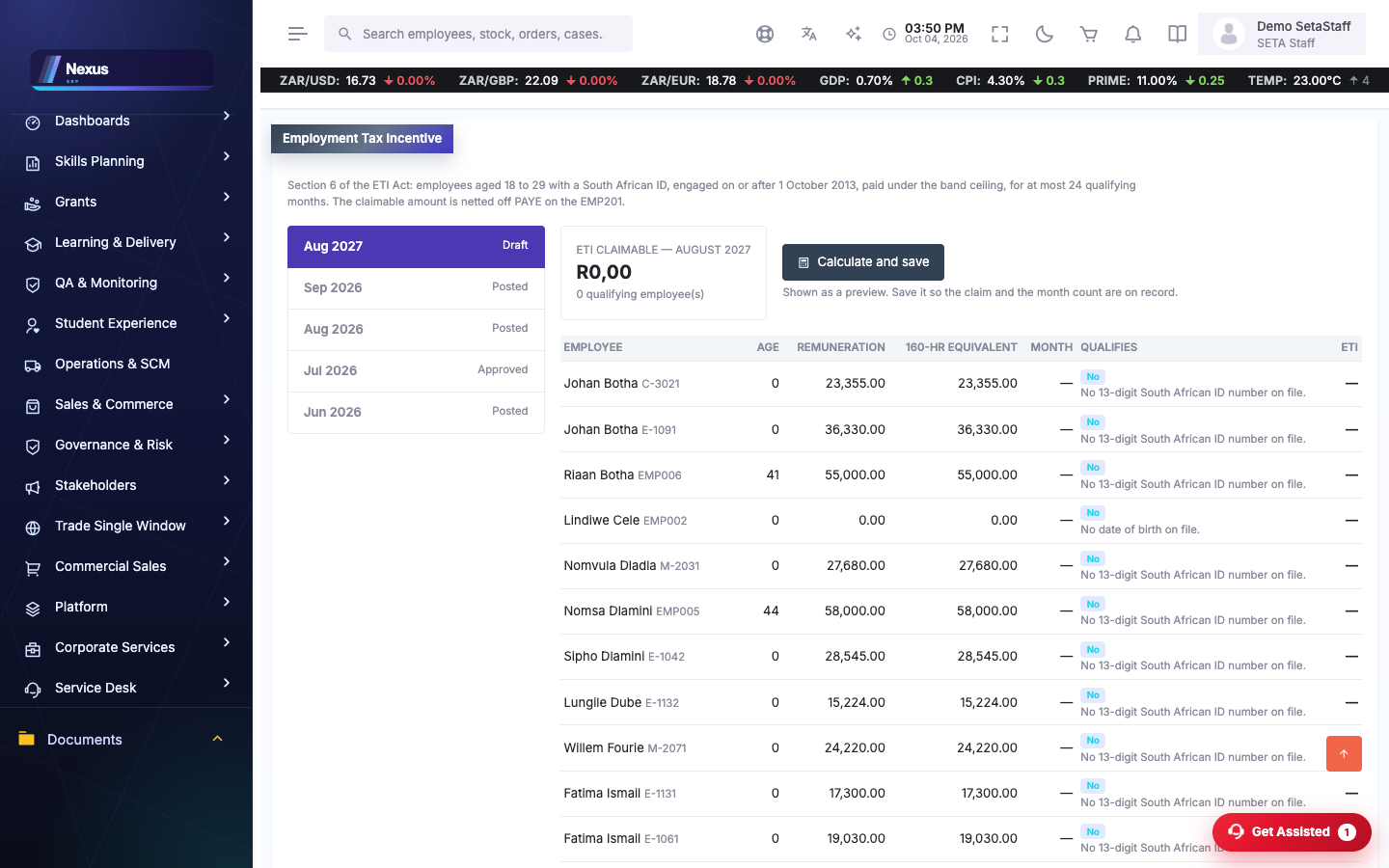
ETI per payroll run /People/Statutory/Eti
ETI reduces the PAYE you owe for qualifying young employees. The system works it out from the payroll run — you just run the calculation and read the result.
- Open People → Statutory → ETI.
- Pick the payroll run you want to assess.
- Click Calculate. The screen lists each qualifying employee, their months on the incentive, and the ETI amount for the run.
- The total is what reduces the PAYE on your EMP201 for that month.
📄UIF declaration file
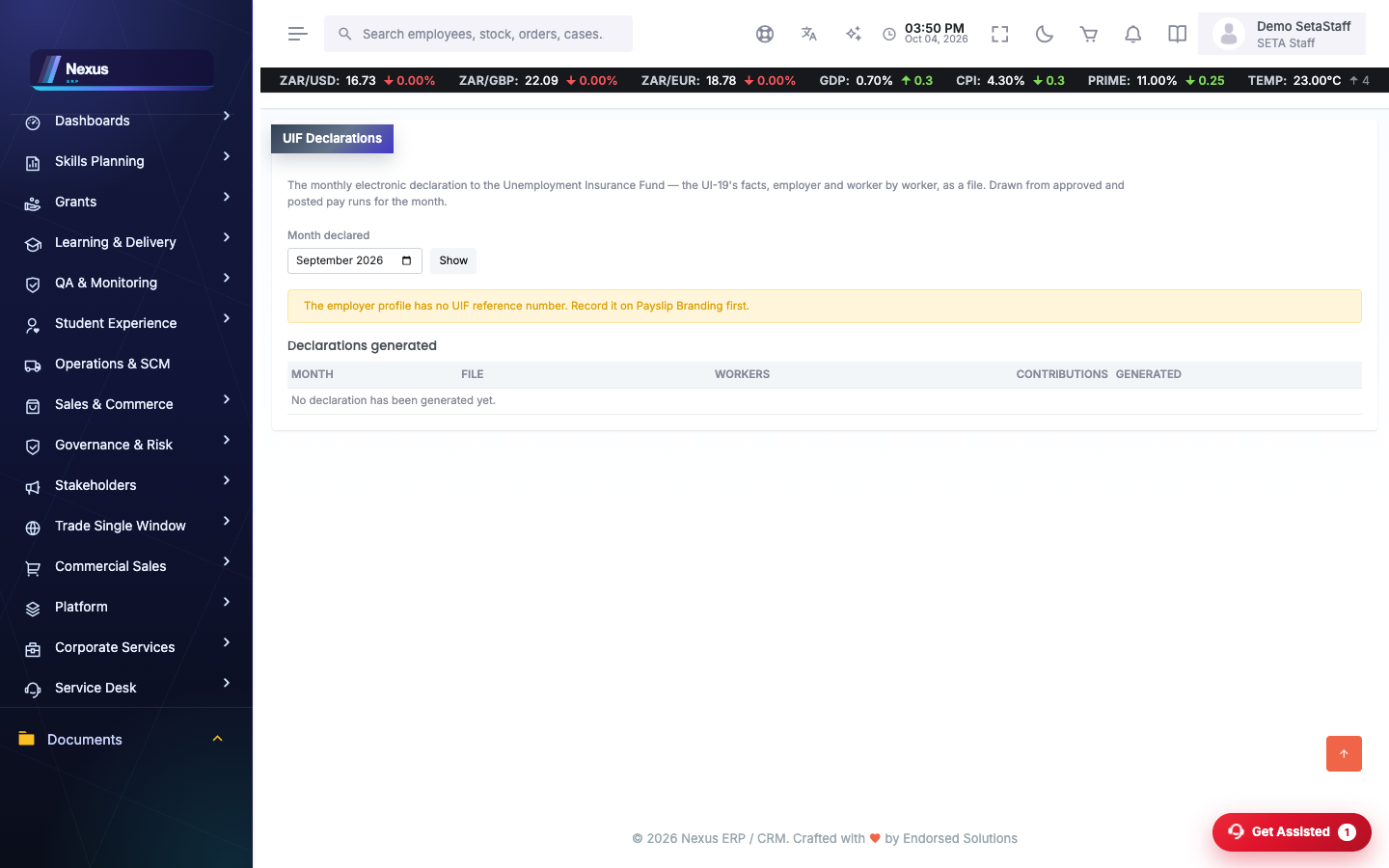
Monthly UIF declaration /People/Statutory/UifDeclaration
The Department of Employment and Labour wants a declaration file of employees and their UIF contributions every month.
- Open People → Statutory → UIF Declaration.
- Pick the month. The screen previews the employees and amounts that will go into the file.
- Click Download. The declaration file is generated in the Department's layout and saved to your machine.
- Submit the file through the uFiling / declaration channel you normally use.
🧥COIDA return of earnings
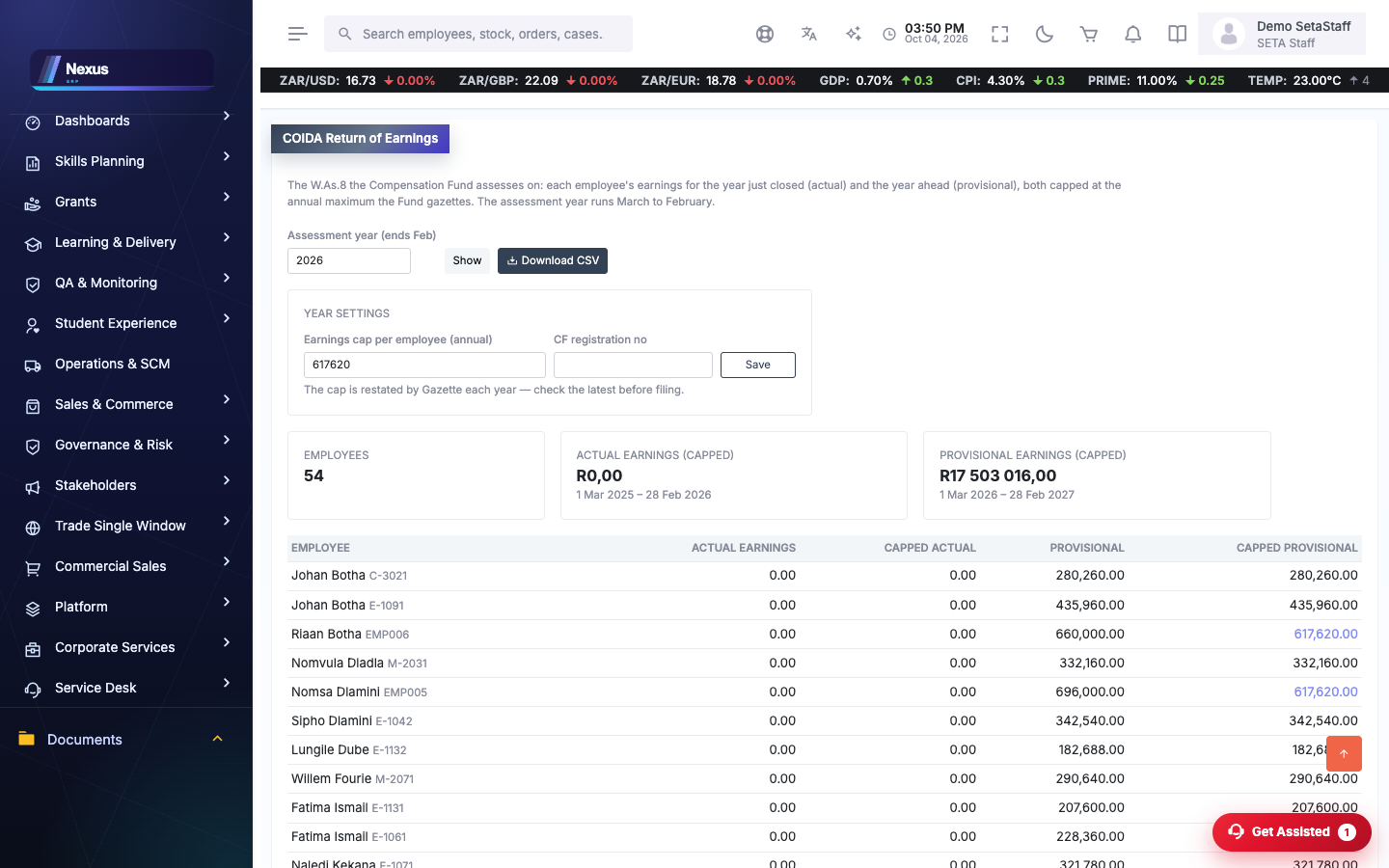
Annual COIDA return /People/Statutory/Coida
The yearly Return of Earnings for the Compensation Fund: total earnings paid, capped per employee at the official ceiling.
- Open People → Statutory → COIDA and pick the year.
- First time? Capture the settings: your Compensation Fund registration details and the earnings ceiling for the year.
- Review the earnings summary the screen shows for the year.
- Click Download to produce the return, then file it on the Compensation Fund's site.
💾e@syFile export
Tax certificates for SARS /People/Statutory/EasyFile
At tax year-end (and mid-year), SARS's e@syFile program needs an import file carrying every employee's certificate (IRP5/IT3(a)) figures.
- Open People → Statutory → e@syFile.
- Pick the tax year. The screen summarises the certificates it will write.
- Click Download to generate the import file.
- In e@syFile, import the file, validate, and submit the EMP501 reconciliation as usual.
🏥Benefits
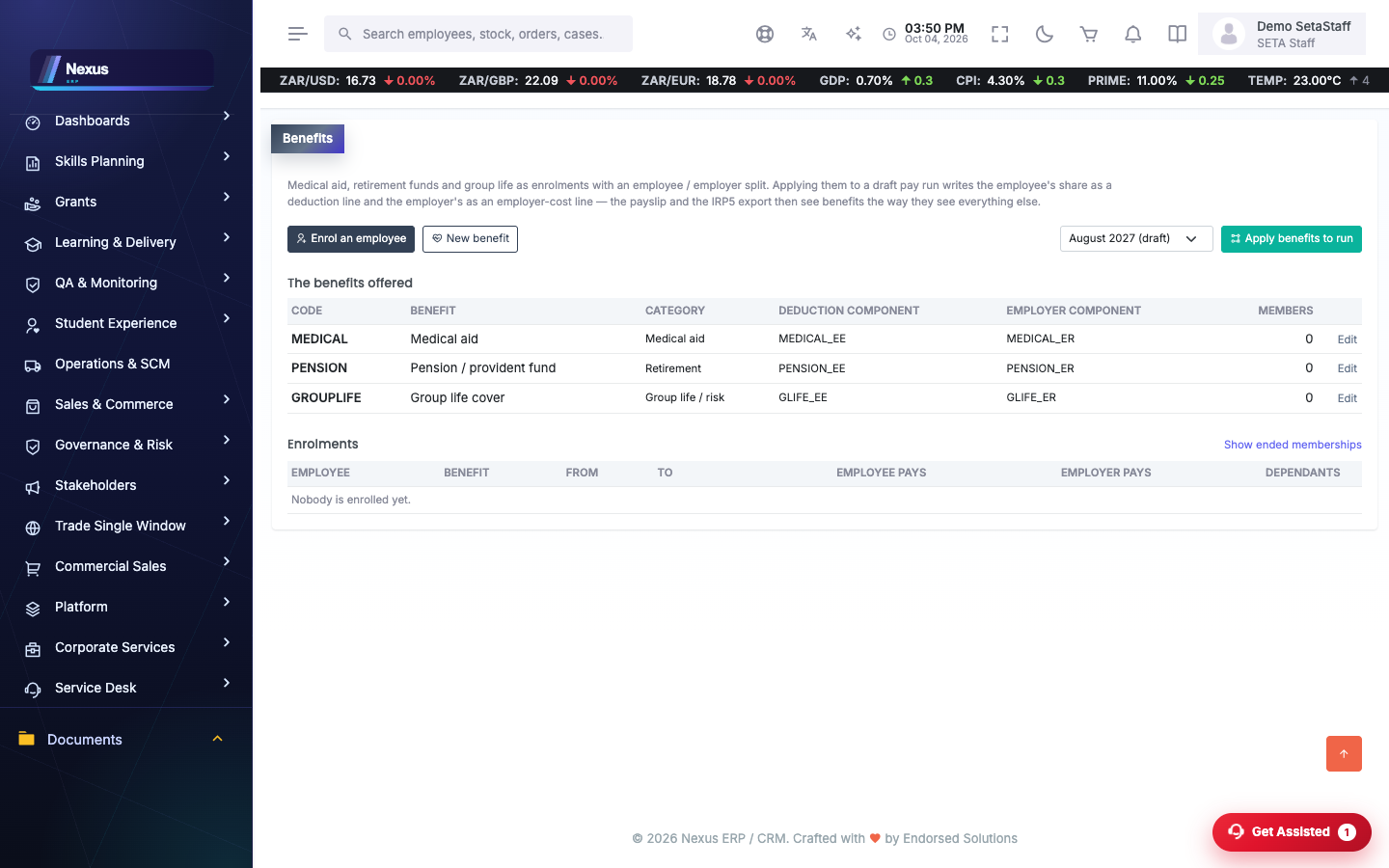
Benefit types & enrolments /People/Benefits/BenefitOverview
Medical aid, pension, group life — define each benefit once, enrol employees, and the deductions and company contributions flow onto the payroll run.
- Open People → Benefits.
- Add a benefit type: its name and how the employee deduction and employer contribution are worked out.
- Enrol an employee: pick the person, the benefit, the start date and the amounts that apply to them.
- When someone leaves a scheme, end the enrolment with its end date — history stays intact. Tick include ended to see past enrolments.
- At payroll time, click Apply to run on the chosen run: every active enrolment becomes deduction and contribution lines on the payslips.
📅Shift rosters
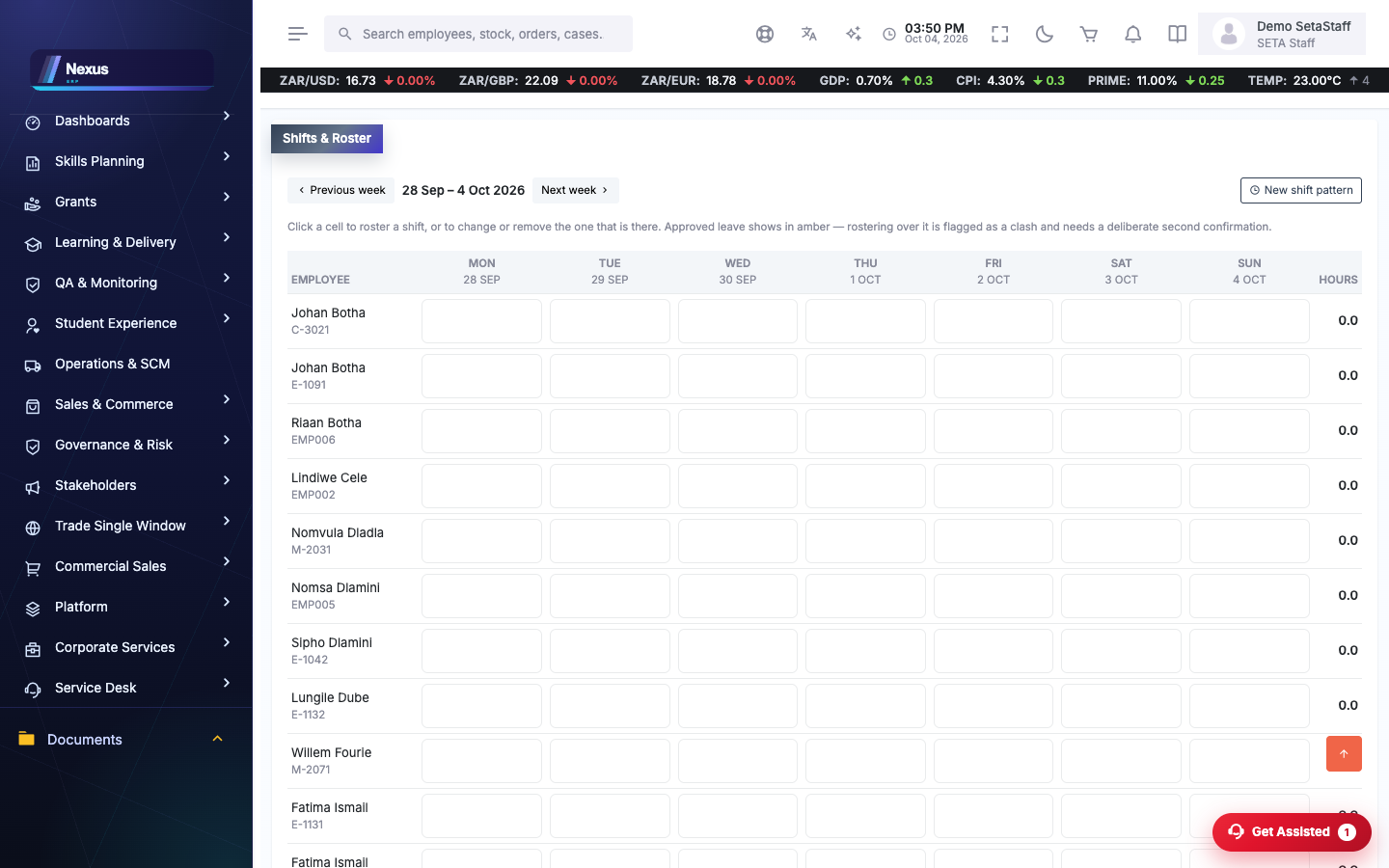
Roster overview /People/Roster/RosterOverview
For teams that work shifts: define the patterns once, then place people on the week grid.
- Open People → Roster. The grid shows a week at a time — use the week picker to move around.
- Create your shift patterns first: a name (Early, Late, Night), start and end times.
- Assign a shift: pick the employee, the pattern and the day, and add a note if needed.
- If the person is on approved leave that day, the system refuses and tells you there is a clash. To roster them anyway (leave being cancelled, emergency cover), repeat the assignment with the override confirmed — the second click is the deliberate decision.
- Remove a shift with Unassign.
Staff view: My Roster /People/SelfService/MyRoster
- Employees open Self Service → My Roster to see their own next four weeks of shifts — nothing to set up.
❓FAQ & troubleshooting
An employee I expected is missing from the ETI list.
ETI has qualifying rules (age, wage, months claimed). The calculation only lists employees who qualify on this run — check their date of birth and wage on the employee record.
The UIF file was rejected.
Almost always a data gap — an ID number, a start date, or UIF contribution missing on someone. Fix the employee record and download the file again.
Benefits did not show on the payslips.
Enrolments must be active on the run date, and Apply to run must be clicked for that run before it is finalised.
Why does the roster block some assignments?
The person has approved leave that day. The block is deliberate — override only when you really mean to roster them over their leave.