Nexus ERP · User Guide
People & Companies (Master Data)
The master registers everything else builds on: persons (with Home Affairs validation), companies (with a registry-search wizard that fills the form, directors included), contacts, documents and the file manager with per-owner scoping.
SETA staffAdministratorsData capturers
Demo sign-ins: demo.staff, demo.admin — shared password Demo@2026
How it flows
New company through the wizard
Staff / SETAType the trading nameRegistry search kicks in
→
Staff / SETAPick from the match listA standard selection dialog
→
System / automaticForm auto-populatesDetails, director, contact person
→
Staff / SETAComplete contacts & addressOne contact minimum; telephone optional
→
System / automaticCompany savedOptionally linked as a supplier, NXVND-…
Staff / SETASystem / automatic
1. Company Registration Process
Capture a company a single time, properly, and every other module borrows the same record instead of retyping it.
1
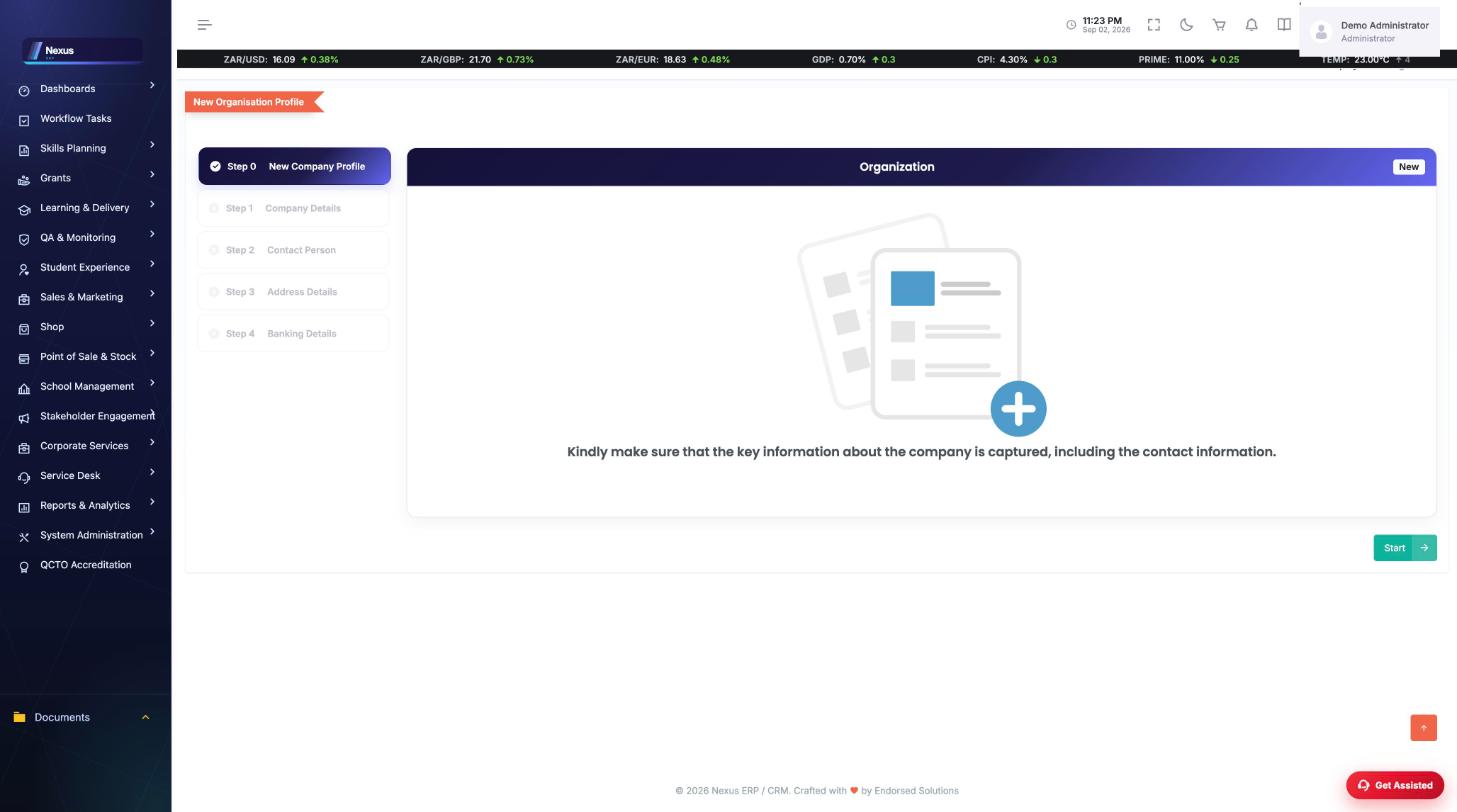
The wizard, fed by the registry. Type the trading name and pick the match — registration number, VAT, tax, dates, industry, address and the director’s information fill themselves in, with the director pre-filled as the primary contact.
↓
2
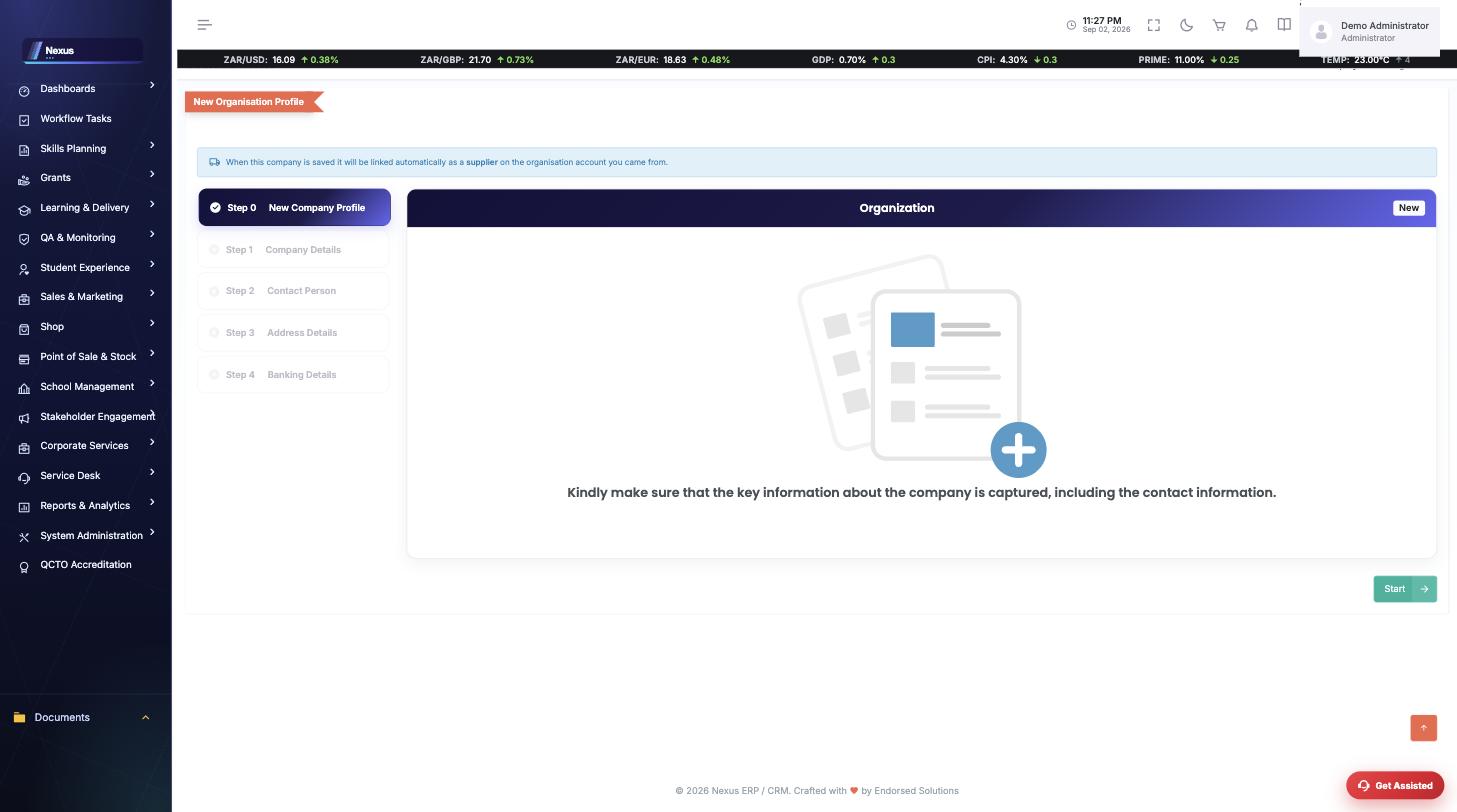
Entered from a supplier register, it links itself back. Reached via “New company as supplier”, the wizard banners the promise — and on save the company returns to the organisation account as a supplier with its NXVND vendor number. The full procurement story continues in the Finance guide’s supplier journey.
↓
3
One record, many hats. The same company is an employer with levies and WSP submissions, a supplier with invoices and remittances, and a CRM account with deals — contact details captured once mirror onto the profile’s Contact Information card.
Screen-by-screen
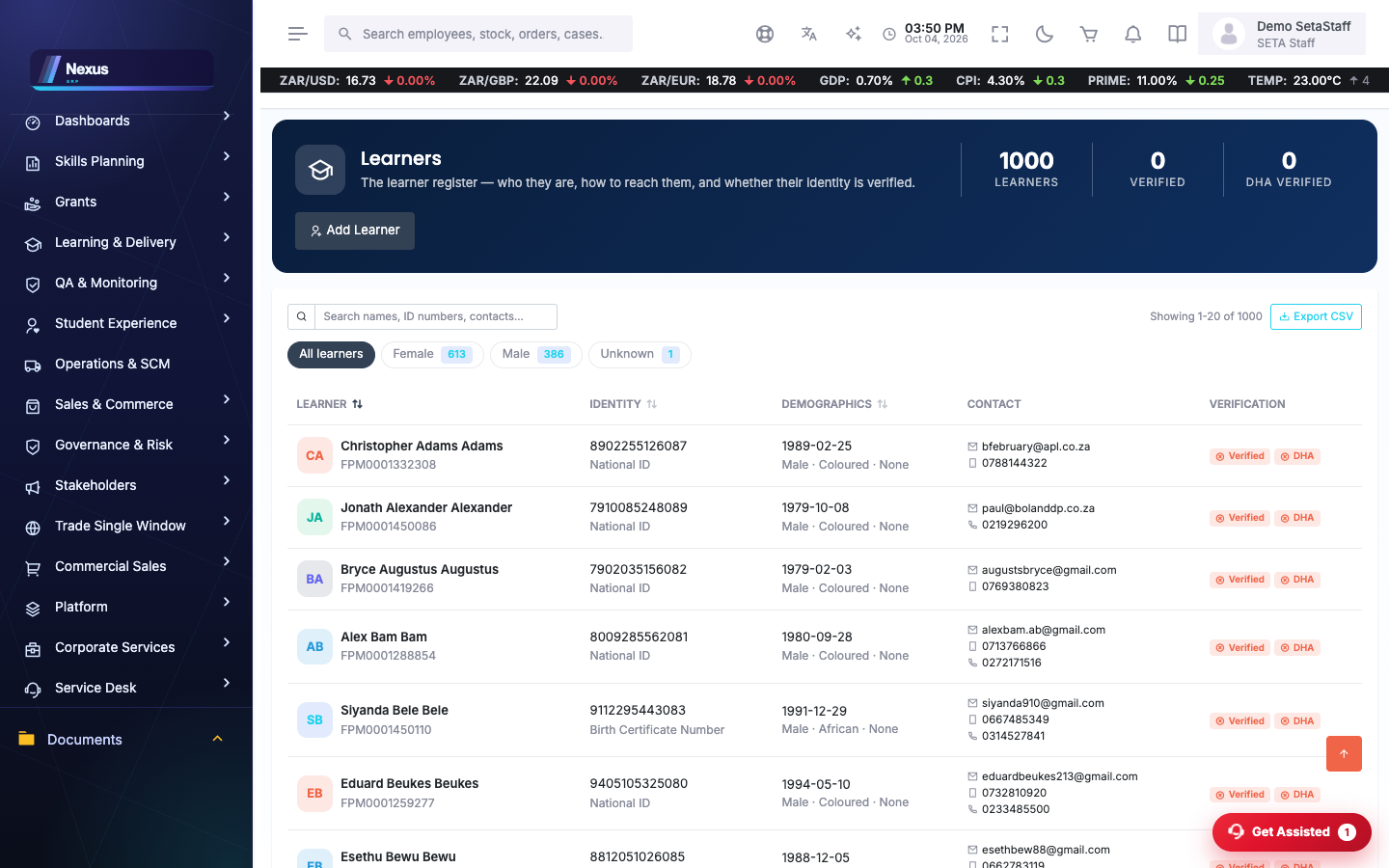
Person register
/MasterData/Person/PersonOverview- Search or add a person.
- Validate identity with DHA from the profile.
- A person can carry a CMIS login and role links.
Companies
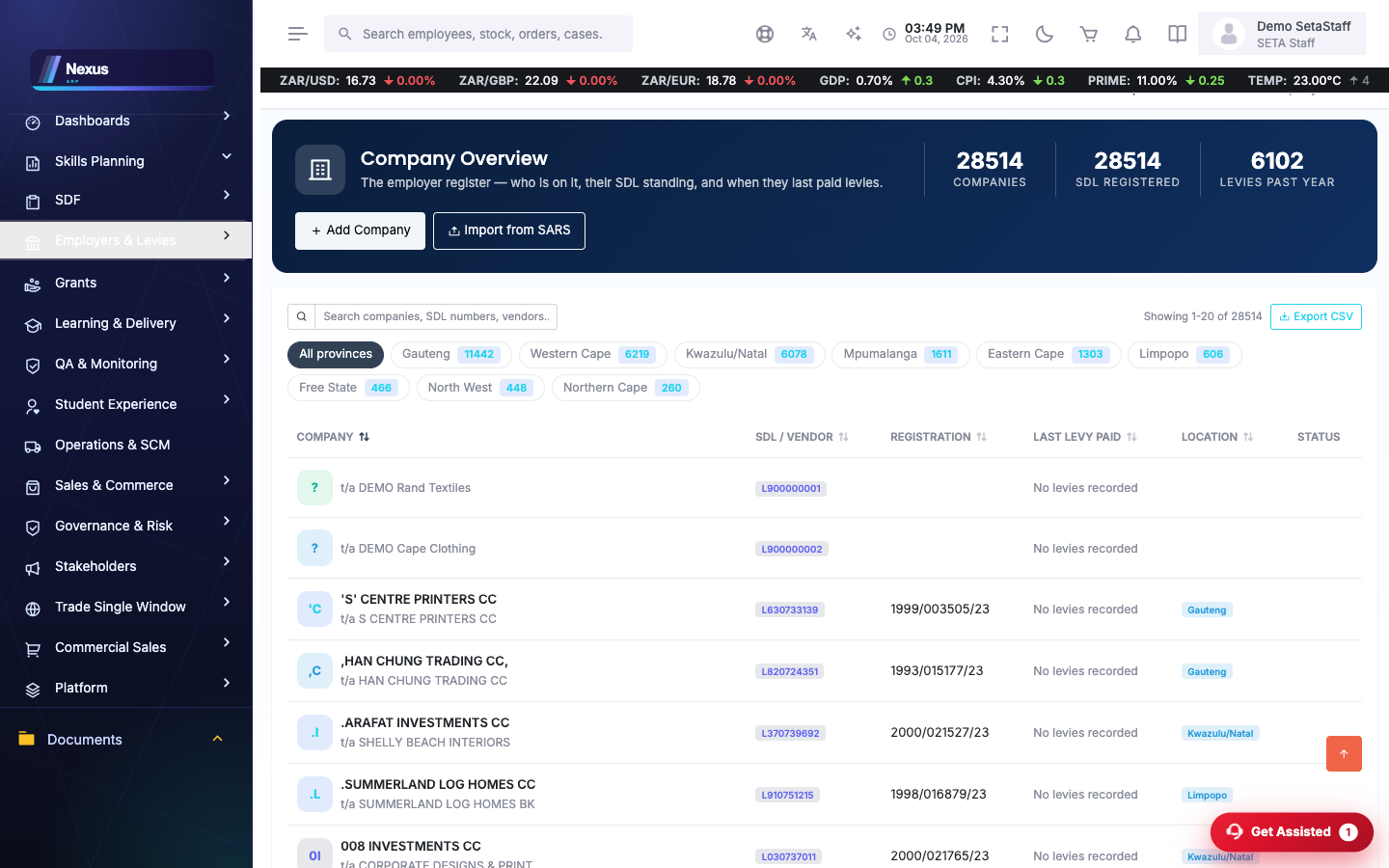
/MasterData/Companies/CompaniesOverview- Search the employer register; open a company profile for its details, contacts, banking, branding and levies.
- Contact details captured on the profile mirror onto the company record and show on the Contact Information card.
Add a company (wizard)
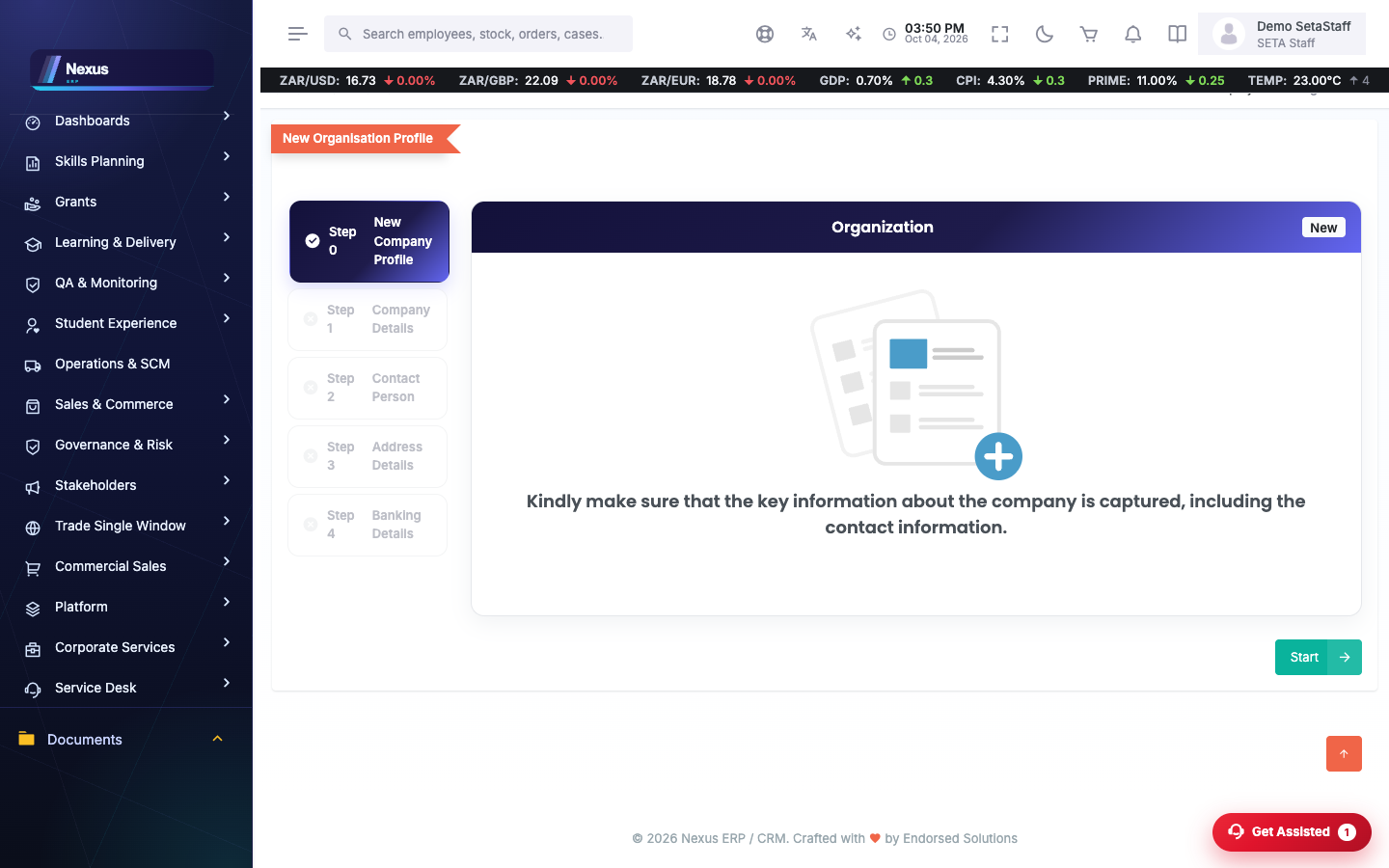
/MasterData/Companies/AddCompanyProfile- Type the trading name (5+ characters) — matches from the company registry open in a selection dialog.
- Pick the company: registration number, VAT, tax, dates, industry, address and the director's information fill in automatically; the director is also pre-filled as the primary contact.
- None of them right? Choose 'capture manually' and type the details.
- Contacts step: one captured contact is enough to continue, and telephone numbers are optional.
- Address requires GPS coordinates for a company — that rule is deliberate.
Tip. Entered from an organisation account's supplier register, the wizard banners that the company will be linked back as a supplier automatically on save.
Documents & file manager
/MasterData/FileManager/Index- Browse the libraries your role may see.
- Staff see everything; SDPs and employers see their own documents only.

FAQ & troubleshooting
The registry search found nothing.
Capture manually — the registration number field unlocks and the wizard proceeds as normal.
Why must a company address have GPS?
Companies are visited and audited; the coordinate rule applies to companies only, not to people.