Platform Administration
The glue around every module: webhooks that tell other systems when things happen, reports that email themselves on a schedule, module extensions you can switch on and off, the topbar AI assistant, the language switcher, and the mobile push-device registry.
🔗Webhooks
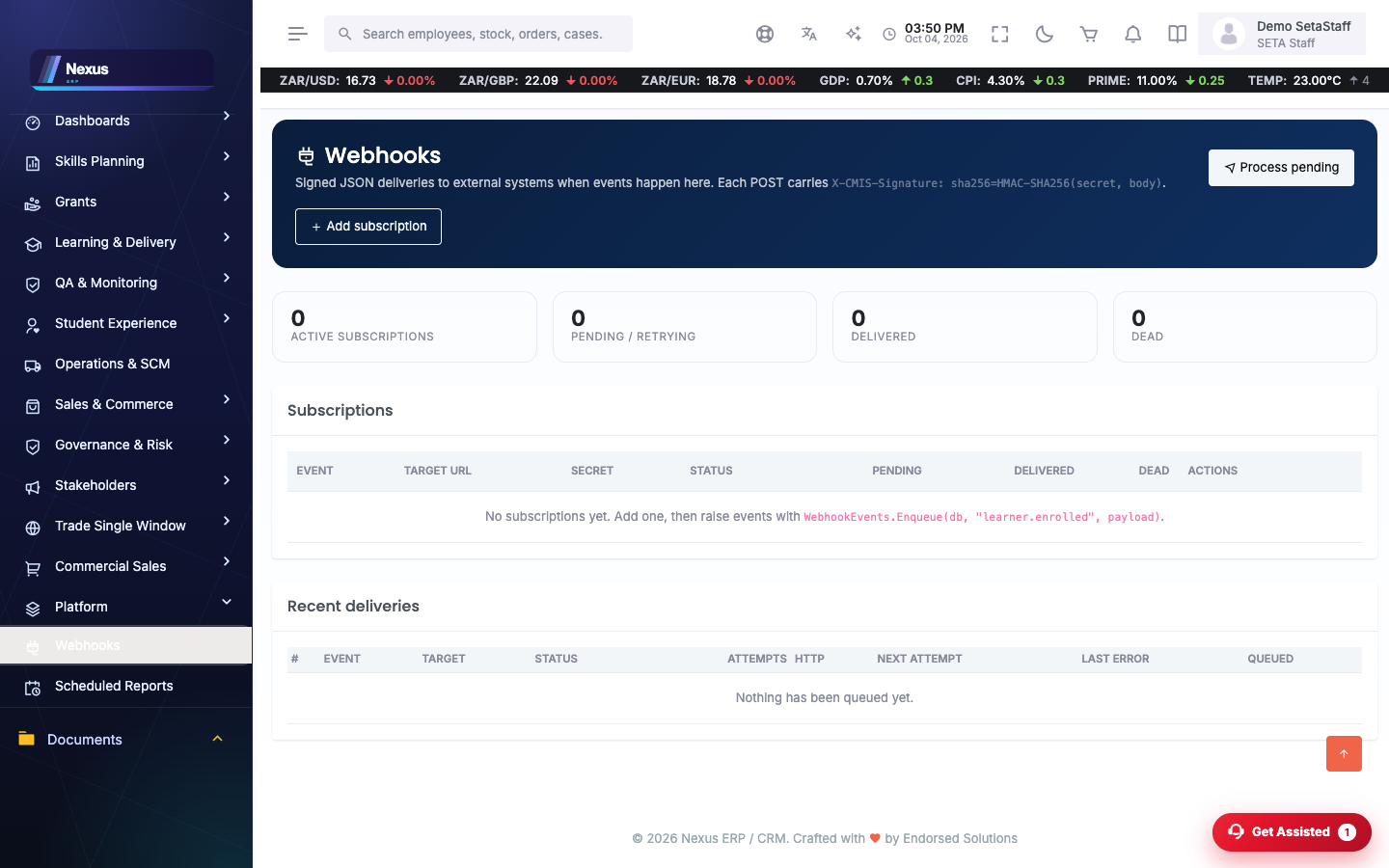
Subscriptions & deliveries /Administration/Webhooks/Index
A webhook tells another system the moment something happens here — a case created, an invoice issued — by POSTing a signed JSON message to a URL you give it.
- Open Administration → Webhooks.
- Add a subscription: pick the event and paste the receiving system's target URL, then save.
- The signing secret is generated on save and shown once in the banner — copy it to the receiving system right away. It signs every delivery (
X-CMIS-Signature) so the receiver can prove the message came from here. - Click Test to send a ping and confirm the receiver answers.
- Watch the delivery log on the same page: every POST with its response code, so a failing receiver is visible at a glance. Failed deliveries can be pushed again with Process pending.
📤Scheduled reports
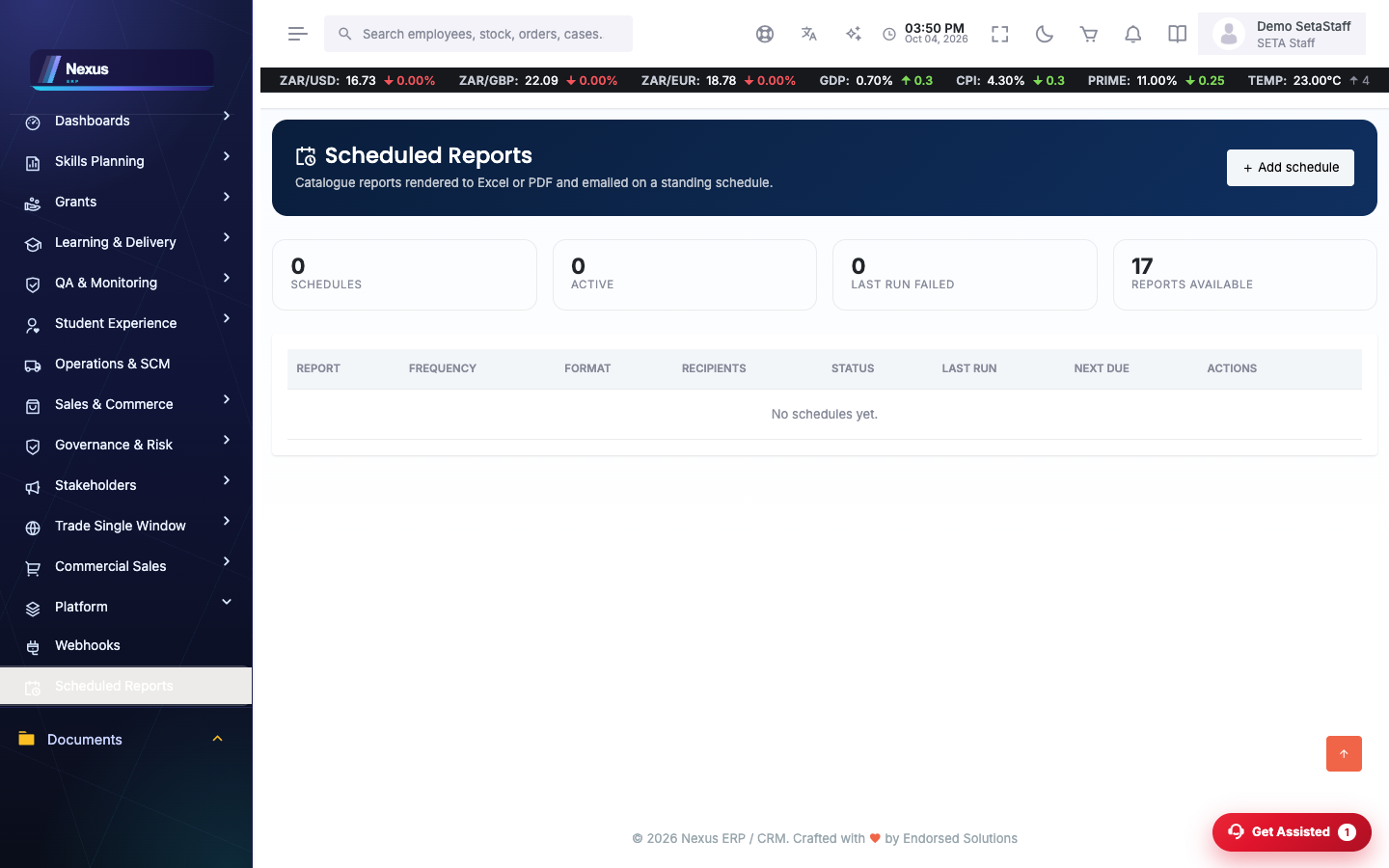
Reports that send themselves /Administration/ScheduledReports/Index
- Open Administration → Scheduled Reports.
- Add a schedule: choose the report, the recipients, how often it should go, and the format the attachment should arrive in.
- Save. From now on it runs itself on the schedule and emails the result.
- Click Run now to fire one off immediately — the quickest way to test the whole chain, email delivery included.
- Delete a schedule when nobody reads it any more.
🧩Extensions
Switch modules on and off /Administration/Extensions/Index
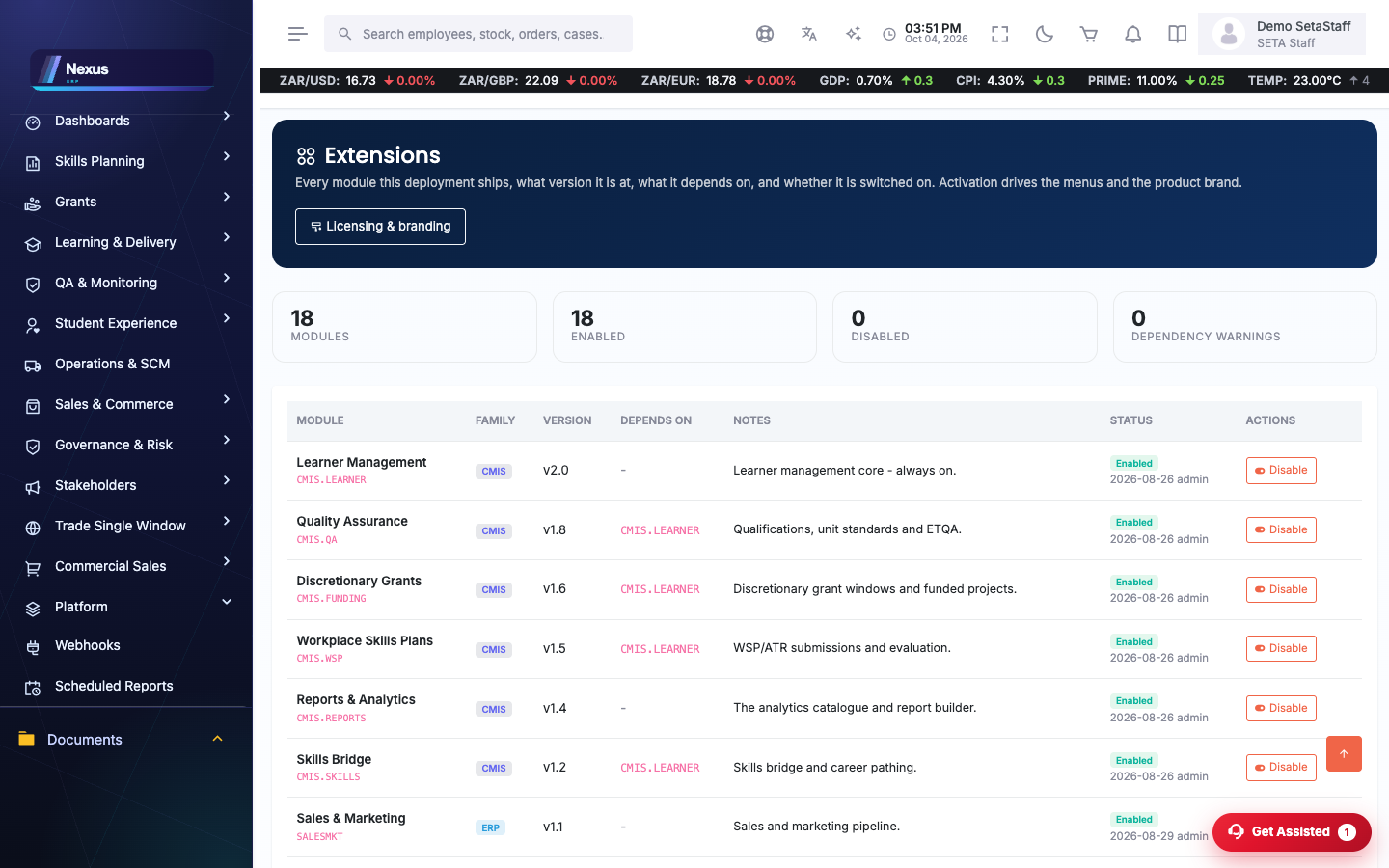
Nexus ships many modules; not every organisation uses them all. Extensions is where a module is activated for this deployment.
- Open Administration → Extensions. Each row is a module with its activation state.
- Toggle a module on to activate it (capture the licence reference if you have one) — its menus and screens appear for users whose roles grant them.
- Toggle it off to retire it — the module disappears from menus; its data stays put.
🤖The AI assistant in the topbar
Ask it about your own data
The assistant bubble in the topbar answers plain-language questions — and it only ever sees the data the signed-in user is allowed to see.
- Click the assistant icon in the topbar and type a question.
- It can answer things like: my service desk cases, the open case queue (and SLA breaches), my classes and enrolments, classes starting soon, levy income summary, outstanding debtor balances, WSP submission status and enrolment statistics.
- Ask something it does not know and it replies with the list of things it can do — no guessing, no made-up numbers.
🌐Language switcher
Per-user language
- Any user clicks the language dropdown in the topbar and picks their language.
- The choice is remembered (a cookie) and the interface labels switch immediately — it is per user, not system-wide.
📱Push-device registry
How mobile notifications find a phone
There is nothing to click here day to day — but it helps to know how it works when someone asks why their phone is quiet.
- When a user signs in on the mobile app, the app registers the phone's push token against their account — that registry is how the server knows which devices belong to whom.
- When something notifies them (a case update, an approval), the server sends a push to every registered device of theirs.
- Signing out, reinstalling or switching phones re-registers automatically on the next sign-in; stale devices simply stop being valid.
❓FAQ & troubleshooting
I lost the webhook secret.
It is shown once, at creation. Delete the subscription and add it again — a new secret is generated and shown in the banner.
Deliveries to my webhook keep failing.
Read the delivery log's response codes. A 404 means the target URL is wrong; a 401/403 usually means the receiver rejects the signature — check it verifies with the right secret.
A scheduled report never arrives.
Use Run now to test. If that email arrives, the schedule's timing or recipients are wrong; if it does not, the mail settings or address are the problem.
A module is missing from someone's menu.
Two gates: the module must be activated under Extensions, and the user's role must grant it. Check Extensions first, then the role's menu grants.