User accounts, roles, permissions, module activation and the audit trail. Everything every other module trusts starts here.
demo.admindemo.staff
🗺From new account to audited action
How the module fits together end to end. Colours mark who acts: navy = staff/admin, cyan = external user, green = organisation, orange = the system.
Administrator
Create userUsers → Add
→
Assign type & grouprole + organisation
→
Grant functionsGroup Functions
↓
User
Sign inusername + password
→
Menu built from grantsonly permitted screens
→
Work in modules
↓
System
Audit trailevery action logged
→
User Activitiesreviewable by admin
🧭1. User Registration Process
Two doors into the system — a person registers themselves, or an administrator creates them — and both end at the same first sign-in.
1
Door one: self-registration./Authentication/Account/Register — open only to external roles (training providers, employers, learners); staff and administrator accounts can never be self-registered, and social sign-in maps to an allowed external type or is refused with exactly that message. A provider not yet on the register can introduce their organisation as part of signing up.
↓
2
Door two: staff-created. An administrator adds the user on /Administration/User/UserOverview — username, email, and the password rules the system enforces.
↓
3
The group row makes them somebody. A row in user groups gives the account its user type and, for organisation roles, its provider or employer scope — the login reads the type from here, not from the user record.
↓
4
First sign-in. An unverified account is routed to /Authentication/Account/VerifyAccount to enter its emailed code; a reset flag forces a password change before anything else; and POPI consent is part of the account’s standing. Only then does the module launcher appear.
🧭2. Configure User Access Process
What a signed-in user may see and do is shaped in four places — and all four must agree.
1
Start at the group row. The user’s type and organisation scope come from their group membership — wrong type here, and no grant elsewhere can help.
↓
2
Grant functions — at BOTH levels./Configuration/GroupFunctions/GroupFunctionsOverview — grants exist per user type and per job title. When a user carries a title, access is evaluated against the exact title, so a grant at type level alone silently fails; grant at both.
↓
3
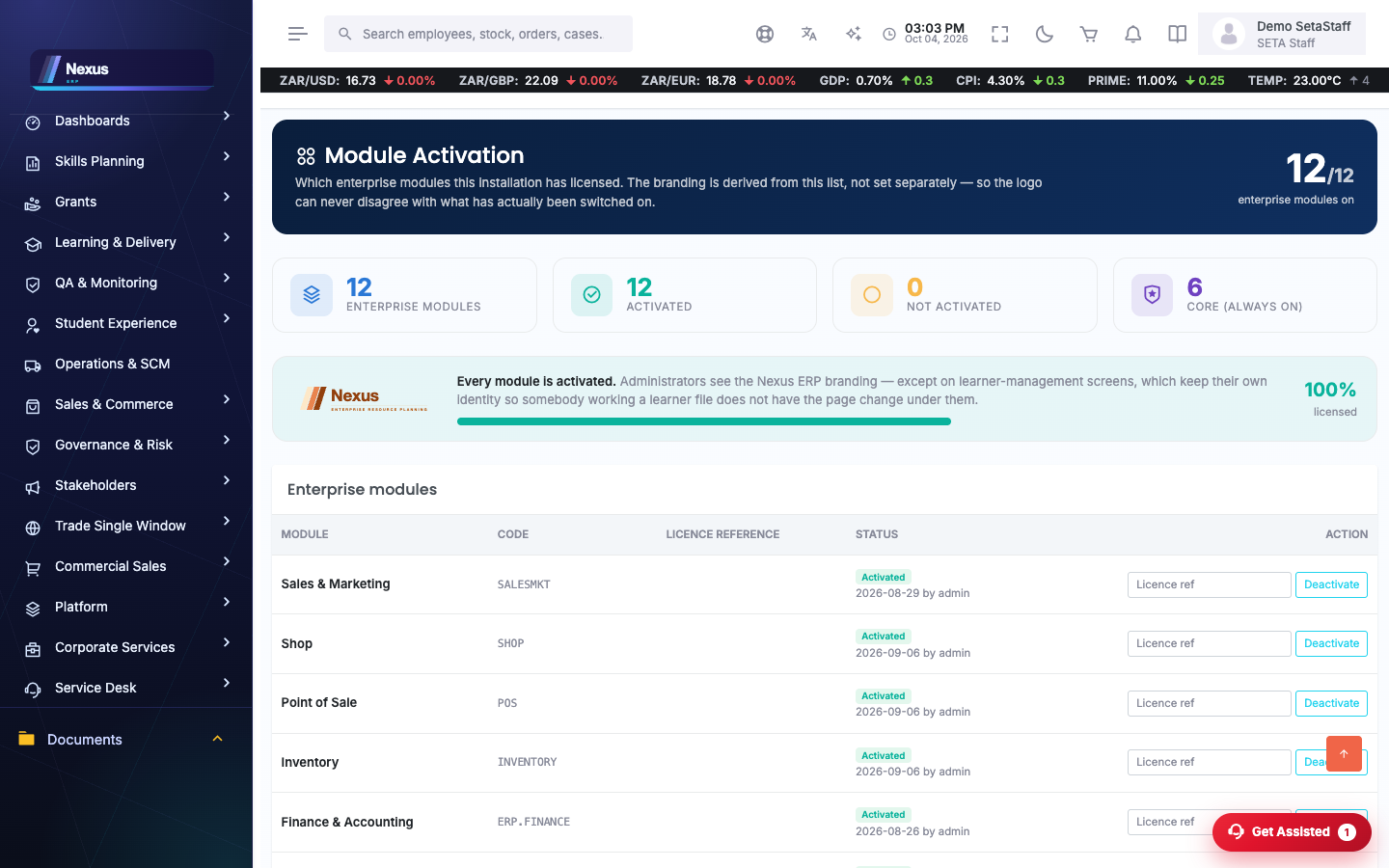
Check the module is on. A function whose module is deactivated stays invisible no matter the grants.
↓
4
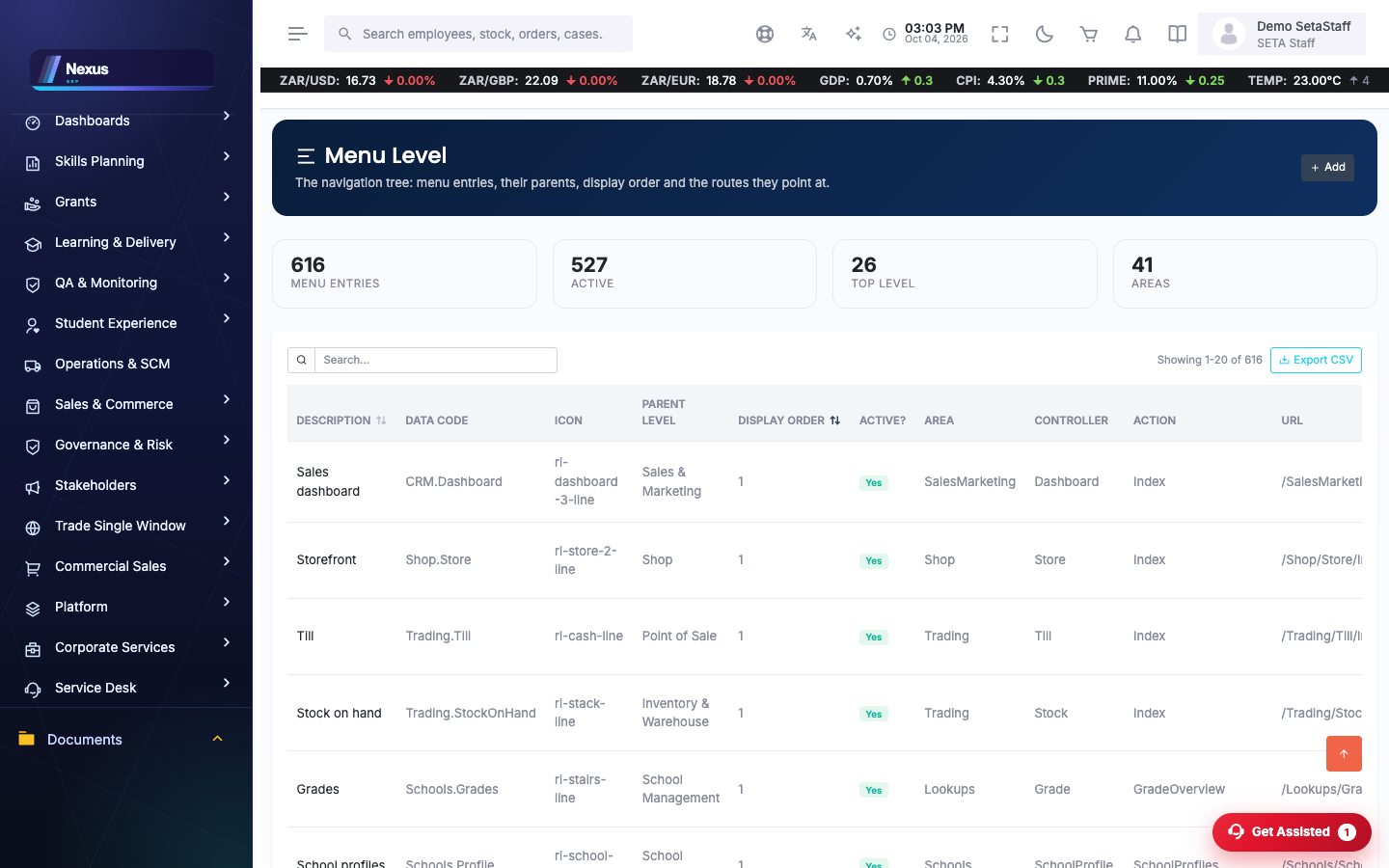
The menu builds itself from the grants./Configuration/Menu/MenuLevelOverview — a menu item shows only where its data code has a granted function AND its parent sits in the rendered tree. The menu is cached for hours — after changing grants, allow time or recycle the application.
↓
5
Verify as the user. Sign in as them (or check their menu) — seeing what they see is the only test that counts.
🧭3. Complete User Profile Process
An account that can sign in is not yet a finished profile — what completes it depends on who the user is.
1
Personal profile. Photo where the screen offers one, and a signature on file for roles that sign documents — a signature is stored securely, not in the public uploads folder.
↓
2
Link the person record. Learners, assessors and facilitators exist as persons; the person record carrying the user id is what lets enrolments, classes and Let’s Talk find them.
↓
3
Organisation completion. An SDP finishes its provider profile — the profile’s Complete Your Profile card tracks exactly what is missing (see the QA guide); an employer completes company particulars and the contact person, which mirror onto the company record (see People & Companies).
↓
4
Security details. POPI consent recorded, password current, and the account verified — the same flags Process 1 ended on.
🧭4. Reset & Unlock a User Process
Accounts lock, passwords age, people leave — the register handles all three without deleting history.
1
Open the user./Administration/User/UserOverview — the edit dialog carries the switches.
↓
2
Reset the password. Flag the reset and the user is forced to choose a new password at next sign-in.
↓
3
Unlock. Failed attempts count against the account; clearing the counter (and the active flag) restores access.
↓
4
Deactivate, never delete. An inactive account keeps its audit trail — who did what remains answerable years later.
👤User accounts
User Overview /Administration/User/UserOverview
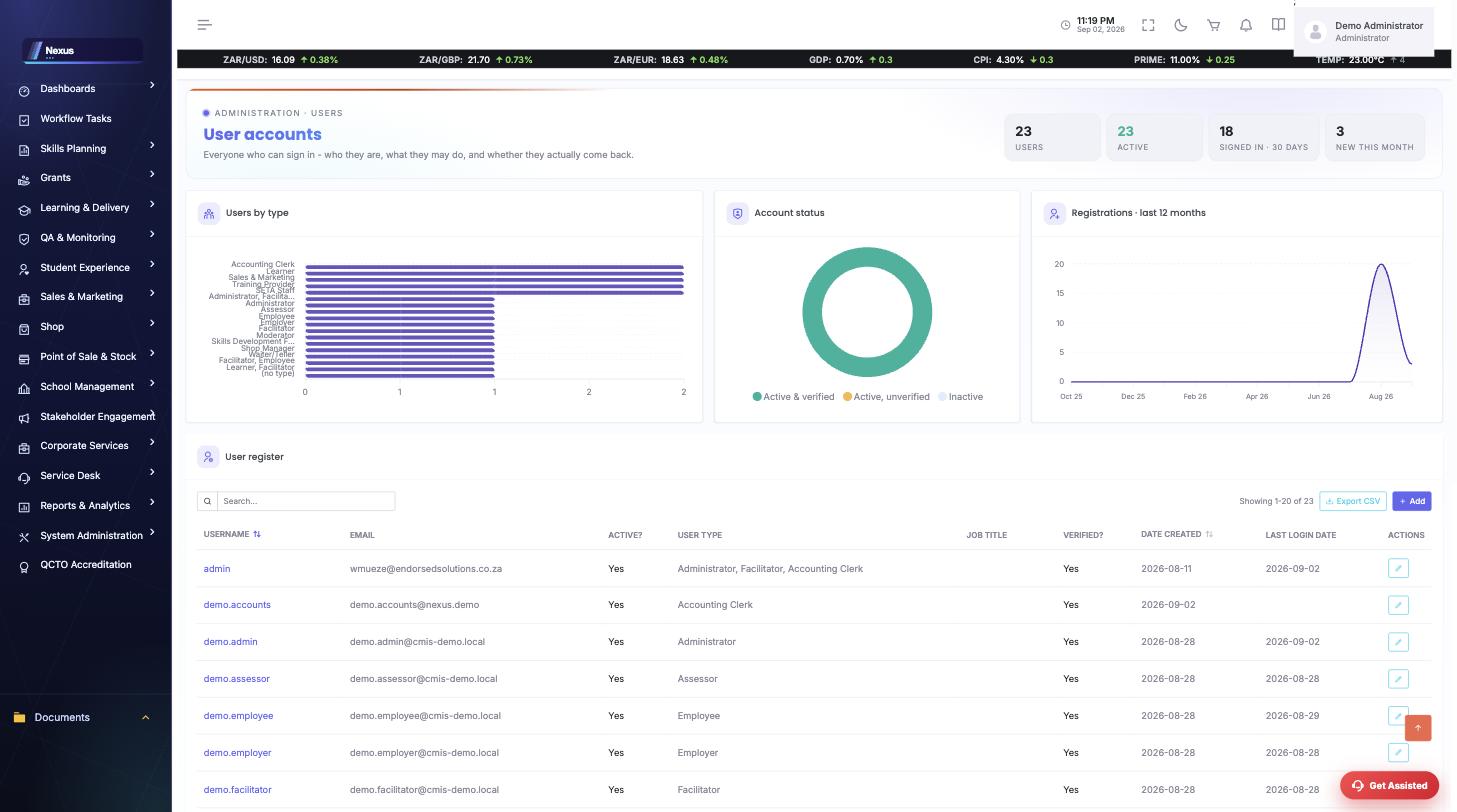
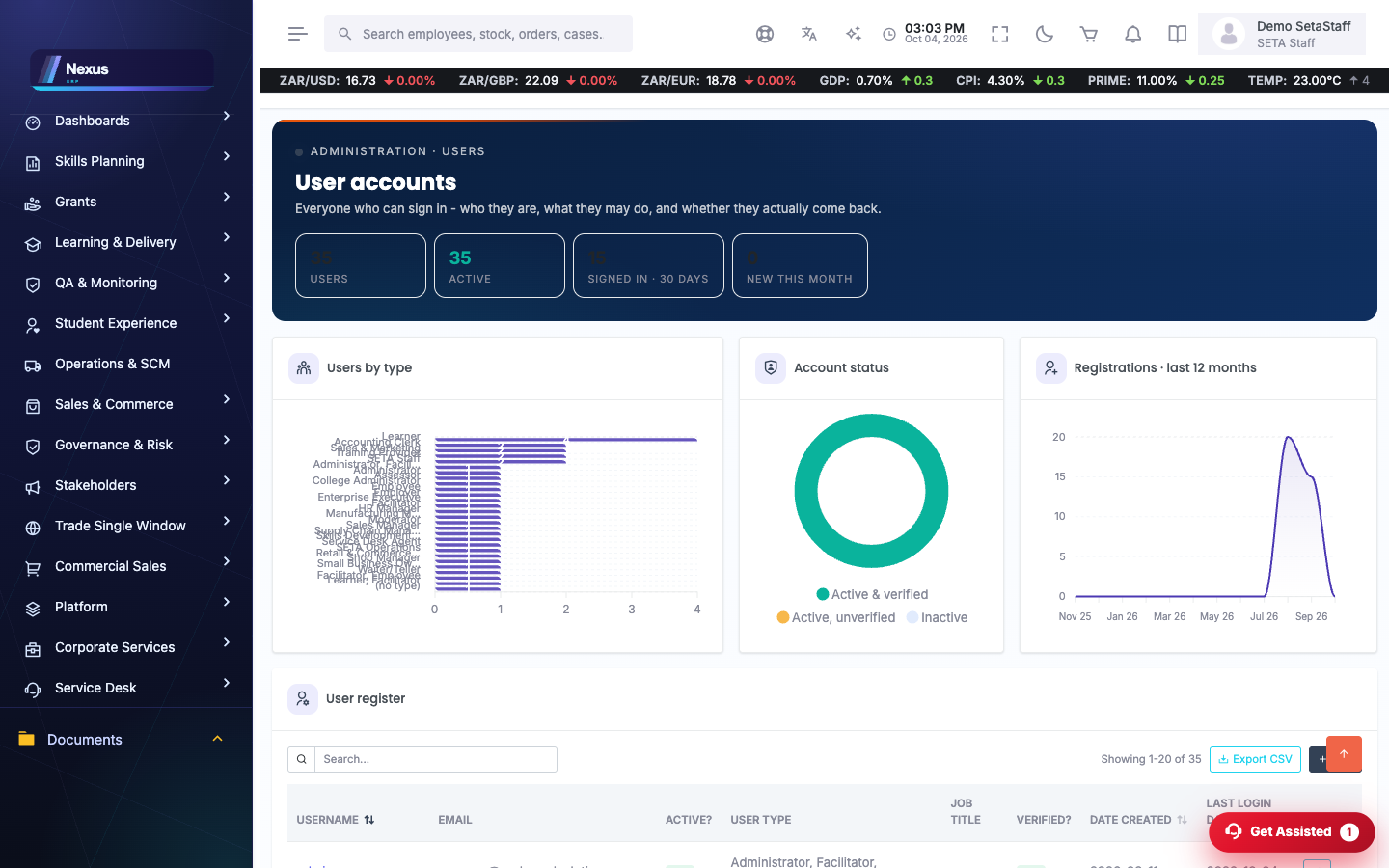
The user register with live graphs at the top: users by type, account status, and registrations over the last 12 months. Search, export, add and edit users.
Click Add to create a user: username, email, user type and title.
Use the row's edit action to change details, activate/deactivate or reset a password.
The stat tiles show totals, active users, sign-ins in the last 30 days and new accounts this month.
💡 A user's TYPE (Administrator, Staff, SDP, Employer, Learner…) decides which menus and functions they can be granted.
User Management /Administration/UserAdministration/UserManagement
Administrative actions across accounts: linking users to organisations, unlocking, verification.
Find the account, then apply the administrative action you need.
🔑Types, titles and permissions
User Types /Administration/UserType/UserTypeOverview
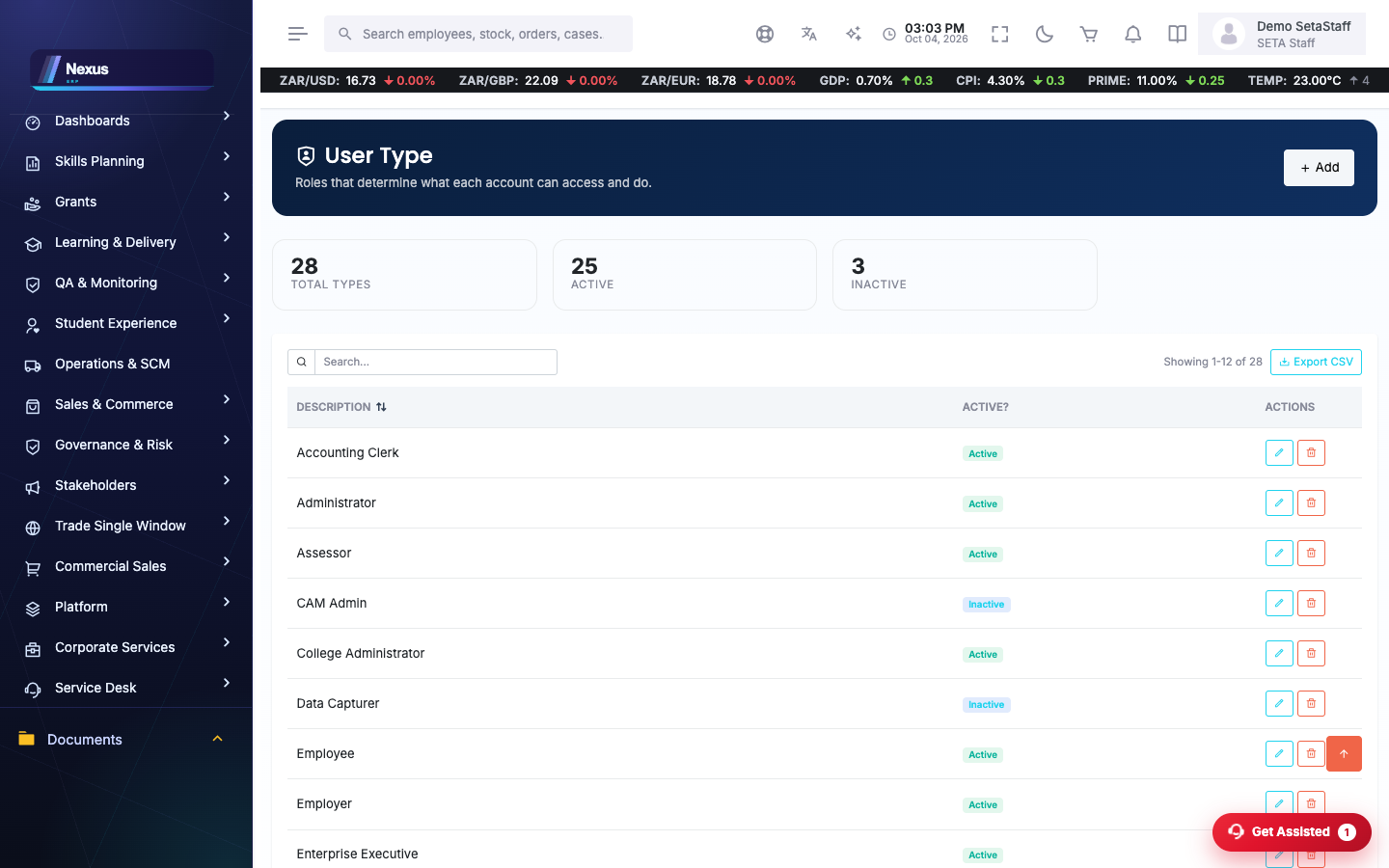
The catalogue of roles (Administrator, SETA Staff, Training Provider, Employer, Learner, Shop Manager…). Deactivate a type to retire it everywhere.
User Titles /Administration/UserTitle/UserTitleOverview
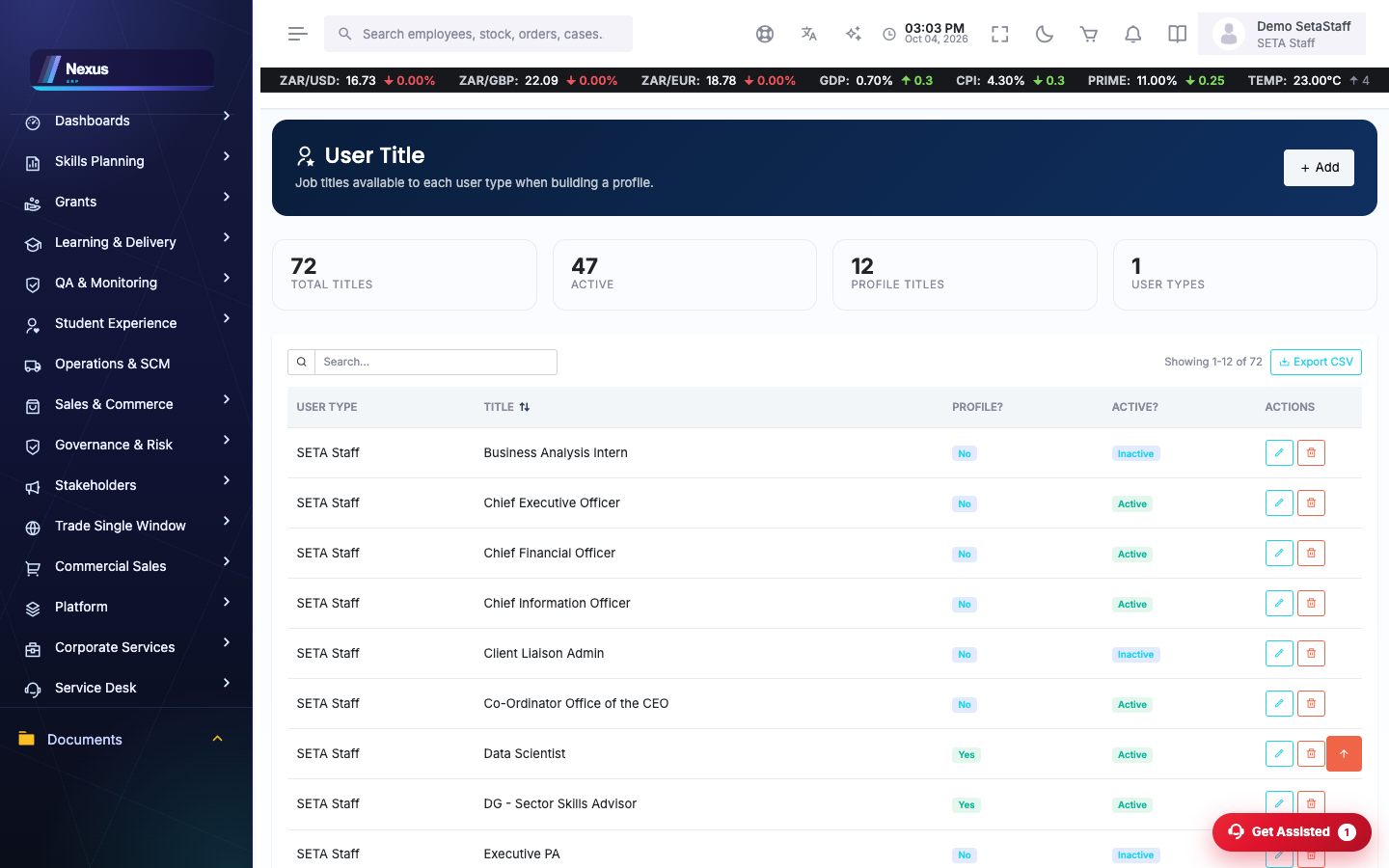
Job titles inside each type. Access checks evaluate the exact title when a user has one, so grants exist at both levels.
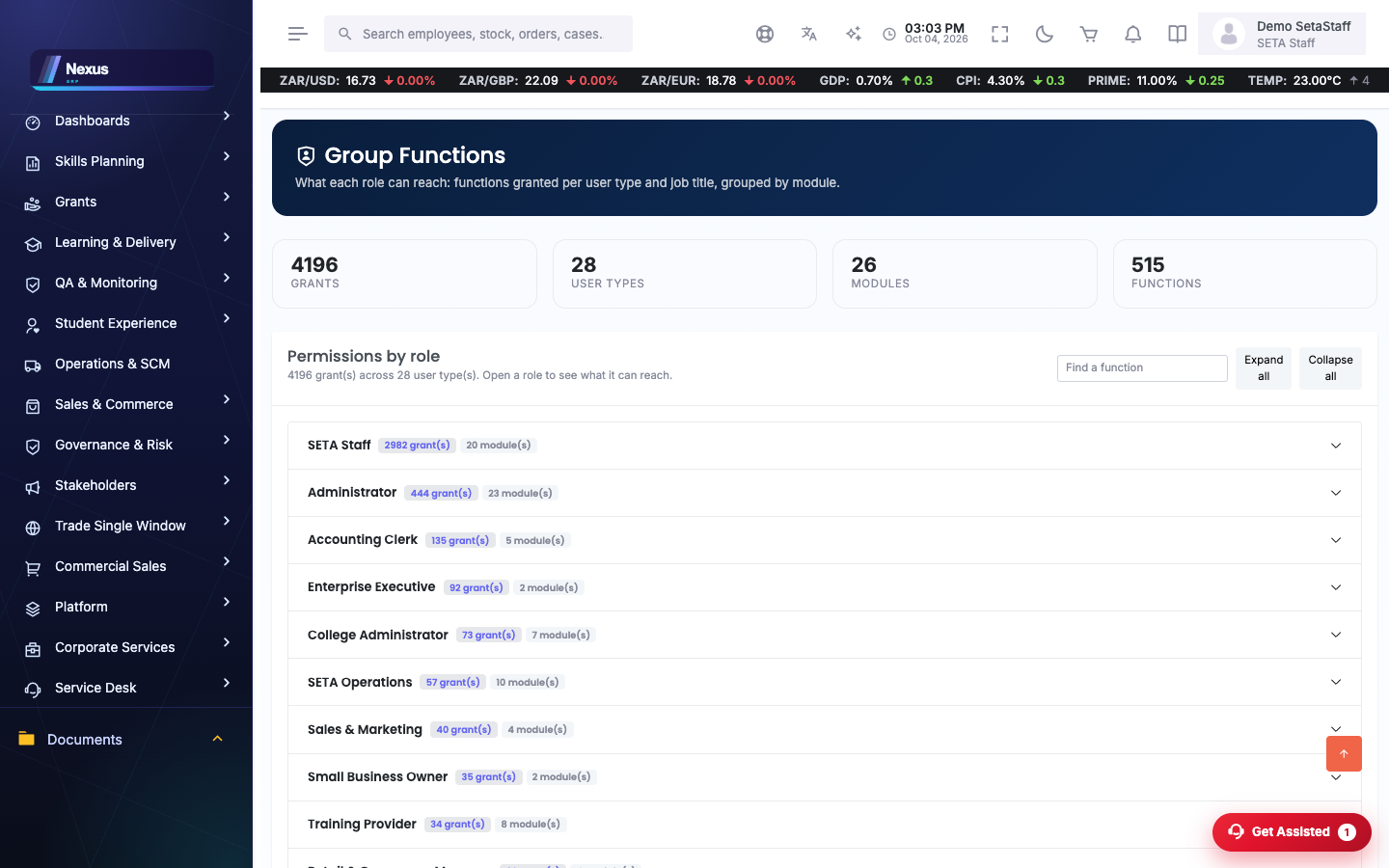
Group Functions /Configuration/GroupFunctions/GroupFunctionsOverview
Which functions (and therefore menus) each user type and title may use. This is where a missing menu item is almost always fixed.
Pick the user type (and title, if used).
Tick the functions the role should have.
Save — menus refresh within a few minutes or on next sign-in.
⚠️ A menu item only appears when its function is granted at the level the user actually signs in with — grant at the title level too if titles are in use.
Check Group Functions for their user type and title — the grant must exist at the level they sign in with. Menus are cached for up to three hours; a sign-out/in refreshes them.
How do I reset a password?
Open the user on User Overview and use the reset action; the user is prompted to change it at next sign-in.
What are the demo accounts?
One per active role: demo.admin, demo.staff, demo.provider, demo.assessor, demo.moderator, demo.sdf, demo.employer, demo.learner, demo.facilitator, demo.accounts, demo.employee, demo.sales, demo.teller, demo.shopmanager — all with password Demo@2026.